






Fix the MSVCP140D.dll missing error safely without downloading files from untrusted DLL websites. Learn how to repair Visual Studio, reinstall the affected application, scan Windows with SFC and DISM, check for malware, and restore damaged runtime components.
What Is MSVCP140D.dll
MSVCP140D.dll is a debug version of a Microsoft Visual C++ runtime file. The important detail here is the letter D at the end of the file name. That D usually means the file belongs to a debug environment rather than a normal release environment
In simple terms, this DLL is commonly used by software developers when testing applications, not by standard end users running finished software
Install or Repair Microsoft Visual Studio
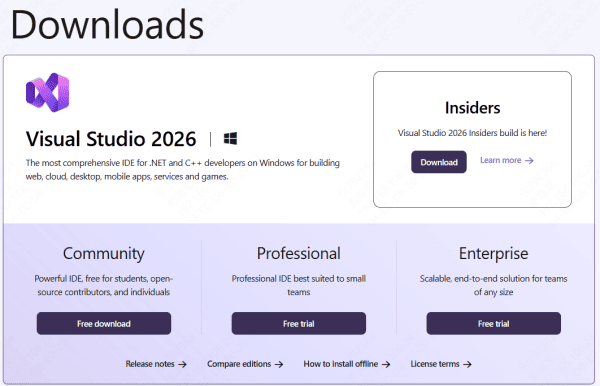
If the affected application is a development tool or a program that clearly depends on a developer environment, installing or repairing Microsoft Visual Studio is often the most direct fix
Go to Microsoft's official website, download Visual Studio, and make sure the Desktop development with C++ workload is included. If Visual Studio is already installed, use the Repair option instead of reinstalling everything from scratch
Reinstall the Affected Program
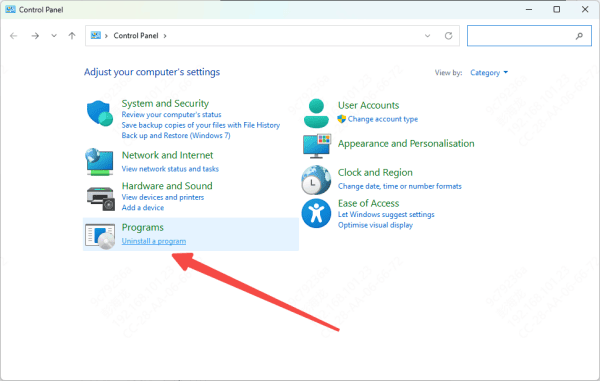
If the error only happens with one application, reinstalling that program is a very practical next step. Uninstall the software completely, restart the PC, and then install the latest official version again. This is especially important if you originally downloaded a beta build, unofficial version, modified package, or software from a non-official source
A proper release build should usually not require MSVCP140D.dll on a normal end-user PC. So if reinstalling the official release version fixes the issue, the original package was likely built or distributed incorrectly. This is often the simplest solution for non-developers
Repair Windows System Files
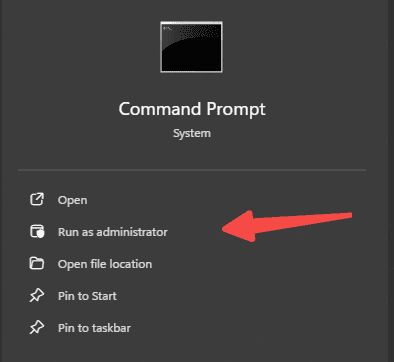
If the error continues after reinstalling the software, Windows system corruption may be involved. In that case, use System File Checker. Open Command Prompt as administrator and run sfc /scannow
This scan checks protected Windows files and repairs damaged components automatically. Once it finishes, restart the computer and test the program again
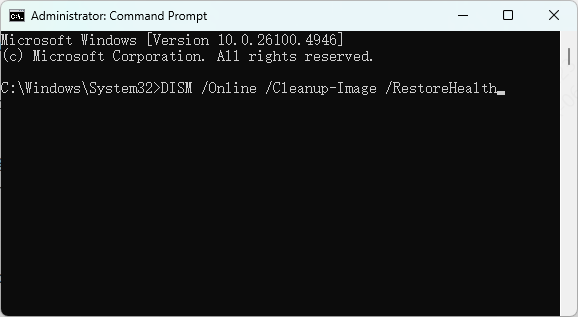
If SFC reports problems it cannot fully repair, run the DISM repair command as well
DISM helps restore the Windows system image and can repair deeper component damage that may affect runtime loading. These built-in tools are safe and often useful when DLL-related issues are part of a broader Windows problem
Use an Automatic DLL Repair Tool
If the error is still present and you want a faster way to detect missing runtime files, damaged DLL references, or deeper system-level issues, an automatic repair utility can help. PcGoGo DLL Fixer is designed for this type of situation. It can scan the system for missing or corrupted DLL files, detect related runtime issues, and restore the appropriate components automatically.
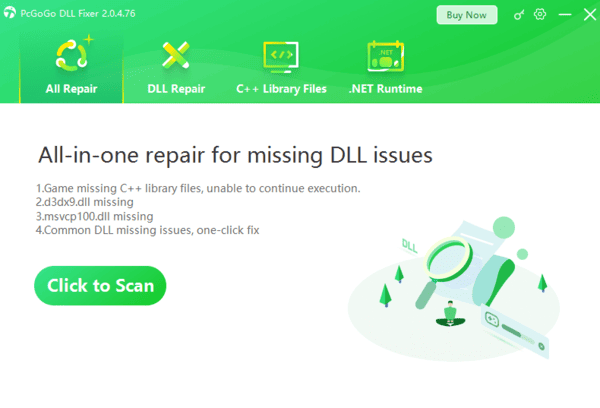
The process is straightforward. Install the tool, run a full scan, locate MSVCP140D.dll or related runtime errors in the results, and apply the repair. After the repair is complete, restart the PC and test the affected program again. This method can be especially useful when the issue is caused by multiple damaged dependencies rather than one missing file alone.
Scan for Malware
It is also worth checking whether malware played a role. Malicious software can delete, corrupt, or replace DLL files and runtime components.
Open Windows Security, run a full system scan, remove any detected threats, and then restart the PC. If the system has been unstable or shows other strange behavior, this step becomes even more important
A clean system matters because even if you restore the missing file, malware can damage it again or interfere with the same application later

Conclusion
The MSVCP140D.dll missing error usually means the program is looking for a debug runtime file that is not available on a normal Windows system. In many cases, the real cause is an incorrectly packaged application, an incomplete Visual Studio installation, or damaged Windows components. The safest fixes are to reinstall the affected program, repair Visual Studio if needed, run SFC and DISM, and use a trusted repair utility such as PcGoGo DLL Fixer when deeper DLL problems remain.




