Realtek Digital Output no sound issues are usually caused by incorrect audio settings, outdated drivers, disabled audio services, or Windows configuration problems. This guide provides practical solutions to help restore sound output, including updating Realtek audio drivers, setting the correct playback device, checking Windows services, adjusting audio formats, and using built-in troubleshooting tools.
Set as Default Device
Right-click the volume icon in the lower right corner of the taskbar and select "Sounds".
In the "Playback" tab, find Realtek Digital Output.
If it is not set as the default device, click on the Realtek device and select "Set Default" at the bottom.
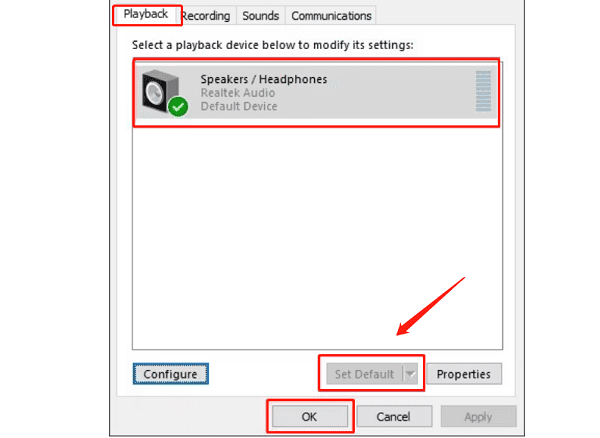
Click "OK" to save the settings, and then test if the audio is restored.
Check Windows Audio Services
Press Win + R, type "services.msc", and press Enter to open the Services window.
In the list, find "Windows Audio" and ensure it is running.
If it's not running, right-click on Windows Audio and select "Start".
If it is running, right-click on Windows Audio and select "Restart".
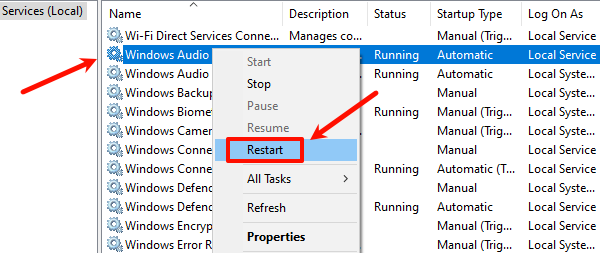
After closing the window, test if the audio is working correctly.
Check for Audio Driver
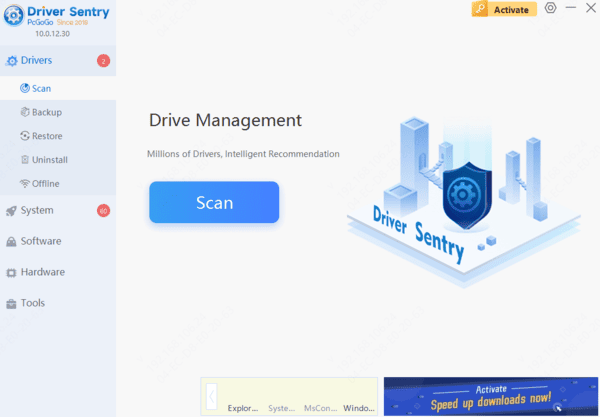
Outdated or corrupted drivers can cause the Realtek digital output to be silent, affecting normal audio functionality. Checking for and updating audio drivers can effectively resolve this issue. It is recommended to use Driver Sentry to automatically detect and update drivers, saving time and avoiding the risk of downloading or installing incorrect drivers.

Check Audio Format
Right-click the volume icon in the lower right corner of the taskbar and select "Sounds".
In the "Playback" tab, double-click Realtek Digital Output to open the "Properties" window.
Switch to the "Advanced" tab, and in the "Default Format" dropdown menu, try different sample rates and bit depths (e.g., 24-bit, 48000 Hz).
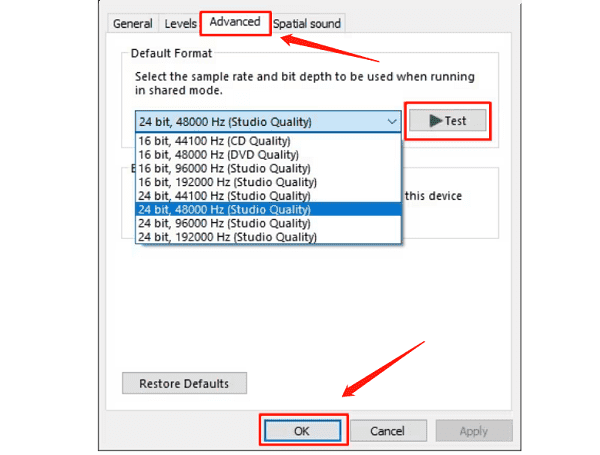
After closing the window, test if the sound is restored.
Run Audio Troubleshooter
Open Settings, and select "Update & Security".
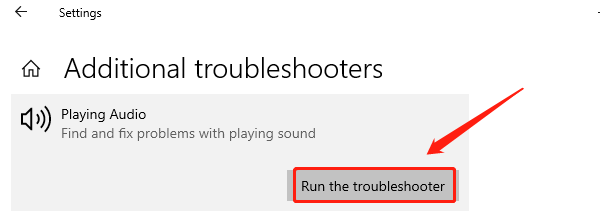
In the left-hand menu, choose "Troubleshoot" and click "Additional troubleshooters".
Find "Playing Audio" and click "Run the troubleshooter".
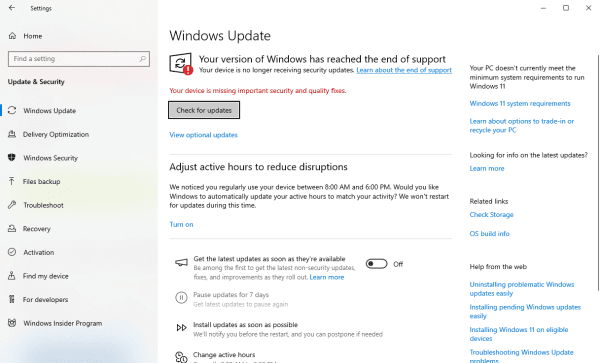
Check for Windows Updates
Press Win + I to open Settings, then select "Update & Security".
Click on "Windows Update" and then select "Check for Updates".
If updates are available, install them and restart your computer, then check if the Realtek digital output is working properly.