






Losing important files from a solid-state drive (SSD) can be extremely stressful, whether they are work documents, personal photos, videos, or system files. SSDs are widely used in modern laptops and desktops because of their speed and reliability, but data loss can still occur due to accidental deletion, formatting, system crashes, or file system corruption. Unlike traditional hard drives, SSDs use TRIM technology, which can make data recovery more difficult. However, in many cases, if prompt action is taken and the right methods are used, restoring lost files from an SSD is still possible.
Is It Possible to Restore Files from an SSD?
Yes, in many cases. When files are deleted from an SSD, the TRIM command may mark the data blocks for cleanup, potentially making recovery more difficult
Recovery success depends on how quickly you act, whether TRIM is enabled, and if new data has overwritten deleted files. Immediate action greatly increases the chance of success
Restore Files Using Windows Built-in Options
For minor data loss, Windows provides several built-in recovery options
First, check the Recycle Bin to see if deleted files can be restored easily
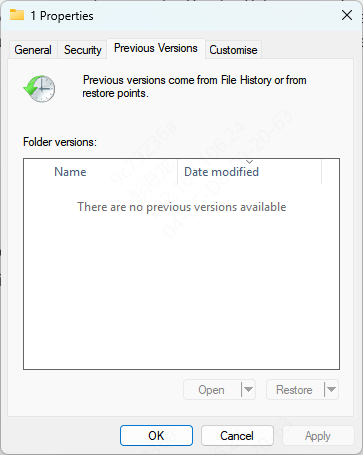
You can also try restoring files using File History or Previous Versions if backups were enabled
While these methods are simple, they are limited and often ineffective for formatted or corrupted SSDs
How to Restore Files from SSD Using PcGoGo Data Recovery
PcGoGo Data Recovery is a reliable tool for recovering files from SSDs on Windows. Even beginners can use it safely and effectively. Follow these steps:
Download and Install PcGoGo Data Recovery
Visit the official PcGoGo website and download the latest version of the software
Install it on a different drive than the SSD you are recovering files from
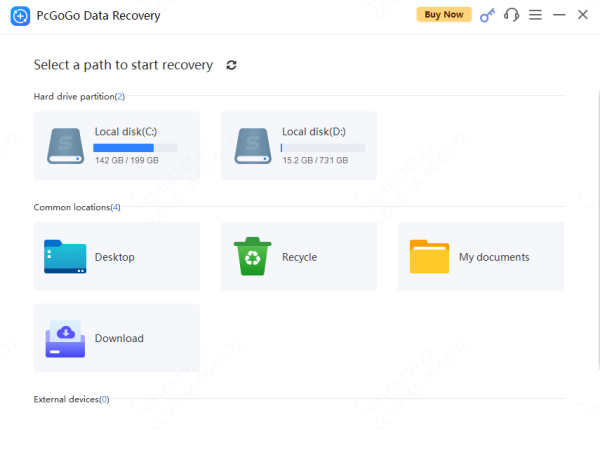
Select Path
Open PcGoGo Data Recovery and select the SSD or affected partition where data was lost
The software works with internal and external SSDs
Scan for Lost Files
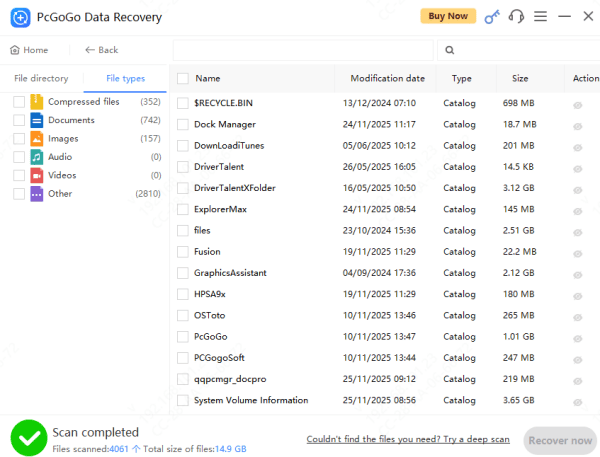
Click the Scan button to search for deleted or missing files
Recover and Save Files
Select the files to restore and save them to a different drive or external storage
Never save recovered files back to the original SSD, as this may overwrite remaining lost data
Tips to Maximize Recovery Success
Act immediately after noticing data loss
Avoid using the affected SSD until recovery is complete
Save recovered files to an external or different internal drive
Do not run multiple recovery tools simultaneously
How to Prevent Future SSD Data Loss
Regularly back up important files to external drives or cloud storage
Enable Windows File History or system restore points
Monitor SSD health and update firmware when needed
Avoid sudden shutdowns and ensure stable power supply
Use reliable antivirus software to prevent malware attacks

Common Causes of File Loss on SSDs
File loss on SSDs can occur for many reasons:
Accidental deletion or emptied Recycle Bin
Formatting the drive or deleting partitions
System crashes, failed updates, or blue screens
File system corruption or firmware issues
Malware or virus attacks
Power failure during read/write operations
Precautions for Recovery
Stop using the SSD immediately
Avoid installing recovery software on the affected drive
Prepare an external drive or secondary storage to save recovered files
Consider temporarily disabling TRIM if possible
Conclusion
Restoring files from an SSD can be challenging due to TRIM and data overwriting, but it is often achievable with prompt action and the right tools. While Windows built-in options may help in simple cases, professional recovery software like PcGoGo Data Recovery offers a safe, efficient, and user-friendly solution. By following proper recovery steps and maintaining good backup habits, you can recover your important files and protect your SSD data against future loss.




