



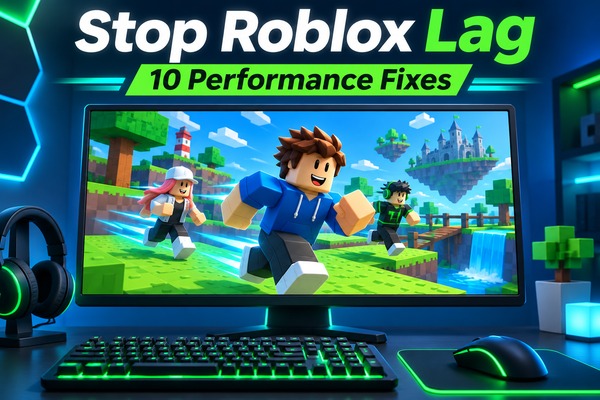
Roblox offers thousands of experiences, from competitive multiplayer games to large open-world adventures. However, sudden frame drops, delayed character movements, and random freezing can quickly ruin the gaming experience.
Roblox lag can result from demanding graphics settings, incompatible drivers, insufficient system resources, unstable network connections, or server-side problems. If you are wondering how to stop Roblox from lagging, the following solutions can help improve gameplay performance on Windows.
Solution 1: Lower Roblox Graphics Settings
Launch Roblox and join an experience.
Press Esc to open the in-game menu.
Navigate to Settings.
Locate Graphics Mode.
Change the setting from Automatic to Manual.
Reduce the Graphics Quality level.
Solution 2: Update Your Graphics Drivers
Graphics drivers play an important role in how Windows communicates with your graphics hardware.
Outdated, corrupted, or incompatible graphics drivers may contribute to low FPS, rendering errors, and unexpected stuttering in Roblox.
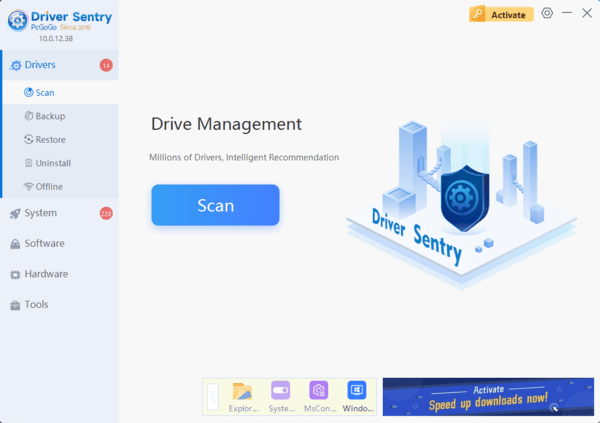
Driver Sentry is a Windows driver management utility that helps identify supported outdated, missing, or problematic device drivers.
It can help investigate graphics driver issues involving supported NVIDIA, AMD, and Intel graphics hardware.
Download Driver Sentry from the official website.
Install and launch the software.
Click Scan to check your computer's drivers.
Review the detected graphics driver issues.
Install an appropriate compatible graphics driver if available.
Restart your computer.
Launch Roblox and check whether performance has improved.
Solution 3: Close Resource-Intensive Background Applications
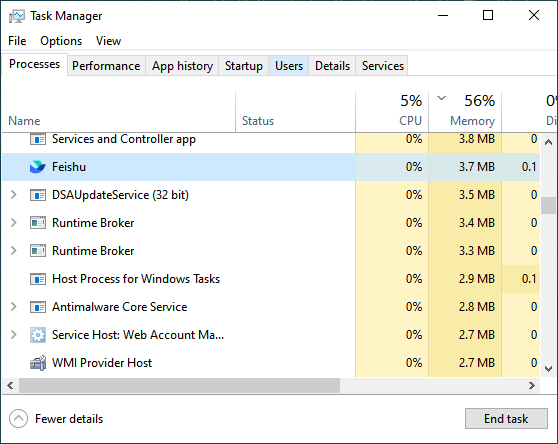
Press Ctrl + Shift + Esc to open Task Manager.
Select the Processes tab.
Review CPU, Memory, GPU, and Network usage.
Identify unnecessary resource-intensive applications.
Close applications that you are not using.
Return to Roblox and test gameplay.
Solution 4: Improve Your Internet Connection
Use an Ethernet connection instead of Wi-Fi.
Move closer to your wireless router.
Pause large downloads and uploads.
Restart your router if the connection is unstable.
Temporarily disconnect unnecessary personal VPN connections.
Solution 5: Configure Roblox to Use Your Dedicated Graphics Card
Some computers contain both integrated graphics and a dedicated graphics card.
If Roblox runs on the integrated graphics processor instead of the more powerful dedicated GPU, you may experience lower frame rates.
On Windows 11
Press Windows + I to open Settings.
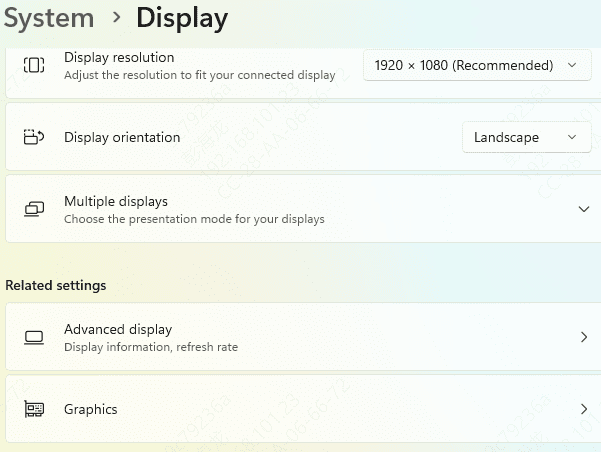
Navigate to System > Display > Graphics.
Locate Roblox in the application list or add its executable manually.
Select Roblox and click Options.
Choose High performance.
Click Save.
Restart Roblox.
On Windows 10
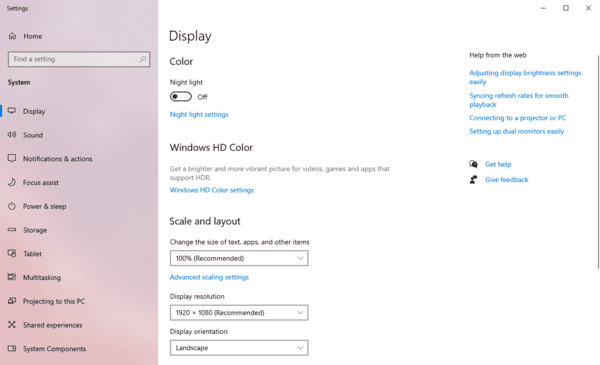
Open Settings > System > Display.
Select Graphics settings.
Add or select the Roblox application.
Open its graphics options.
Select High performance.
Save the changes.
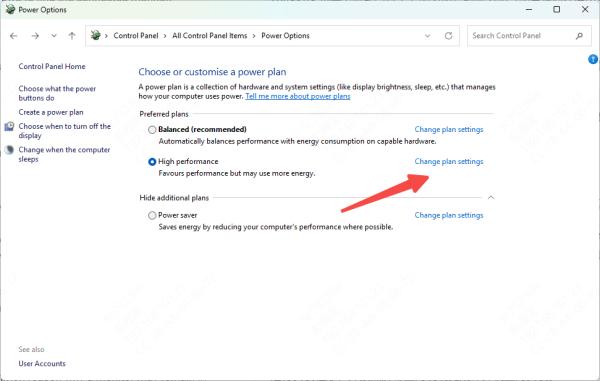
Solution 6: Adjust Windows Power Settings
Open Windows Settings.
Navigate to System > Power & battery.
Locate Power mode.
Select Best performance, if available.
Connect your laptop to a compatible power adapter.
Launch Roblox and test gameplay.
Solution 7: Disable Unnecessary Gaming Overlays
Check whether you are using:
Discord Overlay.
NVIDIA Overlay.
AMD recording and overlay features.
Xbox Game Bar background recording.
Third-party screen recording applications.
Solution 8: Check CPU and GPU Temperatures
Keep laptop ventilation openings unobstructed.
Use your laptop on a hard, flat surface.
Check whether cooling fans are functioning properly.
Remove accessible dust accumulation with the computer powered off.
Maintain sufficient airflow around your desktop computer.
Solution 9: Choose a Suitable Maximum Frame Rate
Launch a Roblox experience.
Press Esc.
Open the Settings menu.
Locate Maximum Frame Rate, if available.
Select an appropriate frame rate limit.
Solution 10: Reinstall Roblox
If Roblox continues to lag after adjusting graphics, network, and Windows settings, the application itself may be experiencing problems.
First, completely close Roblox and restart your computer.
Launch the game again and allow any available updates to finish.
If the problem persists, try reinstalling Roblox.
Conclusion
Roblox lag can result from demanding graphics settings, outdated drivers, unstable internet connections, or insufficient system resources. Start by lowering graphics quality, closing unnecessary background applications, and improving your network connection. If the problem persists, adjust Windows power settings, check hardware temperatures, or use Driver Sentry to identify and update supported graphics and network drivers. These troubleshooting methods can help reduce lag, improve FPS, minimize stuttering, and deliver a smoother Roblox gaming experience on Windows 10/11.