


Are you encountering Twitch Error 4000 while trying to watch your favorite live streams? Instead of playing the video, Twitch may display an error message saying "Error #4000: Resource Format Not Supported." In some cases, the stream remains black, keeps loading, or fails to play audio.
Twitch Error 4000 usually indicates that the browser cannot properly play the requested media resource. The problem may involve browser settings, corrupted cache files, incompatible extensions, audio devices, graphics drivers, or network connectivity.
Fortunately, most Twitch playback problems can be resolved without reinstalling Windows. This guide explains how to fix Twitch Error 4000 on Google Chrome, Microsoft Edge, Firefox, and Windows 10 or Windows 11.
Method 1: Refresh Twitch and Try Another Stream
Open the affected Twitch stream.
Press Ctrl + R to refresh the page.
Wait for the video player to reload.
If the error continues, close the browser.
Reopen Twitch and try again.
Method 2: Clear Browser Cache and Cookies
Open your browser.
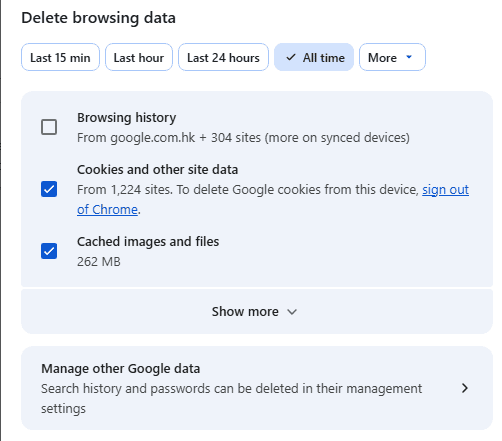
Press Ctrl + Shift + Delete.
Select the appropriate time range.
Choose Cached images and files.
Select cookies and site data if necessary.
Click Clear data.
Restart the browser.
Method 3: Disable Browser Extensions
Open your browser's extension management page.
Temporarily disable installed extensions.
Restart the browser.
Open Twitch.
Test the affected stream.
If the error disappears, re-enable extensions individually until you identify the conflicting one.
Method 4: Check Browser Hardware Acceleration
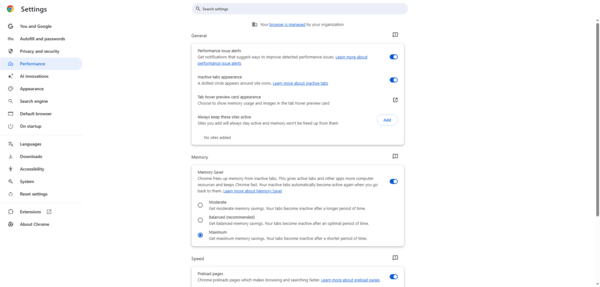
Google Chrome
Open Chrome.
Click the three-dot menu.
Select Settings.
Open System.
Locate Use graphics acceleration when available.
Temporarily change the setting.
Relaunch Chrome.
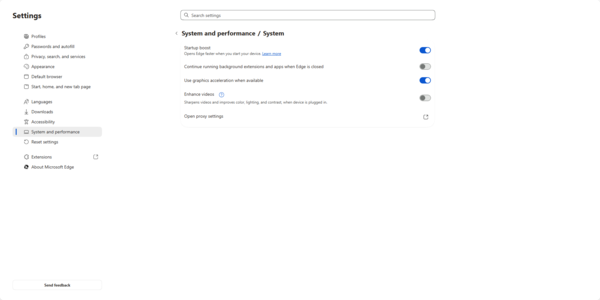
Microsoft Edge
Open Edge.
Open Settings.
Select System and performance.
Find the graphics acceleration option.
Temporarily change the setting.
Restart Edge.
Method 5: Check Windows Audio Output Devices
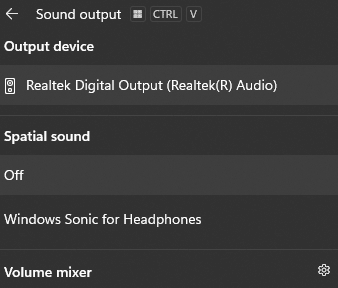
Press Windows + I.
Open System.
Select Sound.
Locate the Output section.
Select your preferred speakers or headphones.
Method 6: Update Graphics and Audio Drivers
Graphics and audio drivers help Windows communicate with hardware used during media playback. Outdated, corrupted, or incompatible drivers may contribute to video rendering errors, audio problems, or browser instability.
Checking the relevant drivers is useful when Twitch Error 4000 occurs alongside other media playback issues.
Update Drivers with Driver Sentry
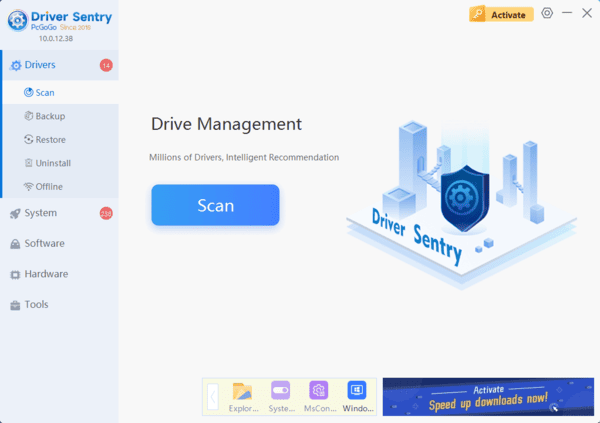
Driver Sentry is a Windows driver management utility that can identify supported missing, outdated, or problematic drivers.
It provides an additional way to check graphics and audio driver issues.
Install and launch the application.
Click Scan to examine your computer.
Review the detected graphics and audio driver issues.
Install appropriate compatible updates if available.
Restart Windows.
Update Drivers Manually
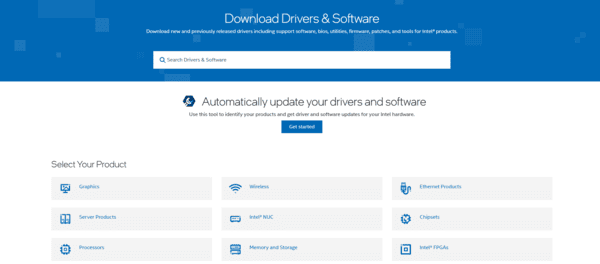
You can also download compatible drivers directly from your hardware manufacturer.
Press Windows + X.
Select Device Manager.
Expand Display adapters.
Identify your graphics card.
Expand Sound, video and game controllers.
Identify the relevant audio device.
Download compatible drivers from the manufacturer's official website.
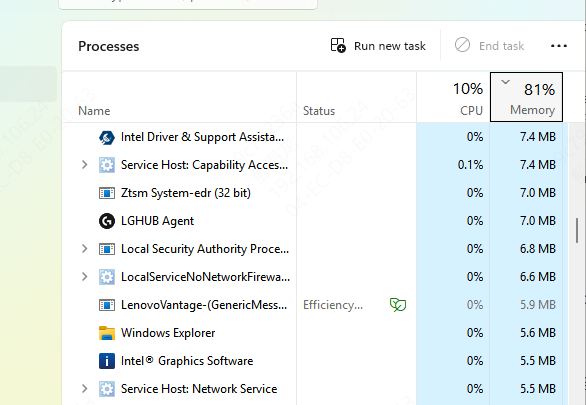
Method 7: Close Conflicting Media Applications
Close unnecessary media players.
Exit unused recording applications.
Temporarily close third-party audio enhancement utilities.
Restart your browser.
Open Twitch and test the stream.
Method 8: Update or Switch Your Browser
An outdated browser may have compatibility problems with modern streaming technologies.
Keeping your browser updated ensures that you receive current media playback fixes and security improvements.
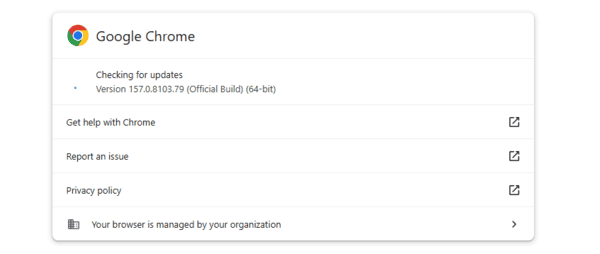
Update Google Chrome
Open Chrome.
Click the three-dot menu.
Select Help > About Google Chrome.
Allow Chrome to check for updates.
Relaunch the browser if prompted.
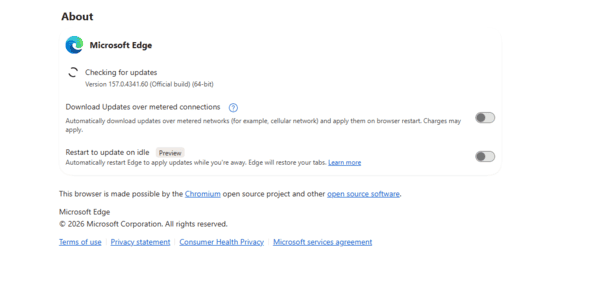
Update Microsoft Edge
Open Edge.
Open the three-dot menu.
Select Help and feedback > About Microsoft Edge.
Install available updates.
Restart Edge.
Method 9: Troubleshoot Network and DNS Problems
Unstable network connections can interrupt streaming and prevent video resources from loading.
Although Twitch Error 4000 is not always a network problem, connectivity checks may help when multiple streaming websites are affected.
Restart Your Network Connection
Close Twitch.
Restart your router if appropriate.
Reconnect your computer to the internet.
Test another streaming website.
Open Twitch again.
If you use a VPN or proxy, temporarily disconnect it and test playback.
You can also try another trusted network to determine whether the issue is connection-specific.
Flush the DNS Cache
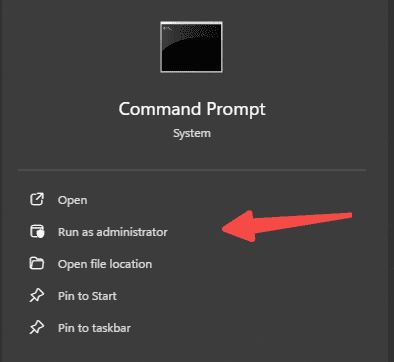
Type cmd in Windows Search.
Select Run as administrator.
Enter the following command:
ipconfig /flushdns
Press Enter.
Restart your browser.
Method 10: Adjust Twitch Video Quality
Open the affected Twitch stream.
Click the video player's settings icon if available.
Open Quality.
Select Auto or a lower supported resolution.
Wait for the stream to reload.
Conclusion
Twitch Error 4000 may result from browser compatibility problems, corrupted cache files, extension conflicts, audio device settings, or graphics driver issues.
Start by refreshing the stream, clearing browser data, and disabling unnecessary extensions. If the problem continues, check hardware acceleration, audio devices, and network connectivity.
Driver Sentry provides an additional way to check supported graphics and audio driver issues, while switching browsers can help identify playback compatibility problems.
Following these troubleshooting methods can help resolve Twitch Error 4000 and restore normal streaming on your Windows PC.