






Unarc.dll error code 1 is different from other unarc.dll errors because it points to a write failure during decompression, not a damaged archive or memory problem. The installer can read the archive correctly, but unarc.dll cannot write the extracted files to the destination. In most cases, the cause is insufficient disk space, blocked permissions, antivirus interference, or a corrupted install path. Since unarc.dll and ISDone.dll work together during extraction, error code 1 specifically indicates the write process failed, making disk space and permissions the first things to check.
Fix 1: Free Up Disk Space on the Installation Drive
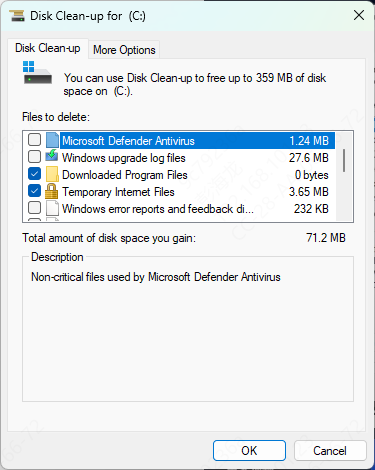
Open File Explorer, right-click your C drive or whichever drive you are installing to, select Properties, and click Disk Cleanup. Check Temporary files, Thumbnails, Downloaded Program Files, and Recycle Bin contents
Click OK to remove them. After cleanup, confirm you have at least 20 to 30 GB of free space for standard game installations, and 50 GB or more for very large titles
Fix 2: Run the Installer as Administrator
If disk space is not the issue, a permissions problem is the next most likely cause. When the installer attempts to write files to a protected directory and does not have the required access level, unarc.dll returns a write failure. Running the installer with administrator privileges resolves this by granting it unrestricted write access.
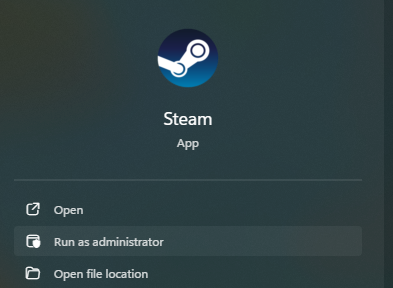
Right-click the installer executable and select Run as administrator
If you are launching through Steam or another platform launcher, right-click the launcher shortcut, go to Properties, open the Compatibility tab, and check Run this program as an administrator before launching the game installation
Fix 3: Change the Installation Directory
When the installer prompts for an installation directory, change it to a simple path such as D:\Games\GameName or C:\Games\GameName rather than the default path inside Program Files
Avoid paths that contain parentheses, ampersands, or other special characters. If you are extracting an archive manually with WinRAR or 7-Zip, extract directly to a root-level folder such as C:\Extract rather than a deeply nested or specially named path
Fix 4: Disable Antivirus During Installation
Antivirus real-time protection intercepts file write operations as they happen and can block unarc.dll from writing extracted files to disk, producing a write failure that surfaces as error code 1. This is especially common with security software that has aggressive file system monitoring enabled.
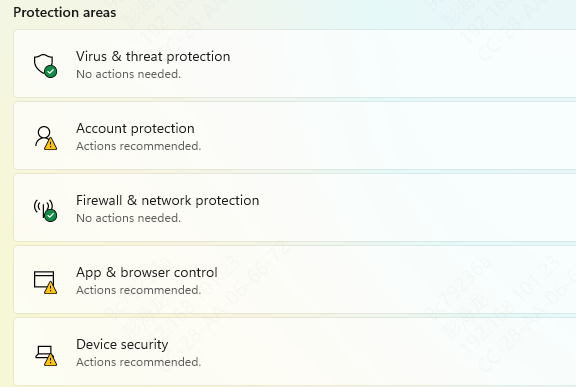
On Windows Security, go to Virus and threat protection, click Manage settings, and toggle Real-time protection off. Start the installation immediately after disabling protection and re-enable it as soon as the installation completes
If the installation succeeds with antivirus disabled, add the installation folder and the installer executable to your antivirus exclusion list so you do not need to disable protection for future repairs or updates
Fix 5: Use an Automated DLL Repair Tool
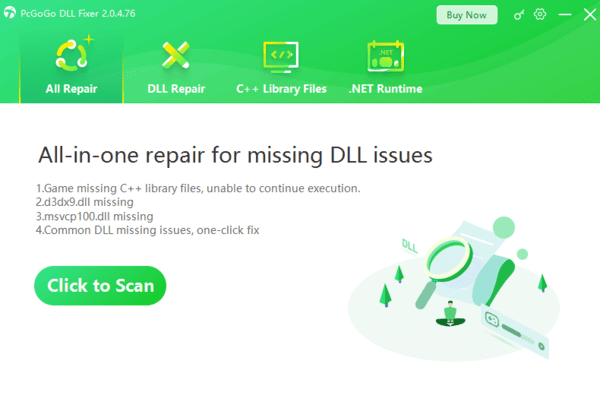
When the error persists and no single obvious cause is apparent, the problem may involve damaged system components or corrupted DLL dependencies that are difficult to identify through manual inspection. PcGoGo DLL Fixer scans the full system for corrupted DLL files, missing runtime dependencies, and broken registry entries that can contribute to write failures and extraction errors.
Fix 6: Verify the Archive and Re-download if Necessary
Open WinRAR or 7-Zip, right-click the archive file, and select Test Archive in WinRAR or use the Test function in 7-Zip. If the test reports errors, the archive is damaged and needs to be re-downloaded. Use a stable connection and download the file again
If the source provides an MD5 or SHA256 hash, verify your download against it using CertUtil in Command Prompt to confirm the file arrived intact
Fix 7: Run SFC and DISM to Repair System Files
Corrupted Windows system files can affect the components that unarc.dll and ISDone.dll depend on, causing write operations to fail.
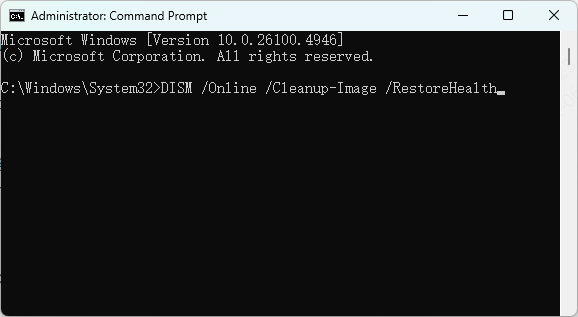
Open Command Prompt as Administrator and run:
sfc /scannow
Let it complete without interruption. If SFC cannot repair all files, follow up with DISM. Run these commands one at a time:
DISM /Online /Cleanup-Image /ScanHealth
DISM /Online /Cleanup-Image /RestoreHealth
Conclusion
Unarc.dll error code 1 is a write failure, not a read failure, which makes it more straightforward to diagnose than other unarc.dll errors. Check disk space and run the installer as administrator first, since these two causes account for the majority of cases. If those do not resolve it, disable antivirus, verify the archive, and try a simpler installation path. Use PcGoGo DLL Fixer for broader system dependency issues and follow up with SFC, DISM, and CHKDSK if system or drive-level problems are suspected. Most cases are resolved before reaching the system repair stage.




