






Forgetting your iPhone passcode and getting locked out can be frustrating, but you can still regain access without the password. This guide covers two methods to unlock an iPhone screen lock — using Apple's official recovery mode and PcGoGo Screen Unlock for a faster solution. It explains the preparation steps, recovery process, firmware installation, lock removal, and important tips to avoid data loss during unlocking.
Things to Know Before Unlocking iPhone Without a Password
Before you start, keep these important points in mind:
Unlocking without a password usually erases all data on the device
A computer (Mac or Windows PC) is required
If you have an iCloud or iTunes backup, you can restore your data afterward
Some methods may require your Apple ID after unlocking
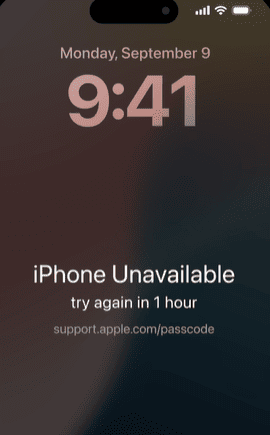
Unlock iPhone Screen Lock Without Password Using Apple Recovery Mode
Apple's official method involves restoring your iPhone through recovery mode. This approach is safe and reliable but can be time-consuming and slightly technical.
Step 1: Turn Off Your iPhone
Press and hold the Side button + Volume Down button
Drag the power slider to turn off your iPhone
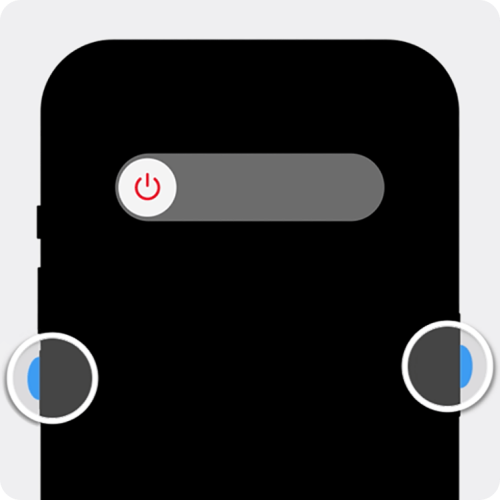
Step 2: Enter Recovery Mode
Connect your iPhone to a Mac or Windows PC using a USB cable
Immediately press and hold the Side button
Keep holding it even when the Apple logo appears
Release only when you see the recovery mode screen (computer + cable icon)

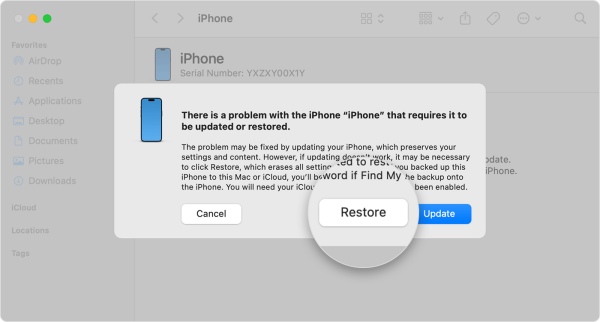
Step 3: Restore Your iPhone
Open Finder, iTunes, or Apple Devices
Select your iPhone when it appears
Choose Restore when prompted
Wait for the restore process to complete
Step 4: Set Up Your iPhone
When the Hello screen appears, disconnect your iPhone
Set it up as new or restore from a backup
Method 2: Unlock iPhone Screen Lock Without Password Using PcGoGo Screen Unlock (Recommended)
If you want a faster, simpler, and more beginner-friendly option, PcGoGo Screen Unlock is an excellent choice. It removes all types of iPhone screen locks without requiring the passcode.
Step 1: Download and Install PcGoGo Screen Unlock
Visit the official PcGoGo Screen Unlock website
Download and install the software on your Windows
Launch the program
Step 2: Connect Your iPhone to the Computer
Use a USB cable to connect your locked iPhone
Select Unlock Screen Passcode
Click Remove Now to continue
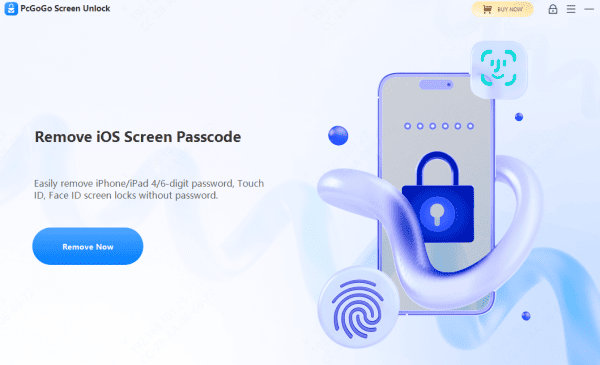
Step 3: Download the Firmware Package
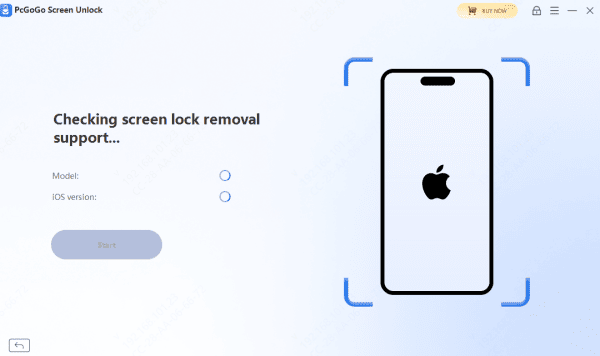
The software automatically detects your device model and iOS version
Download the required firmware package
Wait for the download to finish
Step 4: Start Removing the Screen Lock
Click Start Removal
PcGoGo Screen Unlock will remove the passcode, Face ID, or Touch ID
Keep your iPhone connected during the process
The lock will be removed in just a few minutes
Conclusion
Being locked out of your iPhone doesn't mean it's the end. You can unlock your iPhone screen lock without a password using Apple's recovery mode, but the process can be slow and complicated. For a faster, simpler experience, PcGoGo Screen Unlock offers an efficient solution that works on all iPhone models and iOS versions. Choose the method that fits your needs and regain access to your iPhone with confidence.




