






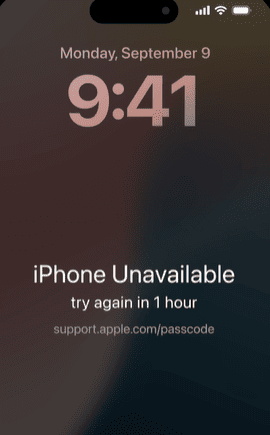
Forgetting your iPhone passcode can leave you locked out of your device, especially after multiple failed attempts trigger messages like "iPhone Unavailable" or "Security Lockout." Whether caused by a forgotten password, failed Face ID, or a disabled device, the lock can prevent access to your apps, photos, and settings. This guide explains why iPhones become locked and provides two reliable methods to unlock an iPhone without a passcode, including Apple's official Recovery Mode and a simpler solution using PcGoGo Screen Unlock.
Why Apple Locks iPhones After Too Many Failed Attempts
Apple designs iPhones with strong security to protect personal data
When the wrong passcode is entered too many times, the system assumes the device could be under attack. As a result, iOS disables the iPhone completely and prevents further attempts
The passcode can no longer be entered
Face ID and Touch ID are disabled
All data remains encrypted and inaccessible
Apple does not provide a way to bypass the lock directly. Instead, unlocking requires erasing the device, which removes the passcode and allows you to set the iPhone up again
Method 1: Unlock iPhone Without Passcode Using Apple Recovery Mode
Recovery Mode is Apple's official solution for unlocking a disabled iPhone. It restores iOS and removes the screen lock.
Step 1: Turn Off Your iPhone
Disconnect your iPhone from the computer if it's connected
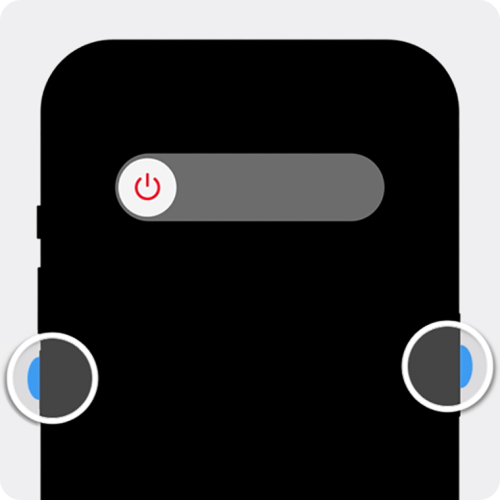
Press and hold the Side button + Volume Down (or Side button only on older models)
Drag the power-off slider to turn off the device
Step 2: Enter Recovery Mode
Connect your iPhone to a computer using a USB cable
Immediately press and hold the Side button
Keep holding until you see the recovery mode screen (computer and cable icon)

Step 3: Restore Your iPhone
Open Finder, iTunes, or Apple Devices on your computer
Select your iPhone when it appears
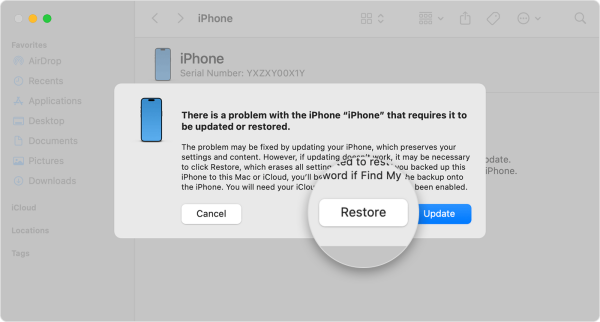
Choose Restore when prompted
Wait for the restore process to finish
Step 4: Set Up Your iPhone
When the "Hello" screen appears, disconnect your iPhone
Follow the on-screen instructions to set it up
Restore data from a backup if available
Method 2: Unlock iPhone Without Passcode Using PcGoGo Screen Unlock (Recommended)
If you want a faster and more user-friendly option, PcGoGo Screen Unlock is a reliable alternative. It removes all types of iPhone screen locks without requiring the passcode.
Step 1: Download and Install PcGoGo Screen Unlock
Download the latest version from the official PcGoGo Screen Unlock website
Install and launch the software on your computer
Step 2: Connect Your iPhone
Use a USB cable to connect your locked iPhone
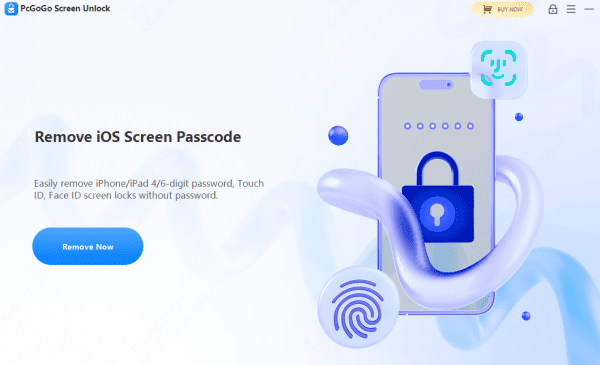
Select Unlock Screen Passcode
Click Remove Now to continue
Step 3: Download the Firmware Package
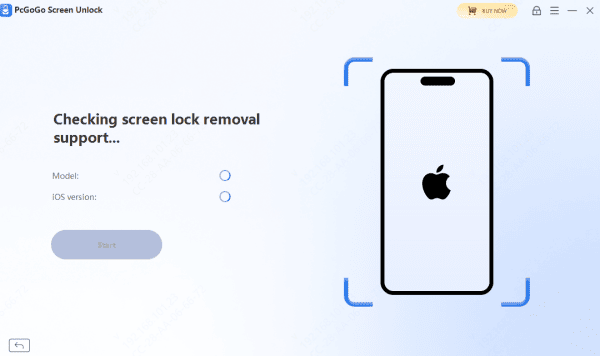
The software will automatically detect your iPhone model and iOS version
Download the required firmware package
Step 4: Remove the Screen Lock
Click Start Removal once the firmware is ready
Wait a few minutes while the passcode is removed
Do not disconnect your device during the process
Step 5: Set Up Your iPhone
Your iPhone will restart without a lock
Follow the on-screen setup steps
Restore data from a backup if available
Which Method Should You Choose?
If you're comfortable with technical steps and don't mind a longer process, Apple Recovery Mode works well
However, if you prefer a quicker, easier, and more guided experience, PcGoGo Screen Unlock is the better option—especially for users who want minimal hassle
Final Thoughts
Forgetting your iPhone passcode doesn't mean your device is lost forever. Whether you choose Apple's Recovery Mode or the faster PcGoGo Screen Unlock solution, you can regain access with the right steps. If convenience and speed matter most, PcGoGo Screen Unlock offers a simple and effective way to unlock your iPhone and get back to using it without stress.




