WARDOGS delivers fast-paced combat where smooth performance and responsive controls are essential. However, some PC players may experience sudden FPS drops, screen stuttering, delayed inputs, or network lag that makes gameplay frustrating.
If WARDOGS keeps stuttering or lagging on your computer, the problem may be related to outdated graphics drivers, demanding graphics settings, background applications, or an unstable internet connection. In some cases, overheating or insufficient system resources can also affect performance. This guide explains how to fix WARDOGS stuttering and lagging on Windows, including practical solutions for low FPS, high ping, and input delay.
Optimize WARDOGS Graphics Settings
Open the game's graphics menu, and try the following adjustments:
Lower the overall graphics preset.
Reduce shadow quality.
Lower texture quality if your GPU has limited video memory.
Reduce visual effects and post-processing settings.
Lower the rendering resolution if necessary.
Apply the changes and test gameplay.
Stabilize Your Frame Rate
If WARDOGS provides an FPS limit option, try setting a frame rate your computer can maintain consistently.
For example, if your FPS frequently fluctuates between 70 and 110, limiting it to a stable value may improve frame pacing.
You can also compare gameplay with V-Sync enabled and disabled. V-Sync may reduce screen tearing, but it can introduce additional input latency in some configurations.
If the game supports DLSS, FSR, or XeSS, consider testing an appropriate upscaling mode to reduce GPU workload.
Update Graphics Drivers to Reduce Stuttering
Graphics drivers play an important role in gaming performance. They allow Windows and games to communicate with the graphics card and manage rendering tasks. Outdated or incompatible graphics drivers may contribute to stuttering, graphical glitches, unstable FPS, or crashes.
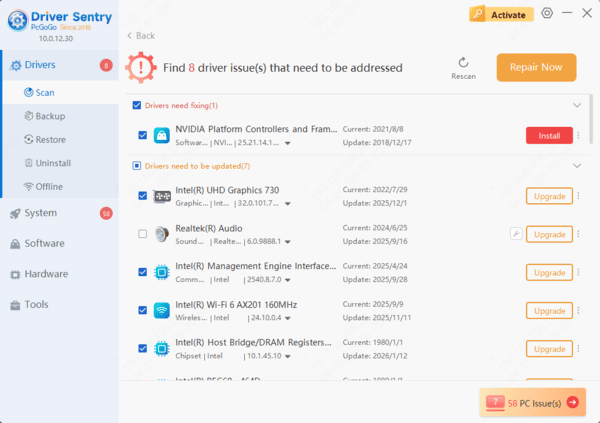
Driver Sentry scans for certain outdated, missing, or problematic drivers and displays available update or repair recommendations.
Download Driver Sentry.
Install and launch the software.
Run a driver scan.
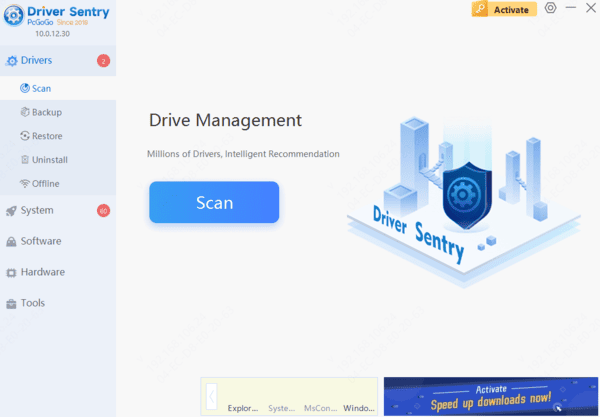
Review the detected driver issues and available updates.
Install an appropriate compatible graphics driver update if available.
Restart your computer if necessary.
Launch WARDOGS and check whether performance improves.
Close Background Applications and Overlays
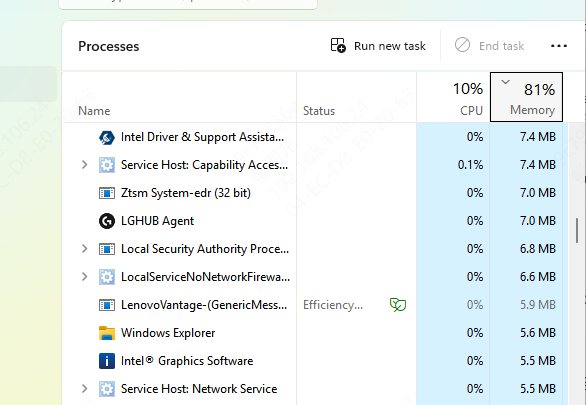
Press Ctrl + Shift + Esc to open Task Manager.
Select the Processes tab.
Check CPU, memory, and GPU usage.
Identify unnecessary resource-intensive applications.
Fix WARDOGS Network Lag and High Ping
If WARDOGS runs smoothly but multiplayer actions are delayed, the issue may be related to your internet connection rather than graphics performance.
High ping and packet loss can cause rubber-banding, delayed hit registration, and connection interruptions.
Check Your Internet Connection
Start by testing your internet connection using a reliable network diagnostic tool.
Pay attention to latency, packet loss, and connection stability rather than download speed alone.
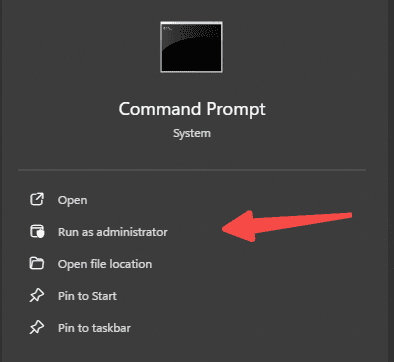
You can also open Command Prompt and run:
ping 1.1.1.1 -n 20
Use a Wired Ethernet Connection
Wi-Fi connections may experience interference, congestion, or unstable signal strength.
If possible, connect your computer directly to the router using an Ethernet cable.
A wired connection can provide more consistent latency and reduce wireless interference.
Reduce Network Congestion
Pause unnecessary downloads.
Close bandwidth-intensive applications.
Temporarily stop nonessential cloud synchronization.
Check whether other devices are heavily using the network.
Select a nearby game server if the game provides this option.
Adjust Windows Settings for Better Gaming Performance
Press Windows + I to open Settings.
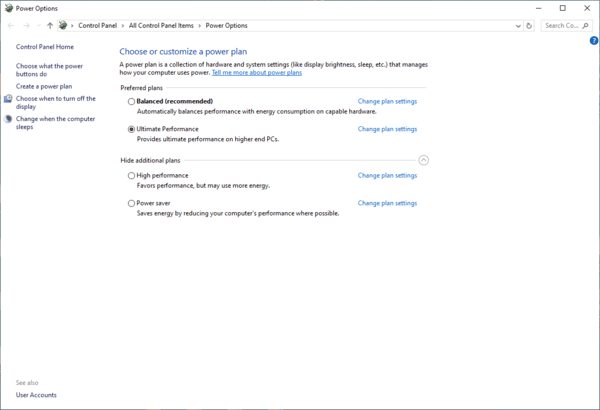
Select System > Power & battery or the corresponding power settings for your Windows version.
Find the available power mode options.
Select a performance-oriented mode when appropriate.
Restart WARDOGS and compare performance.
If you use a gaming laptop, connect it to external power before testing.
Verify Game Files and Install Updates
Corrupted or missing game files can sometimes cause unusual performance problems, freezing, or crashes.
If WARDOGS stuttering started after an interrupted download or update, verifying the game files is worth trying.
For Steam installations:
Open Steam.
Go to Library.
Right-click WARDOGS.
Select Properties.
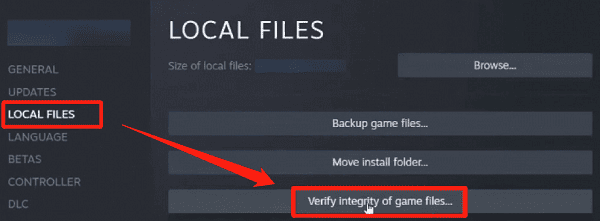
Open Installed Files.
Click Verify integrity of game files.
Wait for the verification process to finish.
If you use another supported launcher, look for its equivalent repair or verification option.
You should also check for available game updates and relevant Windows updates.
Developers may release patches that address performance problems, compatibility issues, and other bugs.
Conclusion
WARDOGS stuttering and lagging can result from graphics performance limitations, outdated drivers, background applications, or unstable network connections.
If you experience FPS drops or choppy gameplay, start by optimizing graphics settings, checking system resource usage, and updating your graphics drivers. You can update drivers manually through NVIDIA, AMD, or Intel, or use Driver Sentry to check for supported Windows driver issues.
For multiplayer lag, focus on connection stability, ping, packet loss, and network congestion rather than graphics settings alone.
By identifying the type of performance problem and applying the appropriate solutions, you can reduce WARDOGS stuttering and enjoy smoother, more responsive gameplay on PC.