



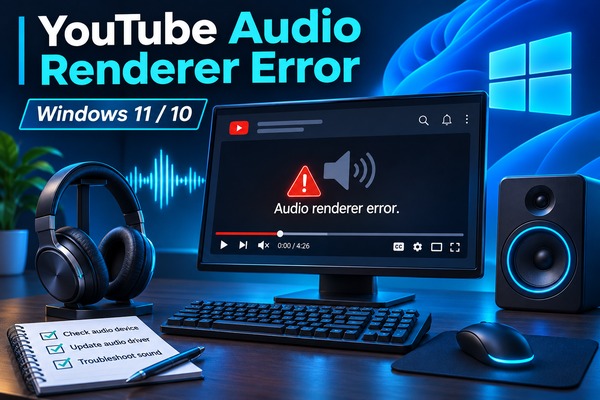
You open YouTube, select a video, and expect it to start playing normally. Instead, a black screen appears with the following message:
"Audio renderer error. Please restart your computer." The YouTube Audio Renderer Error is often associated with audio driver problems, conflicting audio settings, or communication failures between Windows and connected audio devices.
If you are experiencing this issue on Windows 11 or Windows 10, the following solutions can help you identify the cause and restore normal video playback.
What Causes YouTube Audio Renderer Error?
Outdated, corrupted, or incompatible audio drivers.
Conflicts between multiple audio output devices.
Incompatible audio sample rate settings.
Browser hardware acceleration problems.
Unresponsive Windows Audio services.
Conflicts involving ASIO drivers and audio production software.
Browser extensions interfering with multimedia playback.
USB, HDMI, or Bluetooth audio connection problems.
Windows or firmware compatibility issues.
Solution 1: Disconnect and Reconnect Your Audio Device
Close the affected YouTube video.
Disconnect your headphones, speakers, or external audio interface.
Wait approximately 10 seconds.
Reconnect the audio device.
Refresh the YouTube page and resume playback.
If you are using a USB headset, try connecting it to another USB port.
For Bluetooth headphones, disconnect and reconnect the device through Windows Bluetooth settings.
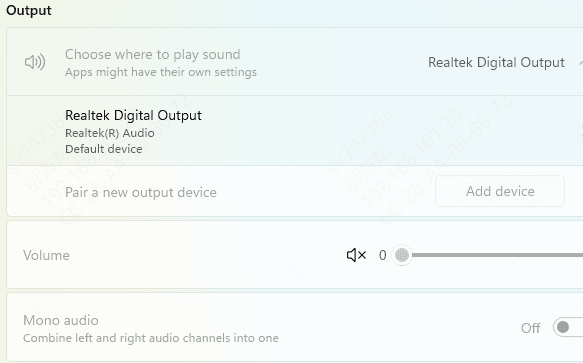
You should also navigate to Settings > System > Sound and confirm that Windows is using the correct audio output device.
Solution 2: Completely Restart Your Browser and Computer
Press Ctrl + Shift + Esc to open Task Manager.
Locate any remaining processes associated with your browser.
End the remaining browser processes if necessary.
Reopen the browser and play a YouTube video.
If the problem continues, restart your computer.
Solution 3: Update Your Audio Drivers
Audio drivers allow Windows and applications to communicate with speakers, headphones, sound cards, and external audio interfaces.
When these drivers become damaged or incompatible, browsers may fail to initialize audio playback correctly.
Update Audio Drivers with Driver Sentry
Driver Sentry is a Windows driver management utility that helps identify supported missing, outdated, or problematic device drivers.
It can help investigate audio-related driver problems involving Realtek audio devices, Intel Smart Sound Technology, HDMI audio controllers, and other supported hardware.
Download Driver Sentry.
Install and launch the software.
Click Scan to detect potential driver problems.
Review the detected audio-related driver issues.
Install an appropriate compatible driver if available.
Restart your computer.
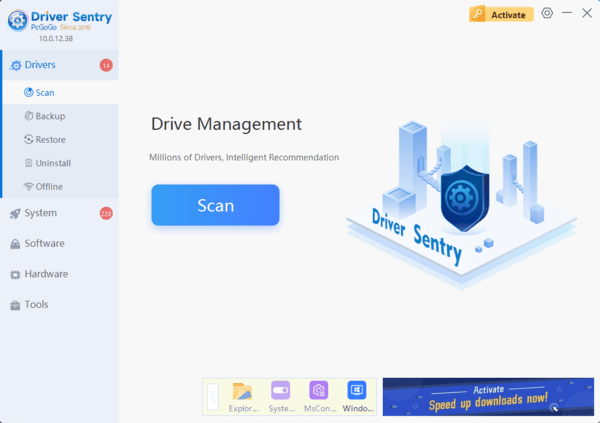
Open YouTube and check whether video playback works normally.
Use Device Manager
Expand Sound, video and game controllers.
Right-click the affected audio device.
Select Properties.
Open the Driver tab.
Click Update Driver, if available.
Restart your computer.
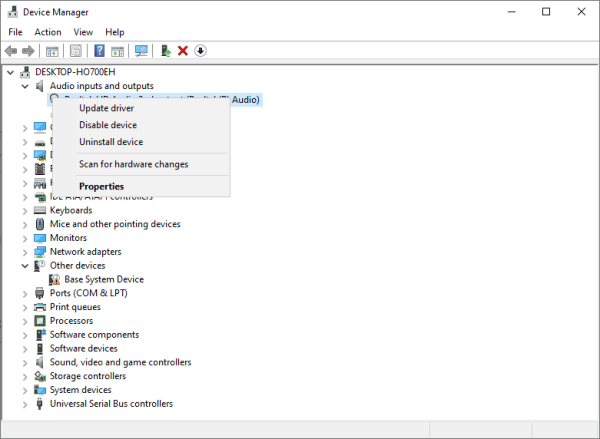
Solution 4: Disable and Re-enable Your Audio Device
Select Device Manager.
Expand Sound, video and game controllers.
Locate your active audio device.
Right-click it and select Disable device.
Wait several seconds.
Right-click the device again and select Enable device.
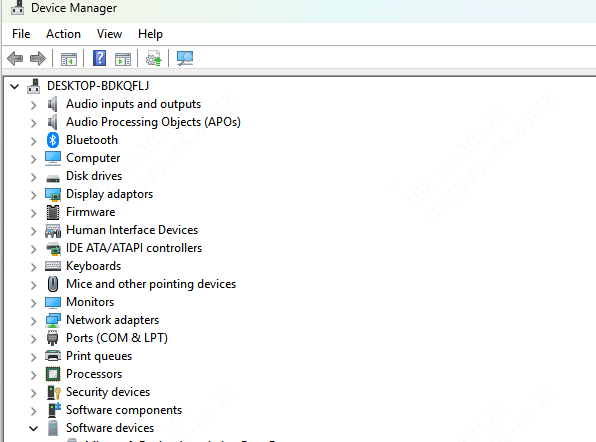
Solution 5: Run the Windows Audio Troubleshooter
Windows includes troubleshooting tools that can identify common audio configuration, device, and service problems.
On Windows 11
Press Windows + I to open Settings.
Navigate to System > Troubleshoot.
Select Other troubleshooters.
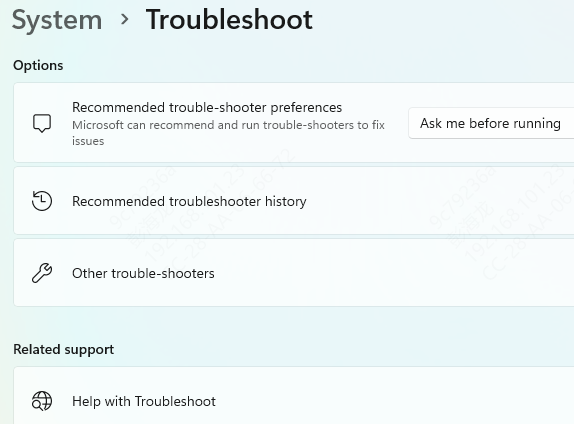
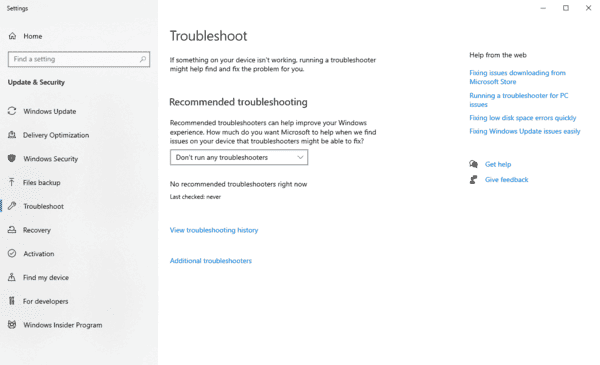
On Windows 10
Open Settings.
Navigate to Update & Security > Troubleshoot.
Select Additional troubleshooters.
Solution 6: Disable Browser Hardware Acceleration
Hardware acceleration allows browsers to use your graphics processor for certain multimedia and rendering tasks.
Although this feature can improve playback performance, compatibility problems may occasionally interfere with video playback.
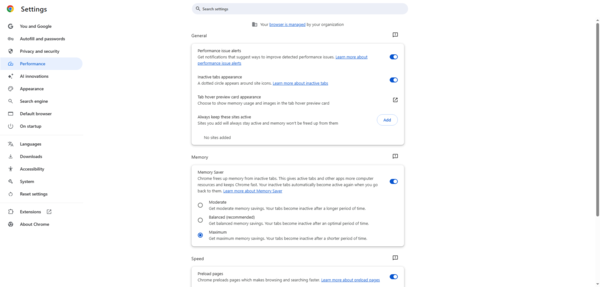
Google Chrome
Open Chrome.
Click the three-dot menu and select Settings.
Navigate to System.
Turn off Use graphics acceleration when available.
Relaunch Chrome.
Microsoft Edge
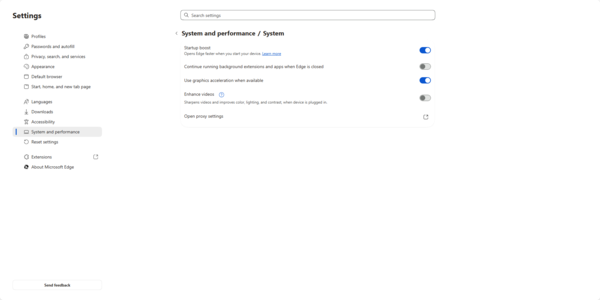
Open Microsoft Edge.
Navigate to Settings > System and performance.
Locate the graphics acceleration option.
Disable the feature temporarily.
Restart Edge.
Solution 7: Change the Default Audio Format
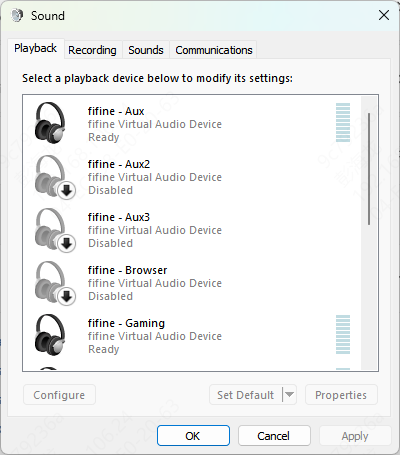
Press Windows + R.
Type mmsys.cpl and press Enter.
Open the Playback tab.
Select your active audio output device.
Click Properties.
Navigate to the Advanced tab.
Locate the Default Format setting.
Select another supported format, such as 16-bit, 48000 Hz, if available.
Click Apply > OK.
Frequently Asked Questions
What Does YouTube Audio Renderer Error Mean?
It generally means that the browser encountered a problem initializing or communicating with the audio playback system. The issue may involve audio drivers, device conflicts, Windows services, or browser settings.
Why Does YouTube Keep Saying Please Restart Your Computer?
YouTube may display this message when the browser cannot initialize audio playback correctly. Recurring driver conflicts, incompatible audio formats, or unresponsive audio services may cause the error to return.
Can ASIO Drivers Cause YouTube Playback Problems?
Yes. Certain audio interfaces and ASIO configurations may prevent browsers from accessing audio hardware while another application is using it. Matching supported sample rates or closing conflicting applications may help.
Conclusion
The YouTube Audio Renderer Error can result from incompatible audio drivers, conflicting audio settings, browser issues, or unresponsive Windows Audio services. Start by reconnecting your audio device, restarting your browser, and checking the default audio format. If the problem persists, disable browser hardware acceleration or use Driver Sentry to identify and update supported audio drivers. These troubleshooting methods can help resolve recurring audio renderer errors and restore smooth YouTube video playback on Windows 10/11.