






Portable external hard drives are essential tools for storing and transferring data. Whether it's for personal photos, work documents, or large backups, these drives provide quick access and ample storage capacity. Despite their importance, data loss on portable hard drives can happen unexpectedly due to a variety of reasons, including accidental deletion, formatting errors, system crashes, malware infections, or physical damage. The good news is that in most cases, you can recover lost data from your portable hard drive if you act quickly and follow the correct recovery steps. This guide will walk you through the causes of data loss, immediate precautions, and effective methods for recovering your files.
Immediate Steps to Take When Data is Lost
When you realize that important files are missing from your portable hard drive, your first instinct might be to panic. However, it's crucial to take the following steps immediately to increase your chances of successful data recovery:
Stop using the drive: Immediately disconnect your portable hard drive from your computer or any device. This prevents new data from overwriting the lost files
Do not run system repair tools: Avoid running built-in tools like CHKDSK, as they can overwrite or corrupt the lost data, reducing the chance of recovery
Check the connections: If you can't find your drive, ensure it's properly connected and powered. Sometimes, the issue may be a simple loose cable
Prepare another storage device: Have another external drive or storage space available to save the recovered files once you successfully retrieve them
Method 1: Using Built-in Windows Data Recovery Tools
Windows offers several built-in features to help recover lost files. Here's how you can use them effectively:
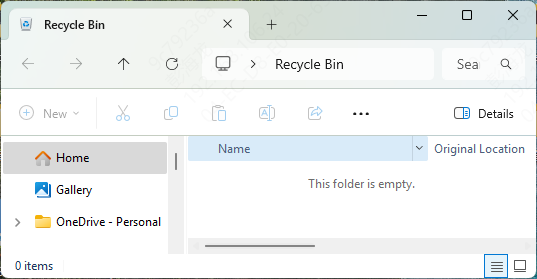
Recycle Bin
Check if the deleted files are still in the Recycle Bin
If so, simply right-click and select Restore to return the files to their original location
File History / Previous Versions
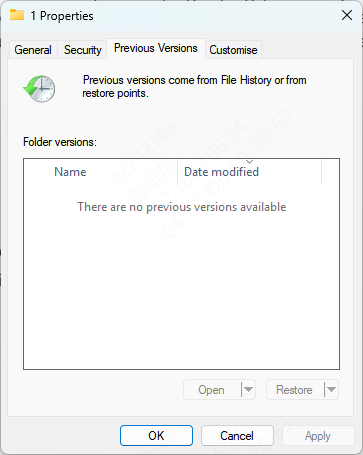
If you have File History set up or if the folder has previous versions saved, you can restore lost files
Right-click the folder where the file was stored
Select Restore previous versions
Browse through the available versions and restore the desired file
Windows File Recovery Tool
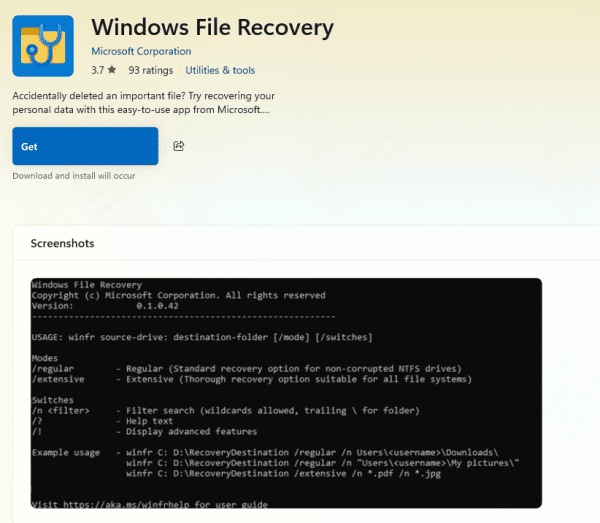
Windows offers a tool called Windows File Recovery, which is available from the Microsoft Store. This tool can recover deleted files from corrupted or missing drives. To use it:
Download Windows File Recovery from the Microsoft Store
Open the tool and choose the recovery mode based on the file types and drive condition
Follow the on-screen prompts to restore the lost files
Method 2: Use Professional Data Recovery Software PcGoGo Data Recovery
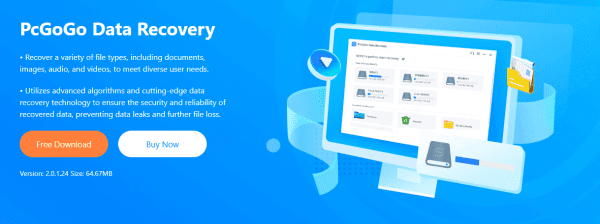
For a more comprehensive solution, professional data recovery software like PcGoGo Data Recovery is an excellent option. This tool allows you to recover lost data quickly and effectively, with minimal technical expertise.
Why Choose PcGoGo Data Recovery?
Safe and Non-Destructive: The software works in a read-only mode, ensuring no new data is written to the drive during the recovery process
Wide File Type Support: Recover all kinds of files including documents, photos, videos, audio files, and compressed archives
User-Friendly Interface: Even if you're not tech-savvy, PcGoGo Data Recovery's easy-to-use interface guides you through every step of the recovery process
Step-by-Step Guide to Recover Data Using PcGoGo Data Recovery:
Step 1: Download and Install
Download PcGoGo Data Recovery from the official website
Install the software on a different drive (not the affected drive) to avoid overwriting lost data
Step 2: Select Your Portable Hard Drive
Launch the software and select your portable hard drive from the list of available devices
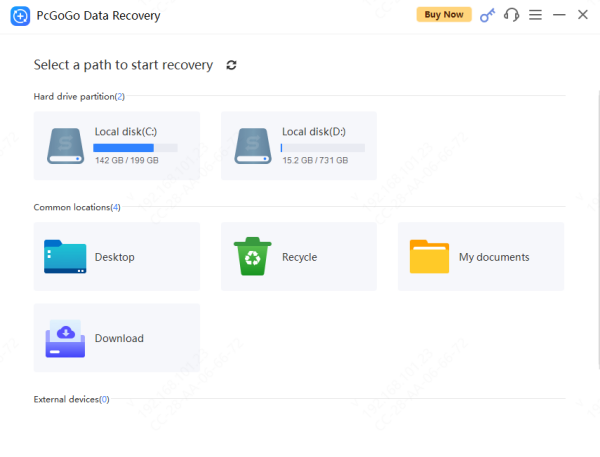
Step 3: Scan the Drive
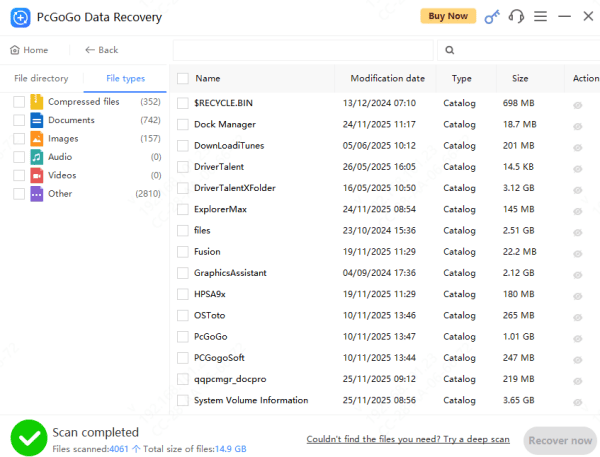
Click Scan and wait for the process to complete
Step 4: Preview and Select Files
After the scan, preview the recoverable files and select the ones you want to restore
Step 5: Recover and Save Files
Click Recover and save the files to a different drive to prevent overwriting any remaining lost data
Preventing Future Data Loss
To avoid future data loss, consider the following preventative measures:
Regular Backups: Regularly back up your data to another external drive or cloud storage to ensure that your files are safe
Monitor Drive Health: Use tools to monitor the health of your portable hard drive, checking for issues like bad sectors or declining performance
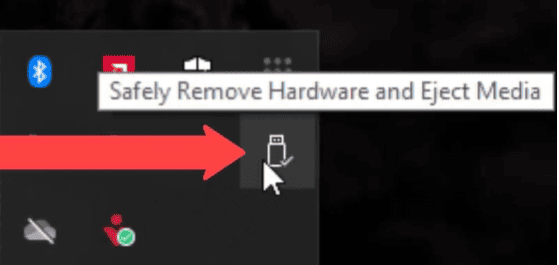
Safe Eject: Always safely eject your external hard drive to avoid file corruption
Antivirus Protection: Keep your computer and portable hard drive protected from malware attacks that could cause data loss
Conclusion
In this guide, we've covered several methods for recovering lost data from portable hard drives. Whether using built-in Windows tools, professional recovery software like PcGoGo Data Recovery. By acting quickly and following the right steps, you can maximize your chances of recovering your important files. Remember, the key to successful data recovery is to stop using the drive immediately and choose the recovery method that best suits your situation.




