






Losing files from a Kingston hard drive can happen due to accidental deletion, formatting, corruption, or system failures. However, lost data is often recoverable if you stop using the drive and take the right recovery steps. This guide explains the causes of Kingston hard drive data loss and shows how to safely recover your files using built-in Windows options and PcGoGo Data Recovery.
Stop Using the Kingston Hard Drive Immediately
Continuing to use the drive may overwrite the deleted data, making recovery impossible
Do not copy new files to the drive, install software on it, or attempt repairs such as formatting or disk checking
Do not format or reinitialize the drive
Do not run CHKDSK or disk repair commands
Do not save recovered files back to the same drive
Windows Recovery Options
Check whether Windows already has a copy of your lost files.
Recycle Bin – Restore recently deleted files
File History – Recover earlier versions if backups were enabled
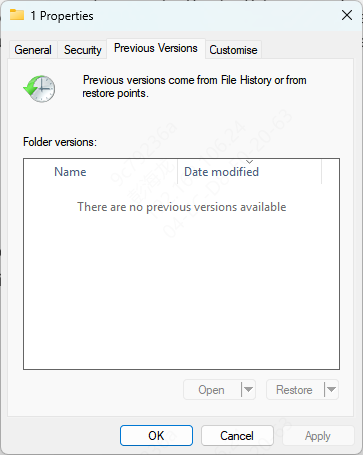
Previous Versions – Restore folders from restore points
Cloud Backups – Check OneDrive, Google Drive, or other synced services
These options work best for simple deletion but usually fail after formatting or corruption.
PcGoGo Data Recovery
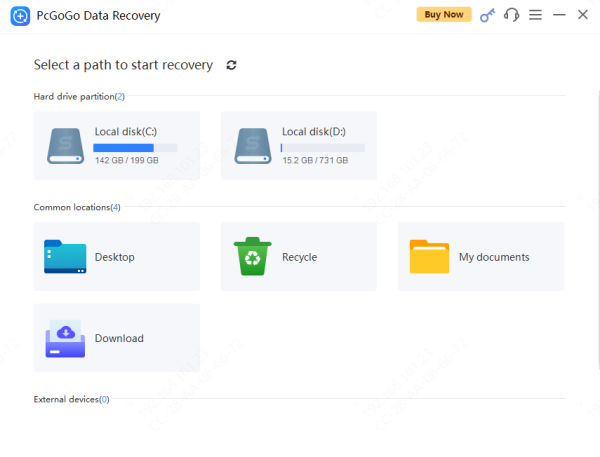
Install PcGoGo Data Recovery on a different drive
Launch the software and select the Kingston hard drive
Choose Scan for recently deleted files
Preview and Select Files for Recovery
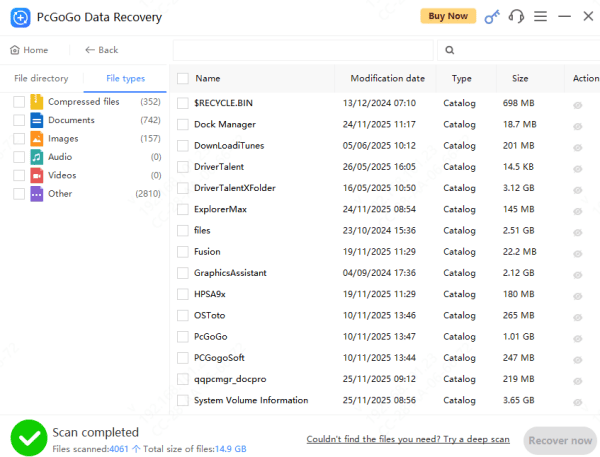
After scanning, PcGoGo Data Recovery allows you to preview files such as documents, photos, and videos
Previewing helps you: Confirm file quality, Avoid recovering corrupted files, Select only what you need
Use filters or search to quickly locate specific file types or names
Recover Files to a Safe Location
Always save recovered data to a different drive or external storage
Never recover files to the original Kingston hard drive
This step prevents accidental overwriting and ensures a higher success rate
Prevent Future Kingston Hard Drive Data Loss
After recovery, protect your data going forward:
Create regular backups (local + cloud)
Safely eject external Kingston drives
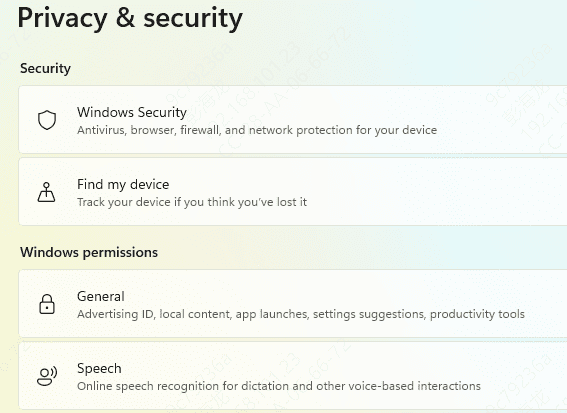
Use antivirus software
Monitor drive health with SMART tools
Use a UPS to prevent power-related corruption
Frequently Asked Questions
Can data be recovered from a formatted Kingston hard drive
Yes. Data may still be recoverable after quick formatting if it has not been overwritten. Stop using the drive immediately and scan it with PcGoGo Data Recovery.
Where should I save recovered files
Save recovered files to a different hard drive, USB drive, or external storage device. Saving them to the original Kingston drive may overwrite other recoverable data.
What should I do if the Kingston hard drive makes clicking noises
Disconnect the drive immediately and avoid running recovery software or repair commands. Clicking or grinding noises may indicate physical damage that requires professional recovery services.
Recovering data from a Kingston hard drive is possible in most logical data loss scenarios—if you follow safe, step-by-step recovery methods. Avoid risky actions, use trusted recovery software like PcGoGo Data Recovery, and seek professional help when physical damage is suspected. With proper care and backups, you can minimize the risk of future data loss




