






Losing important files from a Kingston USB thumb drive can be a stressful experience, especially when those documents contain work files, personal projects, or valuable records. Although Kingston USB drives are known for their portability and reliability, data loss can still happen due to accidental deletion, formatting errors, file corruption, or malware infections. In this guide, we'll show you practical methods to recover deleted documents from a Kingston USB drive and provide useful tips to help prevent future data loss.
First Things First: Precautions Before Recovery
Stop Using the Drive: Do not add new files, as this may overwrite lost data
Avoid Formatting or Repairing: Built-in fixes can sometimes destroy recoverable files
Prepare a Safe Location: Use another hard drive or cloud storage to save recovered documents
Don't Run Multiple Tools: Using several recovery programs at once can cause conflicts and reduce recovery success
Step-by-Step Recovery Using PcGoGo Data Recovery
For the best results, we recommend using PcGoGo Data Recovery—a simple, reliable tool that works even if you're not tech-savvy.
Step 1: Download and Install PcGoGo Data Recovery
Go to the official PcGoGo Data Recovery website and download the latest version
Install the software on a different drive than your Kingston USB thumb drive to avoid overwriting any lost files
Step 2: Connect Your Kingston USB Thumb Drive
Insert the USB drive into your computer
Ensure it's recognized and functioning before starting the scan
Step 3: Select the USB Drive for Scanning
Open PcGoGo Data Recovery and choose your Kingston USB thumb drive from the device list
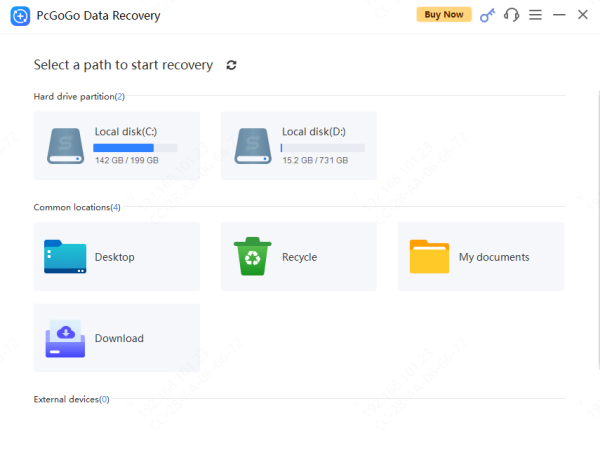
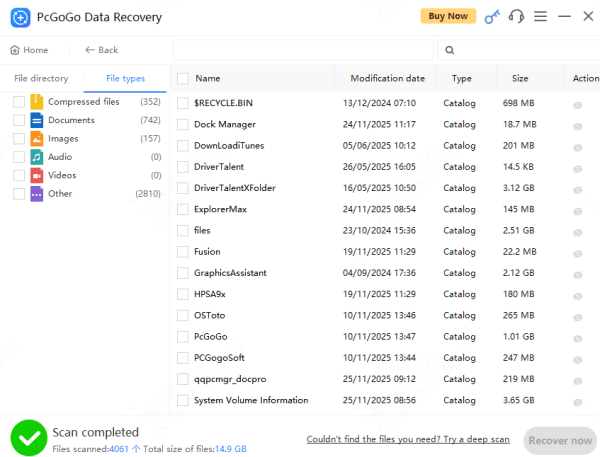
Step 4: Scan for Lost Documents
Use file type filters to focus specifically on Word, Excel, PDF, or other document formats
Step 5: Preview Files Before Recovery
Preview detected files to check their integrity
Select only the documents you need to save time and storage space
Step 6: Recover and Save Your Files Safely
Choose a safe location—another drive, SSD, or cloud storage—for your recovered documents
Do not save files back to the Kingston USB drive until the recovery is complete
Alternative Recovery Options
While PcGoGo Data Recovery is the safest method, you can also try:
Recycle Bin: Check if the deleted documents are still there
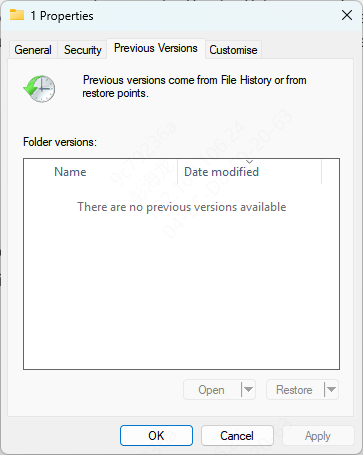
File History / Previous Versions: Right-click the folder where the files were stored, select "Restore previous versions," and recover from an older snapshot
Cloud Backup: If your USB files were synced to OneDrive, Google Drive, or another cloud service, you can restore them from there
Keep in mind that built-in Windows recovery tools may have limitations, especially with corrupted or formatted USB drives
Tips to Prevent Future Document Loss
Back Up Regularly: Keep copies on another drive or cloud storage
Safely Eject USB Drives: Avoid unplugging the drive while files are in use
Keep Antivirus Updated: Protect your files from malware or ransomware attacks
Limit Drive Usage Across Devices: Using the USB on multiple computers increases the risk of corruption
Use Quality Drives: Kingston drives are reliable, but treat them carefully and store them safely

Why Documents Disappear on Kingston USB Drives
Accidental Deletion: Deleting files by mistake or emptying the Recycle Bin
Formatting Errors: Reformatting the drive intentionally or by accident
File Corruption: Sudden system shutdowns, improper removal, or virus attacks
Malware or Virus: Malicious programs can delete or hide files
Hardware Issues: Physical damage, wear and tear, or faulty USB ports
No matter the reason, recovering your lost documents is often possible if you handle the drive carefully
Conclusion
Losing documents from your Kingston USB thumb drive doesn't have to be permanent. With careful handling, quick action, and a trusted recovery tool like PcGoGo Data Recovery, most lost files can be restored safely and efficiently. Remember, prevention is just as important as recovery—backups, safe ejection, and antivirus protection go a long way in safeguarding your important documents.




