






Dell solid state drives (SSDs) are widely used in modern laptops and desktops due to their speed, reliability, and durability. They store everything from personal documents and photos to critical work files. However, even the most reliable SSDs can suffer data loss. Accidental deletion, formatting, system crashes, malware infections, or file system corruption can all lead to missing files. The good news is that in most cases, deleted files from Dell SSDs can be safely recovered on Windows if you act quickly and follow the proper recovery steps. This guide will walk you through the causes of data loss, immediate precautions, and safe methods to restore your files.
Immediate Actions After Data Loss
Taking the right steps immediately can greatly improve recovery success:
Stop using the Dell SSD – Avoid writing new files or installing software on the affected drive
Avoid disk repair utilities – Do not run CHKDSK, format commands, or partition fixes before recovery
Prepare another storage location – Use a secondary drive or external storage to save recovered files
Be aware of SSD TRIM – Windows SSDs often have TRIM enabled, which can permanently erase deleted data. Act fast to maximize recovery chances
Check Windows Built-in Recovery Options
Windows provides several basic recovery options that may help:
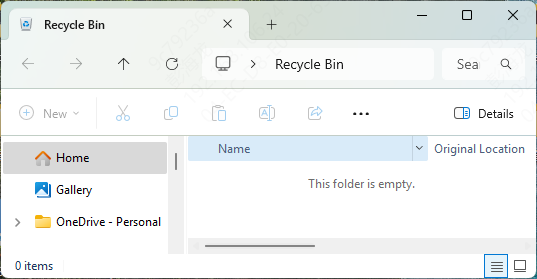
Recycle Bin – Check if deleted files are still there and restore them
File History / Previous Versions – Right-click the folder, select Restore previous versions, and recover from backups if enabled
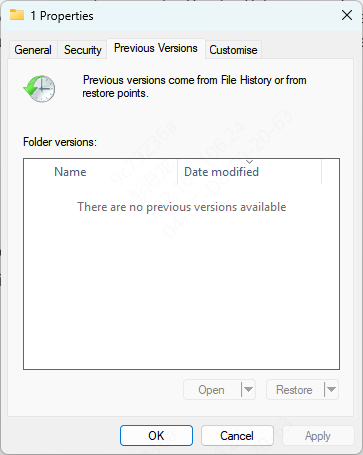
Note: These methods are limited for SSDs, especially after formatting or if TRIM has already cleared the data
Use PcGoGo Data Recovery for Dell SSDs
For a more reliable and comprehensive solution, PcGoGo Data Recovery is an excellent tool for restoring lost or deleted files from Dell SSDs. Whether your data was accidentally deleted, the drive was formatted, or it was damaged by a system crash or malware attack, PcGoGo Data Recovery can help you recover files safely without risking further data loss.
Step 1: Download and Install PcGoGo Data Recovery
Go to the official PcGoGo Data Recovery website and download the latest version
Install the software on a different drive to avoid overwriting the data on your Dell SSD
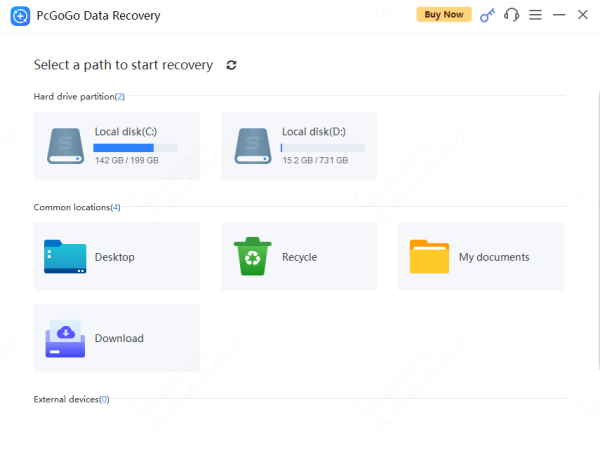
Step 2: Launch the Program and Select Your Dell SSD
Open PcGoGo Data Recovery, and select your Dell SSD drive from the list of available devices
Make sure your SSD is properly connected to the PC if it's an external drive
Step 3: Scan the Dell SSD for Lost Files
Click Scan and allow the software to find all recoverable files
Step 4: Preview and Select Files to Recover
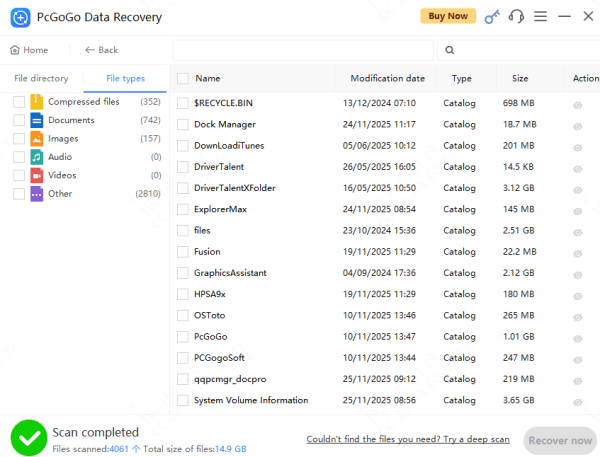
After the scan is complete, preview the recovered files to verify their integrity
Select the files you want to restore—documents, photos, videos, or any other important data
Step 5: Recover and Save the Files
Click on Recover and choose a safe location, NOT on the same Dell SSD, to save the recovered files
Ensure the destination drive has enough space for the recovered data
Tips to Prevent Future Data Loss on Dell SSDs
Regular backups: Enable File History or cloud backups (OneDrive, Google Drive)
Safe ejection: Always safely remove external SSDs
Antivirus and firmware updates: Protect against malware and maintain SSD health
SMART monitoring: Check drive health periodically
UPS protection: Prevent sudden shutdowns from power loss

Common Causes of Data Loss on Dell SSDs
Accidental deletion – Using Shift + Delete or clearing files by mistake
Formatting – Reformatting a partition or the entire drive
System crashes – Sudden shutdowns, blue screen errors, or failed updates
File system corruption – RAW drives or corrupted partitions
Malware or virus attacks – Ransomware or other malicious software
Firmware or power issues – Interrupted transfers or firmware errors
Conclusion
Deleted files from Dell solid state drives can often be recovered safely, especially if you act quickly and follow the right steps. While Windows built-in tools may work for simple deletions, professional SSD recovery software like PcGoGo Data Recovery offers the fastest, safest, and most reliable solution, even for formatted or corrupted drives. By taking proper precautions and following a step-by-step recovery plan, you can restore your important documents, photos, videos, and more, while protecting your data from future loss.




