






Losing important files from your Dell hard drive can be stressful, whether they are work documents, personal photos, videos, or essential business data. Data loss can happen due to accidental deletion, drive formatting, system crashes, virus attacks, or even hardware failure. The good news is that, in most cases, lost data can be recovered safely and efficiently. This guide will walk you through the causes of data loss, immediate precautions, and step-by-step methods to recover files from your Dell hard drive.
Immediate Precautions Before Recovery
Before starting recovery, follow these steps to maximize your chances of success:
Stop Using the Drive: Continuing to use the Dell hard drive can overwrite lost data
Avoid Installing Recovery Software on the Same Drive: Always use a separate drive for software installation
Check Drive Detection: Ensure your system recognizes the drive in File Explorer or Disk Management
Backup Image (Optional): For severe corruption, consider creating a disk image to prevent further data loss
Using Built-in Windows Tools
Windows includes several tools to help recover files:
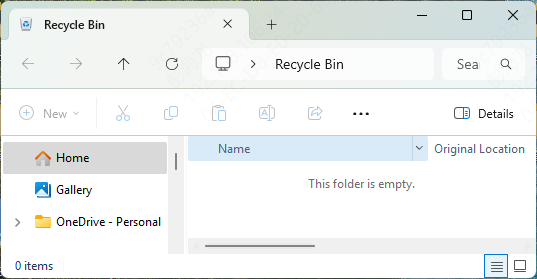
Recycle Bin
If files were recently deleted, check the Recycle Bin:
Open the Recycle Bin, locate your files, right-click, and select Restore
File History / Previous Versions
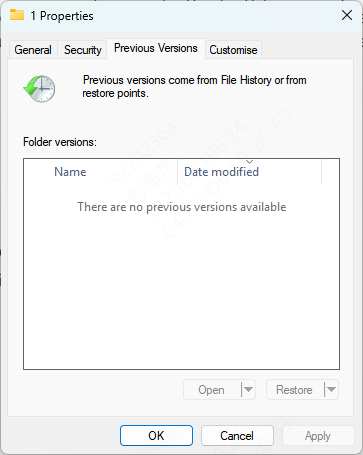
If File History is enabled:
Right-click the folder where your file was stored
Select Restore previous versions
Choose a version and restore the file
Windows File Recovery Tool
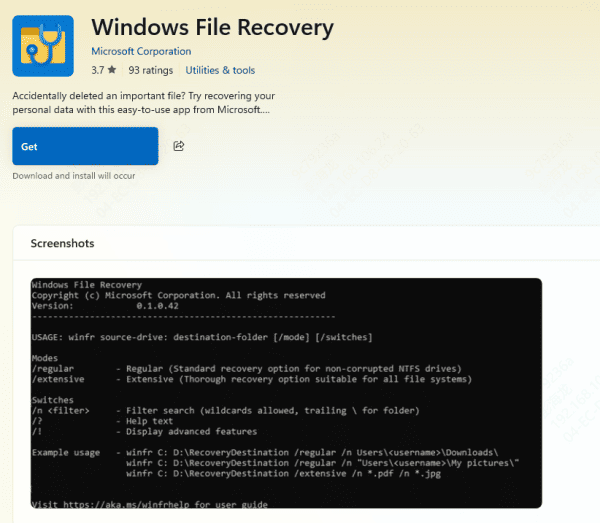
Microsoft offers a free recovery utility:
Download Windows File Recovery from the Microsoft Store
Launch the tool and select the affected Dell drive
Choose the scan mode (Regular or Extensive) and start recovery
Using PcGoGo Data Recovery
For more reliable and complete recovery, PcGoGo Data Recovery is a top choice.
Download and Install
Install PcGoGo Data Recovery on a separate drive, not the Dell drive you want to recover
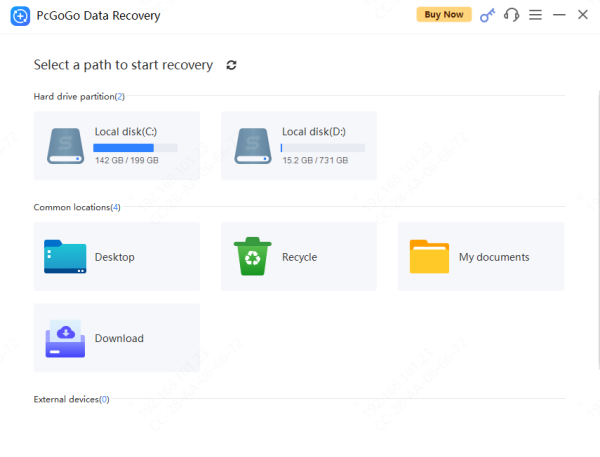
Select the Drive
Open the software and select your Dell hard drive from the list of available drives
Scan the Drive
Use Quick Scan for recently deleted files or Deep Scan for corrupted or formatted drives
Preview Files
Check the files found during the scan to ensure they are intact
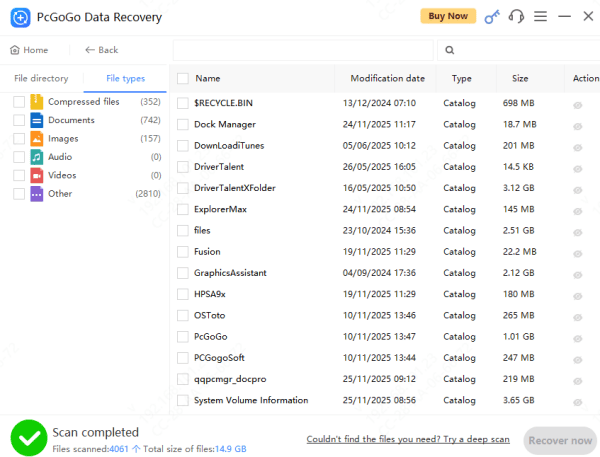
Recover Files
Select the files you want to recover and save them to a safe location (not on the original drive)
Common Causes of Data Loss on Dell Hard Drives
Accidental Deletion: Mistakenly deleting files or folders
Drive Formatting: Formatting the entire drive or a partition by mistake
System Crashes: Operating system failures or blue screen errors
Malware or Ransomware Attacks: Viruses that corrupt or encrypt files
File System Corruption: Bad sectors or damaged file tables
Physical Damage: Dropped laptops or external HDDs, leading to hardware failure
Tips to Prevent Future Data Loss
Regular Backups: Store backups on external drives or cloud storage
Monitor Drive Health: Use Dell Diagnostics or SMART monitoring tools
Safe Shutdown: Avoid sudden power-offs to prevent file corruption
Safe Ejection: Always eject portable drives safely before disconnecting
Install Antivirus Software: Protect your system from malware or ransomware attacks
Conclusion
Recovering data from a Dell hard drive is possible if you act quickly and follow the correct steps. Start with built-in Windows tools, use reliable software like PcGoGo Data Recovery for thorough recovery, and consider professional services for severe cases. Additionally, implement preventive measures such as regular backups and drive monitoring to safeguard your data in the future.




