Some Windows users may encounter the "Audio Service is Not Running" error, which prevents any sound from playing. This article provides detailed solutions to help you quickly restore Windows audio functionality.
1. Check for Audio Driver Updates
Outdated or corrupted audio drivers can cause the "Audio Service is Not Running" issue in Windows. Updating your audio drivers can effectively resolve this problem. Using Driver Sentry for automatic driver detection and updates saves time and prevents incorrect driver installations.
Click the download button to get the latest version of Driver Sentry, install it, and open the software.
Click "Scan" to detect missing or outdated drivers.
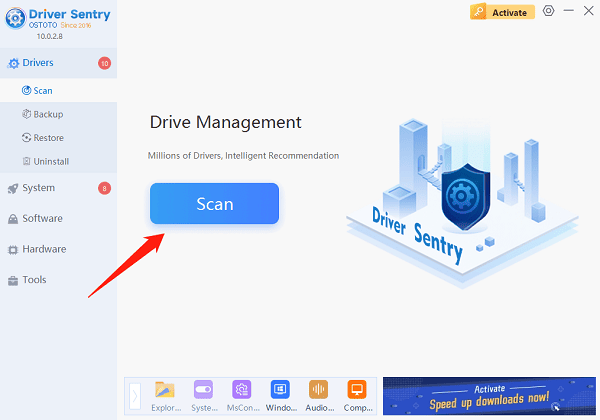
Find the audio driver in the results list and click "Upgrade".
Restart your computer to apply the updates.
2. Repair System Files
Run the SFC Command:
Press Win + S, search for "Command Prompt", right-click it, and select "Run as administrator".
Type the following command and press Enter: sfc /scannow

This will scan and repair corrupted system files.
Run the DISM Command:
If SFC does not resolve the issue, try repairing the Windows image:
Open Command Prompt as administrator. Run the following command: DISM /Online /Cleanup-Image /RestoreHealth
Restart your computer and check if the audio is working.
3. Enable Windows Audio Services
Press Win + R, type "services.msc", and press Enter.
Find "Windows Audio" in the list. Right-click it and select "Start" (or "Restart" if it's already running).
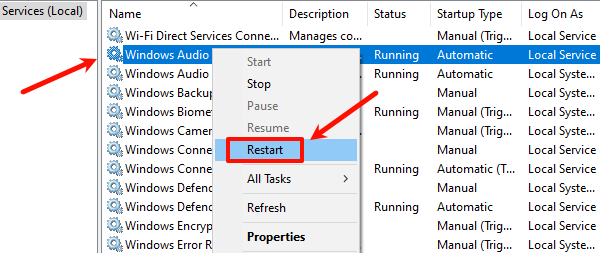
Double-click "Windows Audio", set Startup type to "Automatic", then click "Apply" and "OK".
Restart your computer and test the audio.
Tip: If Windows Audio does not start, ensure that "Windows Audio Endpoint Builder" is running and set to Automatic.
4. Check Audio Device Status
Press Win + R, type "mmsys.cpl", and press Enter.
In the "Playback" tab, locate your audio device (e.g., speakers or headphones).
Right-click it and select "Enable" (if it's disabled).
Click "OK" and test the sound.
5. Run the Audio Troubleshooter
Press Win + I to open Settings, then go to "Update & Security".
Select "Troubleshoot" from the left menu, then click "Additional troubleshooters".
Find "Playing Audio" and click "Run the troubleshooter".
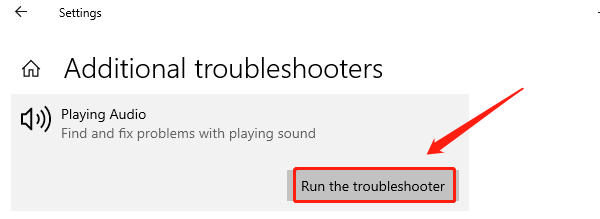
Follow the on-screen instructions to detect and fix audio issues.
6. Check for Windows Updates
Press Win + I to open Settings, then go to "Update & Security".
Click "Windows Update", then select "Check for updates".
If updates are available, download and install them.
Restart your computer and check if the issue is resolved.
By following these methods, you can effectively fix the "Audio Service is Not Running" issue. If the problem persists, consider restoring Windows or seeking professional technical support for further troubleshooting.
See also:
How to Fix Dying Light 2 Stuttering and FPS Drops
Fix the Error Occurred While Updating Steam