






Many Windows users may face the "MSVCR120.dll Missing" error, which can stop apps from launching or cause crashes. This guide offers solutions to fix the issue and restore stability.
What is MSVCR120.dll
MSVCR120.dll is part of the Microsoft Visual C++ 2013 Redistributable Package. It contains core libraries required to run software developed with C++. Many programs and games rely on this file for proper functionality. If the file is missing or corrupted, you may see the "MSVCR120.dll Missing" error message, and affected applications will fail to launch.
1. Check for Driver Updates
Outdated, damaged, or incompatible drivers can cause performance issues, hardware malfunctions, or system crashes. Use Driver Sentry to automatically detect and update drivers efficiently while avoiding incorrect installations.
Download the latest version of Driver Sentry, install it, and open the software. Click "Scan".
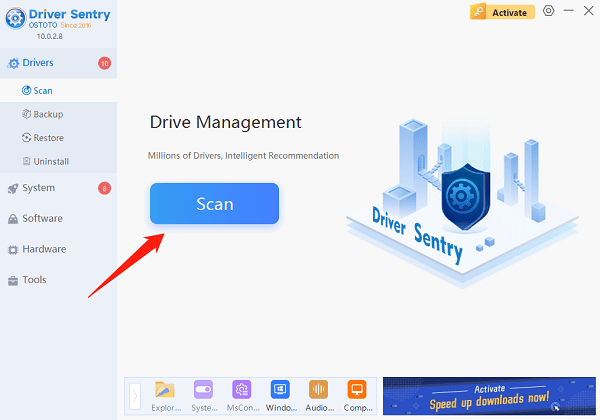
Review the scan results for drivers that need updates. Locate the relevant driver and click "Upgrade".
Restart your computer after updating to ensure changes take effect.
2. Repair Microsoft Visual C++ Redistributable
Open the Control Panel and select Programs or Programs and Features.
Locate and select Microsoft Visual C++ 2013 Redistributable from the list.
Right-click the package and choose "Change".
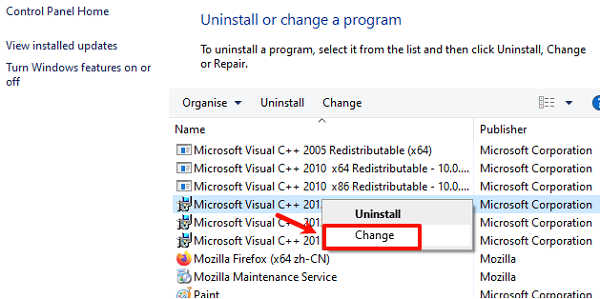
Click the "Repair" button and wait for the process to complete.
3. Re-register the MSVCR120.dll File
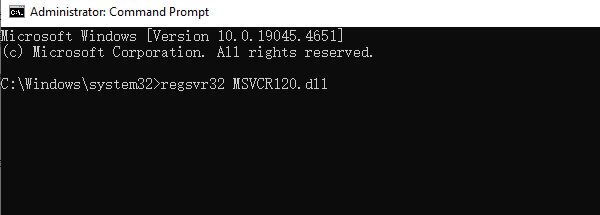
Open the Command Prompt as an administrator.
Type the following command and press Enter to unregister the file: regsvr32 /u MSVCR120.dll
Then, type the following command and press Enter to re-register the file: regsvr32 MSVCR120.dll
Restart your computer and check if the issue is resolved.
4. Run the System File Checker (SFC) Tool
Open the Command Prompt as an administrator.
Enter the following command: sfc /scannow
Press Enter, and the tool will start scanning and repairing corrupted system files. This process may take some time.
After the scan, restart your computer to apply the fixes.
5. Copy MSVCR120.dll from Another Computer
On another computer, locate the MSVCR120.dll file in either of the following directories:
C:\Windows\System32 (for 32-bit systems)
C:\Windows\SysWOW64 (for 64-bit systems)
Copy the file to the same directory on your problematic computer.
Restart your computer to check if the error is resolved.
6. Reinstall the Affected Application
Open the Control Panel and navigate to Programs or Programs and Features.
Find the problematic application, right-click, and select "Uninstall".
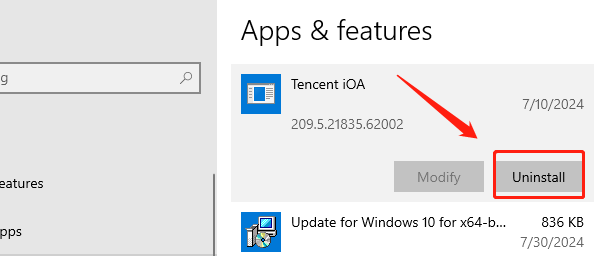
Download the latest version of the program from the official website and install it. This will ensure all necessary library files, including MSVCR120.dll, are properly installed.
Restart your computer and test the application.
7. Run a Virus Scan
Open your installed antivirus software and ensure its virus definitions are up to date.
Select the "Full Scan" or "Deep Scan" option to scan your entire system.
Follow the antivirus prompts to remove any detected threats.
Restart your computer and check if the MSVCR120.dll issue persists.
8. Install Windows Updates
Press Windows + I to open Settings and select "Update & Security".
Go to the "Windows Update" section and click "Check for Updates".
If updates are available, click "Download and Install". Windows will automatically apply the updates.
Restart your computer after the updates are installed and verify if the error is resolved.
By following these methods, you should be able to effectively resolve the MSVCR120.dll Missing error. If the problem persists, consider contacting technical support for further assistance.
See also:
Guide to Connecting a Laptop to Dual Monitors
8 Ways to Fix Hogwarts Legacy Stuttering




