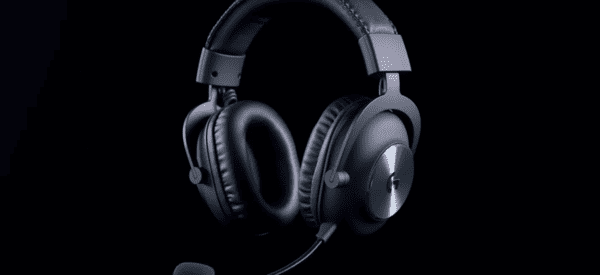
Get the best sound and microphone performance from your Logitech G Pro X headset. This guide covers competitive FPS audio presets, Blue VO!CE adjustments, Windows input and output configuration, automatic G HUB profiles, sidetone controls, firmware maintenance, and solutions for common audio driver conflicts.
Step 1: Install and Configure Logitech G HUB
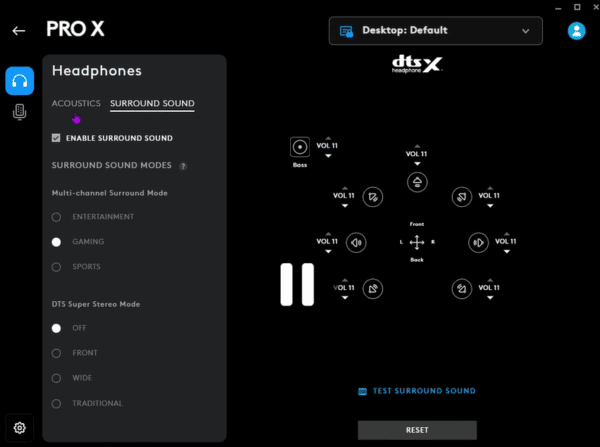
The G HUB software is the centerpiece of customizing your Logitech G Pro X headset
Download and Install: Get the latest version of Logitech G HUB from Logitech Support
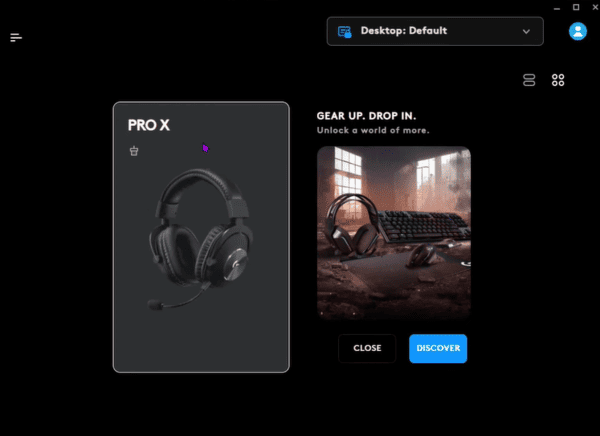
Launch the App: Connect your headset and ensure it is detected
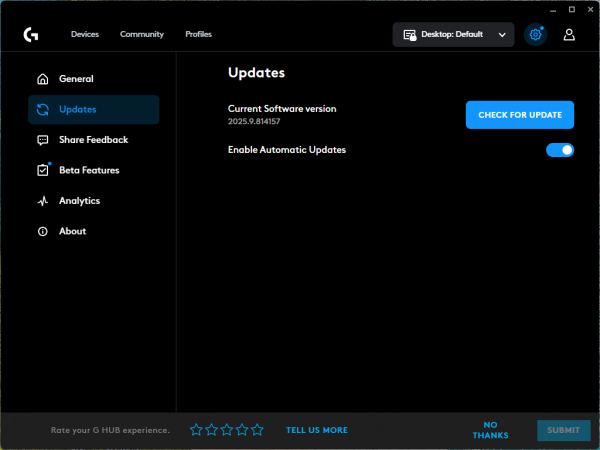
Firmware Updates: Always check for firmware updates in G HUB; these often improve performance and fix bugs
Profile Setup: Create separate profiles for different games or activities (FPS, RPG, streaming, video calls)
Step 2: Audio Optimization Settings
Equalizer (EQ) Settings
Navigate to G HUB → Select your G Pro X → EQ → Presets
Recommended presets
Esports / FPS: Boost treble slightly to enhance footsteps and directional cues
Music / Multimedia: Balance mids and lows for a fuller, richer sound
Custom EQ: Manually adjust low, mid, and high frequencies to match your environment and preference
Volume Normalization
Enable Volume Normalization to prevent sudden spikes in game audio or voice chat, ensuring consistent sound
Some players find that slightly reducing bass prevents low-frequency rumble from interfering with voice clarity in competitive games
Step 3: Microphone Optimization (Blue VO!CE)
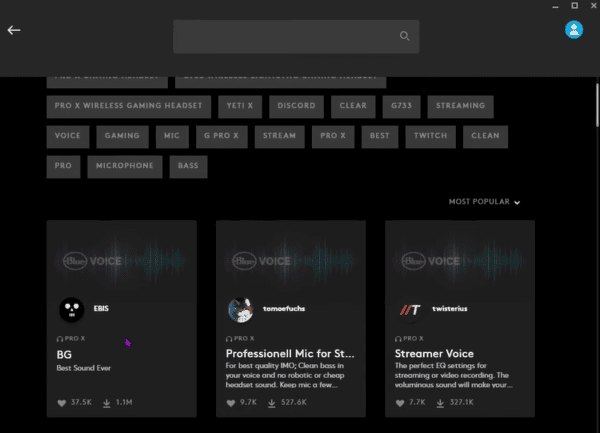
The Blue VO!CE microphone is a standout feature of the G Pro X, offering studio-quality voice capture.
Open G HUB → Microphone → Enable Blue VO!CE
Adjust these settings:
Noise Gate: Filters out background noise like keyboard clicks or fans
Compressor: Keeps voice volume consistent, preventing clipping during loud speech
EQ: Fine-tune for richer vocal tone
Test the microphone in apps like Discord, Teams, or OBS
Step 4: Windows Audio Settings
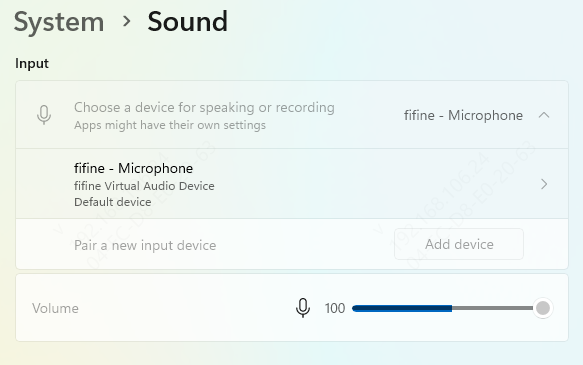
Right-click the speaker icon → Sound Settings → Output → Select Logitech G Pro X
Input → Select the G Pro X microphone
Advanced → Default format → 24-bit, 48000 Hz (Studio Quality)
Disable Windows audio enhancements to prevent conflicts with G HUB settings
Make sure only one application uses the microphone at a time to avoid conflicts
Step 5: Game-Specific Audio Profiles
Custom profiles enhance immersion for different games:
FPS Games: Emphasize treble for footsteps and positional awareness; slightly reduce bass
RPG/MMO Games: Balanced EQ for dialogue and background music
Streaming / Video Editing: Boost mids for voice clarity and reduce high-frequency hiss
Link G HUB profiles with each game or software for automatic switching when the application launches
Step 6: Check Drivers
Keeping your drivers updated ensures your headset works flawlessly:
Automatic Update
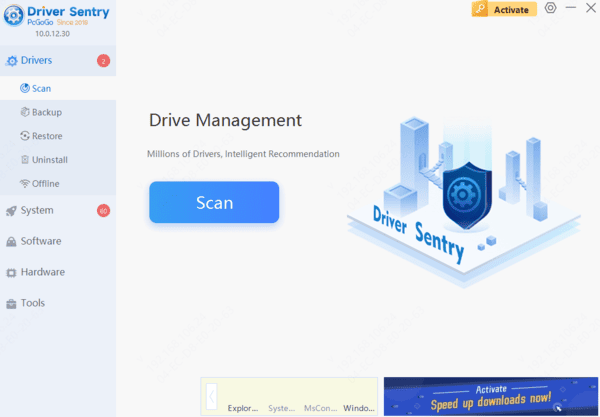
Install Driver Sentry → Click Diagnose → Scan for outdated or missing drivers
Repair or update all audio, USB, and chipset drivers automatically
Restart your PC
Manual Update (Optional)
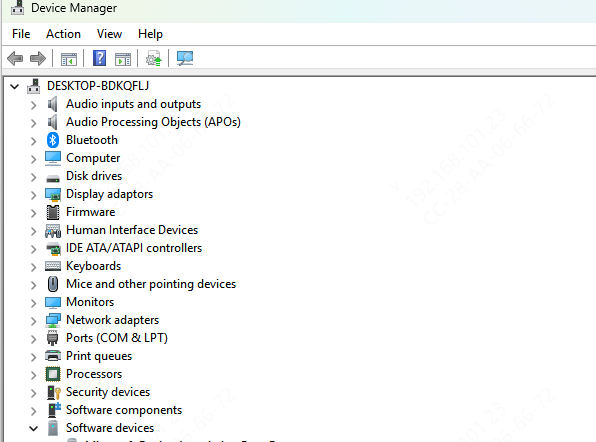
Device Manager → Sound, video, and game controllers → Right-click G Pro X → Update driver → Search automatically
Advanced Customization
RGB Lighting (if available): Set lighting effects to match your gaming setup or team colors
Side Tone Adjustment: Controls how much of your own voice you hear in the headset, which reduces shouting during gameplay
Mic Monitoring: Enables live monitoring of your microphone so you can hear exactly how you sound
Adjust side tone and mic monitoring together for optimal in-game communication
Long-Term Maintenance and Optimization
Regular Firmware Updates: Check G HUB frequently for new updates
Driver Maintenance: Use Driver Sentry to update USB, audio, and chipset drivers periodically
Physical Care: Clean ear pads, microphone, and cables to prolong lifespan
Cable Management: Avoid bending or twisting the USB cable to prevent damage
Profile Backups: Export G HUB profiles to avoid losing customized settings during reinstall
Conclusion
The Logitech G Pro X headset provides a professional gaming experience, but proper configuration is key to unlocking its full potential. Routine maintenance, driver updates, and smart profile management ensure your Logitech G Pro X headset remains a reliable tool for gaming, streaming, and professional communication for years to come.