






Losing files on a Lenovo laptop can happen unexpectedly due to accidental deletion, formatting, system crashes, malware, or hardware problems. While data loss can seem permanent, many files can still be recovered if you take the right steps quickly. This guide explains the common causes of Lenovo laptop data loss and provides effective recovery methods, including Windows built-in tools and PcGoGo Data Recovery, to help restore important documents, photos, videos, and other files safely.
Precautions Before Attempting File Recovery
Before attempting recovery, take these precautions to avoid further data loss:
Stop using the affected laptop immediately to prevent overwriting lost files
If you hear unusual noises from the hard drive (clicking or grinding), power off and seek professional help instead of attempting DIY recovery
Prepare a secondary drive or external storage to save recovered files
Consider creating a bootable USB if your Lenovo laptop cannot start
Method 1: Use Built-in Windows Tools
For minor data loss, Windows offers some built-in options:
Recycle Bin: Check if deleted files are still available
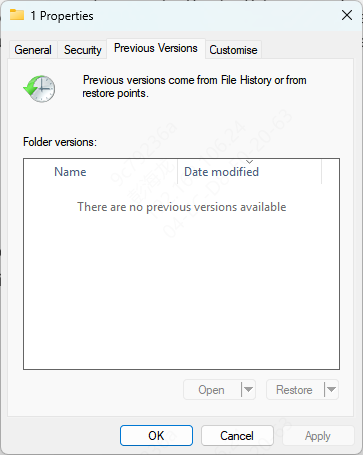
File History or Previous Versions: Right-click the folder > Restore previous versions
Method 2: Use PcGoGo Data Recovery
PcGoGo Data Recovery is a powerful, easy-to-use software for Windows users that can recover lost or deleted files from Lenovo hard drives without requiring technical expertise. Here's how to use it:
Step 1: Download and Install PcGoGo Data Recovery
Visit the official PcGoGo Data Recovery website and download the latest version
Install the software on a different drive than the one you want to recover files from to avoid overwriting data
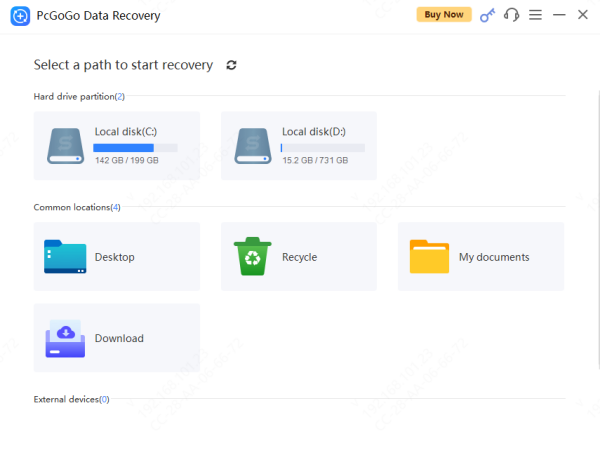
Step 2: Select the Lenovo Hard Drive
Launch PcGoGo Data Recovery and choose the drive or partition where data loss occurred
This can include internal hard drives, SSDs, external USB drives, or SD cards
Step 3: Scan for Lost Files
Click Scan to locate deleted or lost files
Use Deep Scan for formatted or corrupted drives to maximize recovery
Step 4: Preview Files
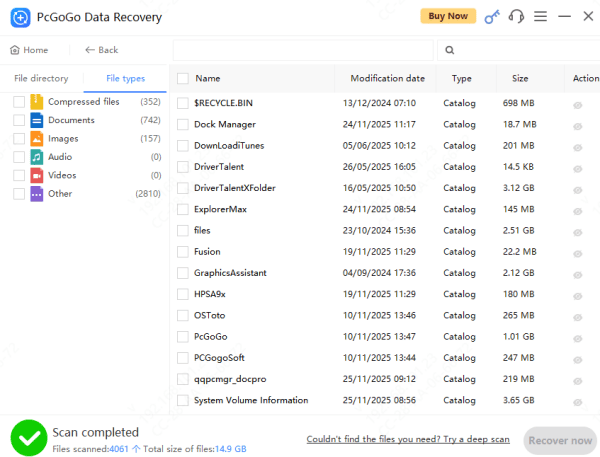
Once the scan is complete, preview recoverable files to check their integrity
This ensures you only restore the files you actually need
Step 5: Recover and Save Files
Select the files you want to recover
Save them to a different drive or external storage—never save back to the original drive, as this may overwrite remaining lost data
Tips to Maximize Recovery Success
Stop using the affected drive immediately after data loss
Avoid installing new software or saving files to the same drive
Use Deep Scan for severe corruption or formatting scenarios
Always save recovered files to another drive or external storage
How to Prevent Future File Loss on Lenovo Laptops
Regularly back up important files to external drives or cloud storage (OneDrive, Google Drive, etc.)
Monitor drive health using Lenovo Vantage (SMART status)
Enable File History in Windows for automatic versioning
Keep antivirus software up to date and avoid sudden power-offs or forced shutdowns
Common Causes of File Loss on Lenovo Laptop Hard Drives
Accidental deletion or emptying the Recycle Bin
Formatting partitions or drives without a backup
System crashes, blue screens, or boot failures
Virus or malware attacks that corrupt or delete files
Corrupted file system or partition table errors
Hardware issues, such as bad sectors or physical damage from drops or shocks
Conclusion
Data loss on a Lenovo laptop can be stressful, but it does not have to be permanent. With careful precautions, the right recovery method, and professional recovery tools like PcGoGo Data Recovery, most lost files can be restored safely and efficiently. By acting quickly, recovering files to a safe location, and implementing regular backups, you can protect your data and minimize the risk of future loss.




