






Forgetting your iPhone passcode can lock you out of your device and prevent access to important data and features. Issues like repeated failed attempts, Face ID or Touch ID failures, and forgotten passwords can trigger messages such as "iPhone Unavailable" or "Security Lockout." This guide explains safe ways to unlock an iPhone without a passcode, including Apple's official Recovery Mode and PcGoGo Screen Unlock, helping you restore access to your device step by step.
Common Scenarios Where You Might Get Locked Out
Getting locked out of your iPhone can happen in several ways:
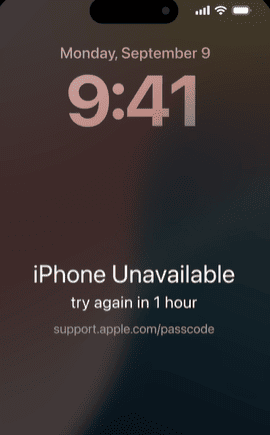
Too many incorrect passcode attempts: After entering the wrong passcode multiple times, your iPhone will lock you out and display the message "iPhone Unavailable" or "Security Lockout"
Face ID or Touch ID failure: If Face ID or Touch ID fails to recognize you multiple times, and you can't remember the passcode, it can result in a lockout
Forgetting the password: If you recently changed your password or haven't used it in a while, it's easy to forget it and get locked out
Method 1: Unlock an iPhone Using Apple Recovery Mode
Apple's Recovery Mode is the official way to unlock an iPhone without a passcode. This method will erase all data on your device, so ensure you have a backup if possible. Here's how to do it:
What is Recovery Mode?
Recovery Mode is a troubleshooting tool built into iOS that allows you to restore your device by connecting it to a computer
It's an official method provided by Apple
Turn off your iPhone
Disconnect your iPhone from the computer if it's connected
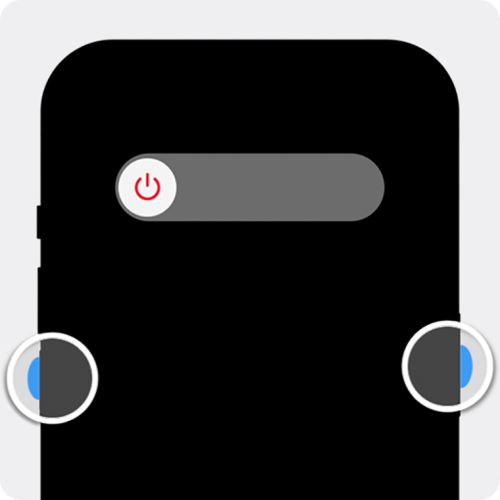
For iPhones without a Home button: Press and hold the Volume Down and Side buttons until the power-off slider appears. Slide to power off
For iPhones with a Home button: Press and hold the Top button until the power-off slider appears
Enter Recovery Mode
Connect theiPhone to the computer using a USB cable
For iPhones without a Home button: Press and quickly release the Volume Up button, then press and release the Volume Down button, and then press and hold the Side button until the recovery mode screen appears
For iPhones with a Home button: Press and hold both the Home and Top buttons until the recovery mode screen appears

Restore your iPhone
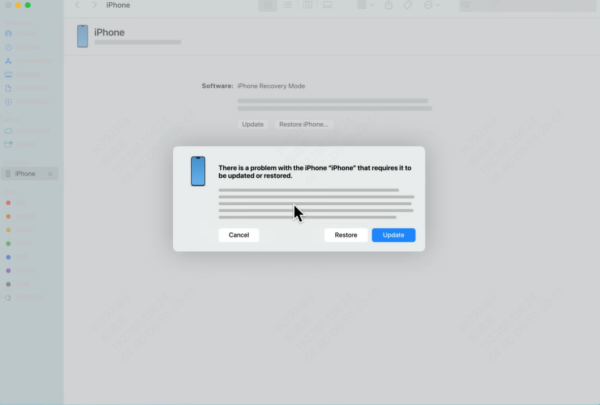
On your computer, open Finder (Mac) or iTunes (Windows)
Your iPhone will appear in the sidebar. Select it
When prompted, click Restore to begin the restoration process
Set up your iPhone
After the restore process is complete, your iPhone will restart. Follow the on-screen instructions to set it up
If you have a backup, restore it from iCloud or iTunes to recover your data
Method 2: Unlock an iPhone Using PcGoGo Screen Unlock (Recommended)
If you're looking for a quicker, easier solution, PcGoGo Screen Unlock is a fantastic alternative. This third-party software can remove any type of iPhone screen lock, including passcodes, Face ID, and Touch ID, without requiring a password. It's simple, fast, and safe to use.
Step 1: Download and Install PcGoGo Screen Unlock
Visit the official PcGoGo Screen Unlock website
Download and install the software on your computer
Step 2: Connect your iPhone to the Computer
Use a USB cable to connect your iPhone to the computer
Ensure that the software detects your device
Step 3: Download the Firmware Package
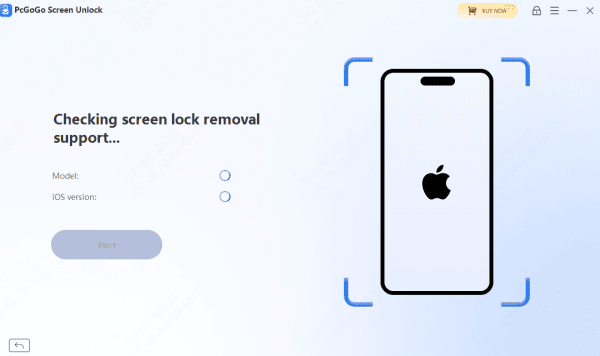
PcGoGo Screen Unlock will automatically detect your device model and iOS version
Download the necessary firmware package to unlock your iPhone
Step 4: Start the Unlocking Process
Once the firmware is ready, click Start Removal to begin the unlocking process
The software will remove the passcode, Face ID, or Touch ID
Wait a few minutes for the process to complete
Step 5: Set up your iPhone after unlocking
Once the unlocking process is finished, your iPhone will restart
Follow the on-screen instructions to set up your iPhone
Restore your data from iCloud or iTunes if available
Conclusion
Forgetting your iPhone passcode is frustrating, but with the right tools, you can regain access. Whether you choose Apple's Recovery Mode or the quicker and more user-friendly PcGoGo Screen Unlock, both methods will help you unlock your iPhone without the password. If you prefer a simple, fast solution, PcGoGo Screen Unlock is the way to go.




