






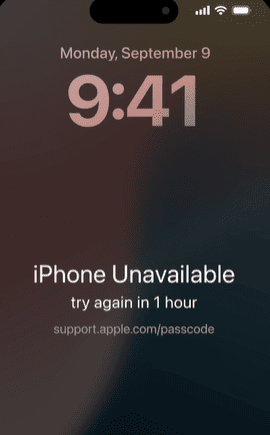
Getting locked out of your iPhone can happen unexpectedly. Multiple incorrect passcode attempts, failed Face ID recognition, or forgetting a recently changed password can trigger messages like "iPhone Unavailable" or "Security Lockout." When both the passcode and Face ID stop working, accessing your device may seem impossible. Fortunately, you can still unlock your iPhone without a passcode or Face ID. This guide explains the causes of the issue, important considerations before unlocking, and two proven methods to restore access to your iPhone.
Why You Can't Unlock Your iPhone
Several situations can prevent you from unlocking your iPhone:
Entering the wrong passcode too many times triggers a security lock
Face ID fails due to lighting changes, facial changes, or camera issues
Touch ID stops responding or is disabled
The iPhone automatically locks itself to protect your data
Once your iPhone reaches this state, Apple disables normal access methods to keep your personal information secure
Method 1: Unlock iPhone Without Passcode or Face ID Using Apple Recovery Mode
Apple's official solution for a locked iPhone is Recovery Mode. This method restores the device to factory settings and removes the screen lock.
Turn off your iPhone
Power off your device completely
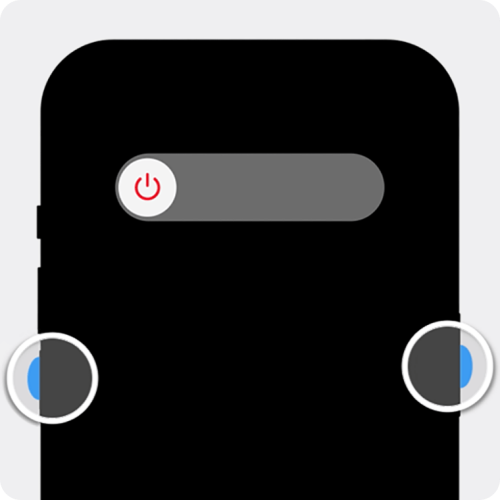
Enter Recovery Mode
Connect your iPhone to a computer and press the required button combination for your model until the recovery screen appears

Restore Your iPhone
Open Finder, iTunes, or the Apple Devices app. When prompted, choose Restore
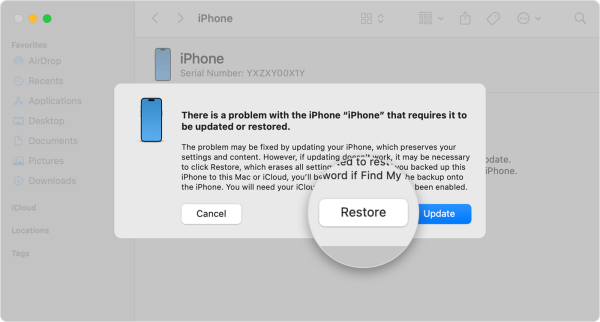
Wait for the Process to Finish
Your computer will download the required software and erase your iPhone
Set Up Your iPhone Again
Once finished, follow the on-screen instructions to set up your device
Method 2: Unlock iPhone Without Passcode or Face ID Using PcGoGo Screen Unlock (Recommended)
If you want a faster and easier solution, PcGoGo Screen Unlock offers a more user-friendly way to remove iPhone screen locks.
Step 1: Download and Install PcGoGo Screen Unlock
Download the latest version from the official website and install it on your Windows
Step 2: Connect Your iPhone to the Computer
Use a USB cable to connect your locked iPhone. Launch the program and select Unlock Screen Passcode
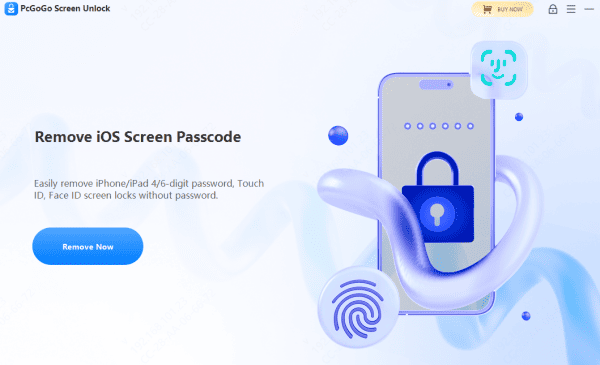
Step 3: Download the Firmware Package
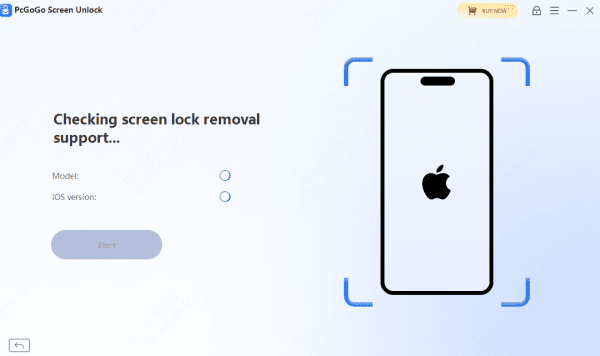
The software automatically detects your device model and iOS version, then downloads the required firmware
Step 4: Start Removing the Screen Lock
Click Start Removal and wait while the program unlocks your iPhone
Step 5: Set Up Your iPhone
Once the process is complete, your iPhone will restart without a lock. You can then restore your data from a backup if available
Apple Recovery Mode vs PcGoGo Screen Unlock
Apple Recovery Mode is reliable but can be time-consuming and complex, especially for beginners. It requires precise button combinations and often takes longer to complete
PcGoGo Screen Unlock, on the other hand, offers a simpler and faster experience. With a guided interface and fewer steps, it's a better choice for users who want an easy, low-stress unlocking process
Conclusion
Forgetting your iPhone passcode and losing Face ID access doesn't mean your device is unusable. You can unlock an iPhone without a passcode or Face ID using either Apple Recovery Mode or a faster tool like PcGoGo Screen Unlock. If you want a simple and efficient solution, PcGoGo Screen Unlock is often the easiest way to regain access and get your iPhone working again.
Frequently Asked Questions
Can I unlock my iPhone without passcode or Face ID without losing data?
In most cases, unlocking requires erasing the device. Restoring from a backup is the best way to recover data.
Can I unlock my iPhone without an Apple ID?
The screen lock can be removed, but Apple ID verification may still be required after unlocking.
Does this work for disabled or unavailable iPhones?
Yes, both methods work for iPhones showing "iPhone Unavailable" or "Security Lockout."




