






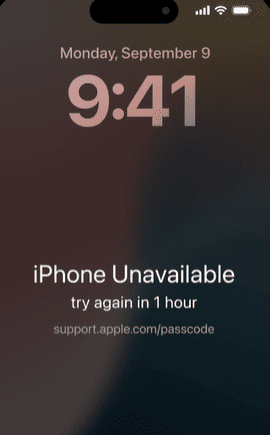
Being locked out of an iPhone can happen to anyone, especially after forgetting a passcode or entering the wrong password too many times. Once the device shows messages like "iPhone Unavailable" or "Security Lockout," normal access is blocked until the screen lock is removed. Fortunately, there are several ways to regain access, including Apple’s built-in Recovery Mode and third-party solutions such as PcGoGo Screen Unlock. These methods can help remove the forgotten passcode and restore your iPhone, although the unlocking process may erase existing data.
Why an iPhone Gets Locked Without a Passcode
There are several common reasons why users end up locked out of their iPhones:
Entering the wrong passcode too many times
Forgetting a recently changed passcode
Face ID or Touch ID suddenly stops working
Buying a second-hand iPhone that's still locked
Not using the device for a long time
Once the iPhone is disabled, you won't be able to open apps, access files, or change settings until the lock is removed
Method 1: Unlock iPhone With No Passcode Using Apple Recovery Mode
Apple provides an official way to unlock an iPhone by restoring it through Recovery Mode. This method works for most iPhone models and iOS versions.
Step 1: Turn Off Your iPhone
Disconnect your iPhone from the computer if it's connected
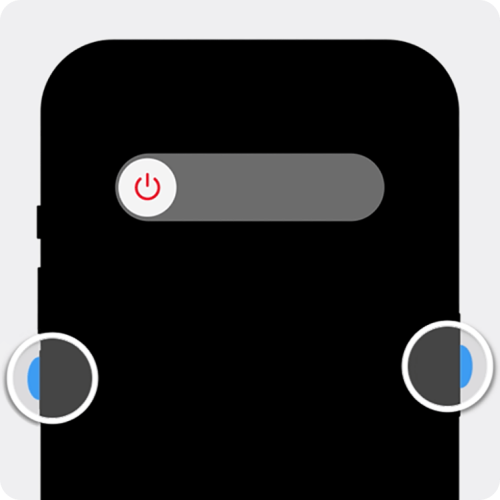
Power off the device using the method for your model
Step 2: Enter Recovery Mode
Connect your iPhone to a computer using a USB cable, then press and hold the correct button combination:
iPhone 8 and later:
Quickly press and release Volume Up, then Volume Down, then press and hold the Side button until the recovery screen appears
iPhone 7 / 7 Plus:
Press and hold the Volume Down and Side buttons together
iPhone 6s and earlier:
Press and hold the Home button and Side (or Top) button together
Keep holding the buttons until you see the recovery mode screen with a cable and computer icon

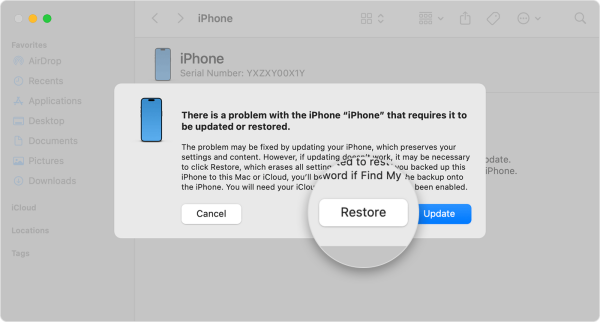
Step 3: Restore iPhone Using Finder or iTunes
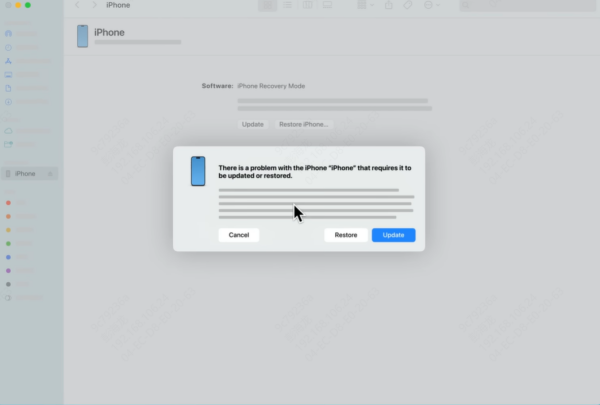
Open Finder, iTunes, or the Apple Devices app on your computer
When prompted, choose Restore
The system will download the required firmware and erase your iPhone, removing the passcode in the process
Method 2: Unlock iPhone With No Passcode Using PcGoGo Screen Unlock (Recommended)
If you want a quicker and more user-friendly solution, PcGoGo Screen Unlock is a reliable alternative. It's designed to remove iPhone screen locks even when you've completely forgotten the passcode.
Step 1: Download and Install PcGoGo Screen Unlock
Download the latest version from the official PcGoGo Screen Unlock website
Install and launch the program on your Windows PC
Step 2: Connect Your iPhone to the Computer
Use a USB cable to connect your locked iPhone
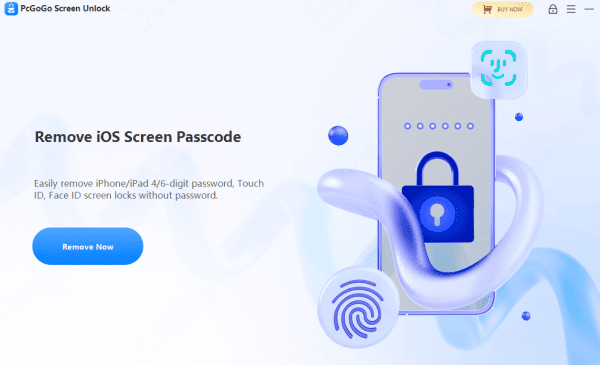
On the main interface, choose Unlock Screen Passcode and click Remove Now
Step 3: Download the Firmware Package
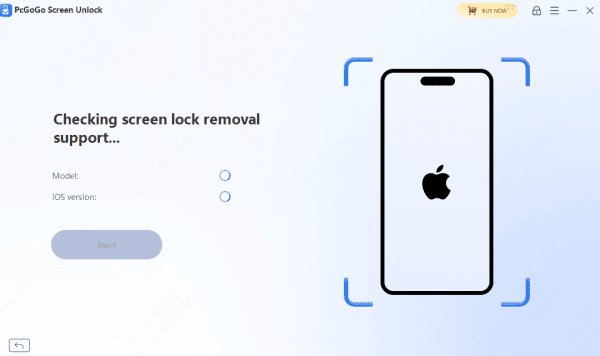
The software will automatically detect your iPhone model and iOS version
Download the required firmware package and wait for it to finish
Step 4: Remove the Screen Lock
Click Start Removal
PcGoGo Screen Unlock will begin removing the passcode
Do not disconnect your iPhone during this process
Within a few minutes, the screen lock will be successfully removed
Step 5: Set Up Your iPhone
Once unlocked, your iPhone will restart
Follow the on-screen setup instructions and restore your data from iCloud or a computer backup if available
Apple Recovery Mode vs PcGoGo Screen Unlock
Apple Recovery Mode
Apple Recovery Mode is the official solution provided by Apple to unlock a disabled or locked iPhone
While it is safe and reliable, the process can be time-consuming and requires precise button combinations to enter recovery mode
Users must rely on Finder, iTunes, or the Apple Devices app, and any mistakes during the process may force them to start over
This method is better suited for users who are familiar with Apple's system tools and don't mind a more technical process
PcGoGo Screen Unlock
PcGoGo Screen Unlock offers a faster and more user-friendly alternative
With a clear interface and step-by-step guidance, it allows users to unlock an iPhone with just a few clicks
The software handles device detection and firmware downloads automatically, reducing errors and saving time
For users who want a simpler, more efficient way to unlock their iPhone without dealing with complicated steps, PcGoGo Screen Unlock is the more convenient option
Conclusion
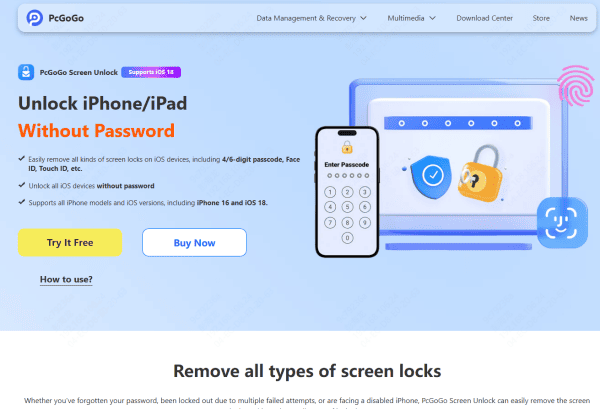
Being locked out of your iPhone doesn't have to be the end of the road. Whether you choose Apple's official Recovery Mode or a faster solution like PcGoGo Screen Unlock, there are reliable ways to unlock an iPhone with no passcode. If you want a simple, efficient, and beginner-friendly method, PcGoGo Screen Unlock is the recommended choice. Just a few clicks can help you regain full access to your iPhone and get back to using it normally.




