






Forgetting your iPhone passcode can be frustrating, especially when multiple incorrect attempts lead to messages like "iPhone Unavailable" or "Security Lockout." In such cases, your device becomes temporarily inaccessible, and Face ID or Touch ID may also fail to work. While this may feel like a dead end, the good news is that unlocking your iPhone without a password is possible. In this guide, we'll walk you through two effective methods: Apple's official recovery mode and a faster solution using PcGoGo Screen Unlock.
Method 1: Unlock iPhone Using Apple's Official Recovery Mode
Apple provides a built-in recovery mode that allows you to restore your iPhone to factory settings without needing the passcode. Here's how to do it:
Turn off Your iPhone
For iPhones with Face ID, press and hold the side button and either volume button, then slide to power off
For iPhones with a Home button, press and hold the top button until the power-off slider appears, then slide to turn off the iPhone
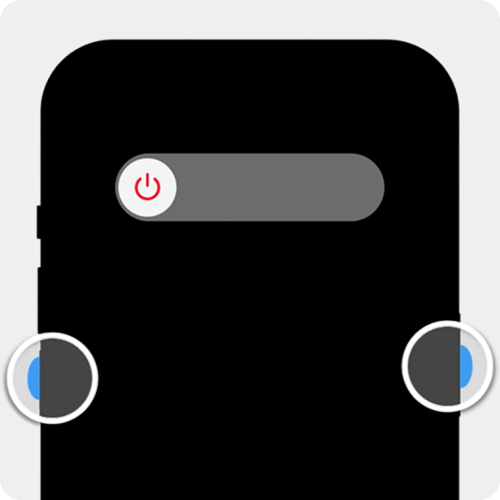
Enter Recovery Mode
For iPhones with Face ID: Press and release the volume up button, press and release the volume down button, then press and hold the side button until you see the recovery mode screen (a computer icon and a cable)
For iPhones with a Home button: Press and hold the Home button and the top button at the same time until the recovery mode screen appears

Connect Your iPhone to the Computer
Use a USB cable to connect your iPhone to your computer. Open iTunes (or Finder if you're using macOS Catalina or later)
Restore Your iPhone
iTunes or Finder will detect your device in recovery mode and offer the option to either "Restore" or "Update"
Select "Restore" to erase your iPhone and reinstall the latest version of iOS
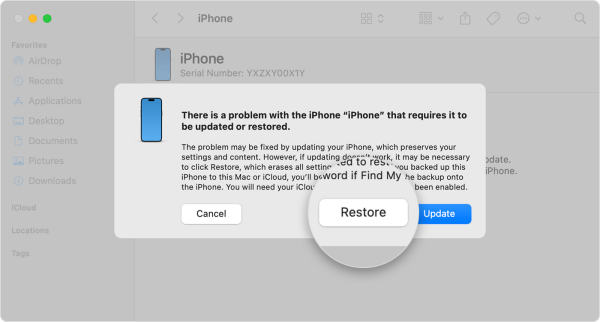
Set Up Your iPhone
After the process completes, your iPhone will restart, and you can set it up again as new or restore from an iCloud or iTunes backup
Method 2: Unlock iPhone Using PcGoGo Screen Unlock (Recommended)
While Apple's recovery mode is effective, it can be slow and requires wiping your device. For a quicker, more efficient solution, PcGoGo Screen Unlock is an excellent alternative.
Download and Install PcGoGo Screen Unlock
Visit the official PcGoGo Screen Unlock website and download the latest version of the software
Install it on your compute
Connect Your iPhone to the Computer
Use a USB cable to connect your locked iPhone to your computer
Launch PcGoGo Screen Unlock
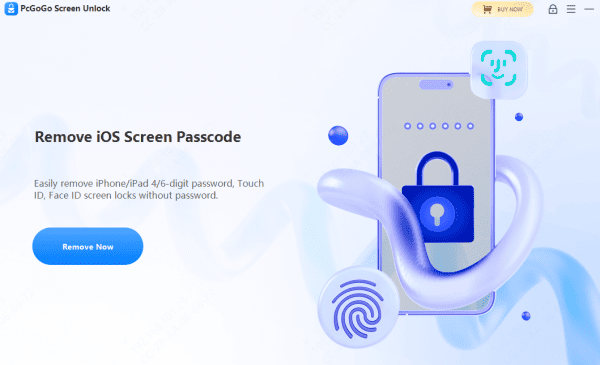
Download the Firmware Package
The software will automatically detect your iPhone model and iOS version
Click "Download" to get the required firmware package
Start Removing the Screen Lock
Once the firmware package is downloaded, click the "Start Removal" button
The software will begin unlocking your iPhone by removing the passcode, Face ID, or Touch ID lock
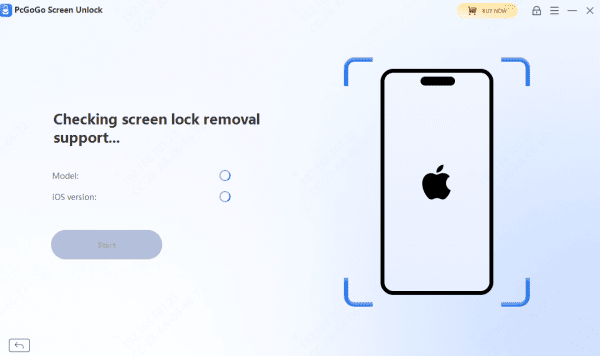
Set Up Your iPhone After Unlocking
Once the process is complete, your iPhone will restart without the lock screen
You can now set up your iPhone and restore your data from iCloud or your computer backup
Conclusion
In conclusion, if you forget your iPhone passcode, there are two effective methods to regain access: Apple's official Recovery Mode and the faster, more convenient PcGoGo Screen Unlock. Depending on your preference and urgency, both methods will help you unlock your iPhone and get back to using it as soon as possible.




