




Are you wondering why my wired earphones are not connecting to laptop? You plug your earphones into the headphone jack, but nothing happens. The laptop may continue playing sound through its built-in speakers, or Windows may fail to recognize the connected earphones.
Wired earphone connection problems can occur for several reasons, including incorrect audio output settings, outdated drivers, damaged headphone jacks, or incompatible connectors. Sometimes, a simple Windows setting prevents your laptop from switching to the connected audio device. This guide explains how to fix wired earphones not connecting to a laptop running Windows 10 or Windows 11.
Why Are My Wired Earphones Not Connecting to My Laptop?
Loose or damaged earphone connections.
Incorrect Windows audio output settings.
Outdated or corrupted audio drivers.
Disabled playback devices.
Dust or debris inside the headphone jack.
Incompatible 3.5 mm connectors or USB-C adapters.
Audio enhancement or exclusive mode conflicts.
Realtek audio jack detection problems.
Damaged earphones or laptop audio ports.
Method 1: Check the Earphone Connection
Disconnect the earphones from your laptop.
Inspect the connector for visible damage.
Reinsert the plug firmly into the correct audio port.
Make sure the connector is fully inserted.
Play a video or audio file to test the connection.
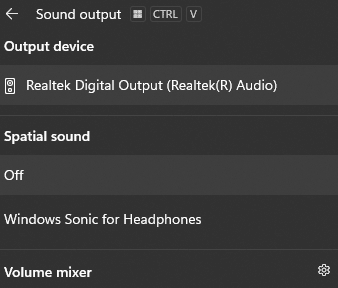
Method 2: Select the Correct Audio Output Device
Press Windows + I.
Open System.
Select Sound.
Locate the Output section.
Review the available audio devices.
Select your connected headphones if they appear.
Play audio to test the device.
Method 3: Update Audio Drivers
Audio drivers allow Windows to communicate with your laptop's sound hardware.
If the installed audio driver is outdated, corrupted, or incompatible, Windows may fail to detect wired earphones or switch audio output correctly. Checking the audio driver is particularly useful when the problem begins after a Windows update.
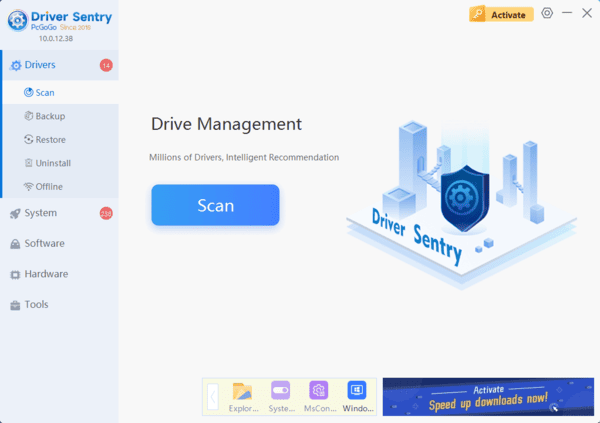
Driver Sentry is a Windows driver management utility that can identify supported missing, outdated, or problematic drivers.
It provides an additional way to check audio driver issues on laptops.
Method 4: Enable Headphones in Windows Sound Settings
Press Windows + R.
Type mmsys.cpl.
Press Enter.
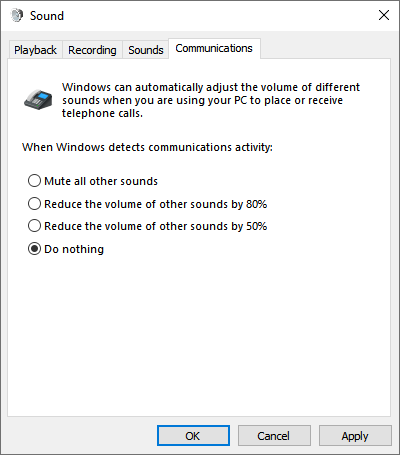
Open the Playback tab.
Right-click an empty area.
Enable Show Disabled Devices if available.
Locate your headphones.
Right-click the device and select Enable if necessary.
Method 5: Run Windows Audio Troubleshooting
Open Settings.
Navigate to System > Sound.
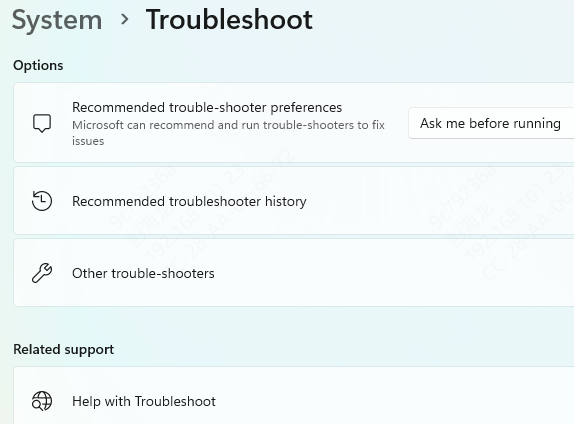
Locate the available audio troubleshooting option.
Start the diagnostic process.
Follow the on-screen instructions.
Apply any recommended fixes.
Method 6: Check Realtek Audio Console and Jack Detection
Open Realtek Audio Console if installed.
Locate the audio device or connector settings.
Check whether the headphone jack is detected.
Review available output device options.
Select the appropriate headphone configuration when supported.
Method 7: Disable Audio Enhancements and Exclusive Mode
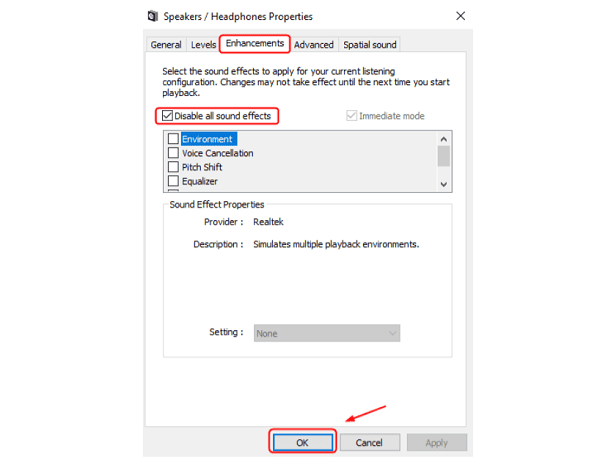
Disable Audio Enhancements
Open Settings > System > Sound.
Select the affected playback device.
Locate Audio enhancements if available.
Set the option to Off.
Test the earphones again.
Check Exclusive Mode
Press Windows + R.
Type mmsys.cpl.
Press Enter.
Select the playback device.
Click Properties.
Open the Advanced tab if available.
Temporarily disable exclusive mode options.
Click Apply.
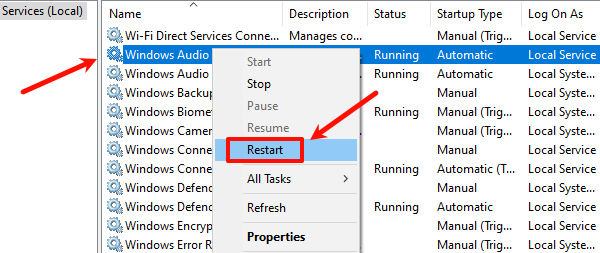
Method 8: Restart Windows Audio Services
Press Windows + R.
Type services.msc.
Press Enter.
Locate Windows Audio.
Right-click the service.
Select Restart if available.
Method 9: Test the Earphones and Laptop Audio Port
Test the Earphones on Another Device
Connect your wired earphones to another compatible computer, phone, or audio device.
If they do not work on another device, the earphones may be damaged.
Test Another Pair of Earphones
Connect a different pair of compatible wired headphones to your laptop.
If the replacement headphones work, the original earphones may have a cable or connector problem.
If neither pair works, the laptop's audio port may require further inspection.
Inspect the Headphone Jack
Look for visible dust, debris, or physical damage.
Turn off the laptop before attempting any cleaning.
Use only manufacturer-approved cleaning methods and avoid inserting metal objects or liquids into the port.
If the jack is loose or damaged, professional repair may be necessary.
Following these troubleshooting methods can help restore wired earphone functionality on Windows 10 and Windows 11.