
If you've ever seen a kernel32.dll error on your Windows PC, you know how alarming it can be. Kernel32.dll is a critical system file that handles memory management, input/output operations, and core Windows functions. When this file is missing, corrupted, or misconfigured, it can cause programs to crash, Windows features to fail, or even system instability. The good news is that this error can often be fixed without reinstalling Windows. This guide will walk you through practical, step-by-step methods to restore kernel32.dll and get your system running smoothly again.
Common Causes of Kernel32.dll Errors
Corrupted or Missing DLL File – Accidental deletion, failed updates, or system corruption
Malware or Virus Infection – Malicious software can damage or replace kernel32.dll
Corrupted or Outdated Windows System Files – Updates or crashes that leave files incomplete
Faulty Hardware – Damaged RAM or storage devices may corrupt system files
Software Conflicts or Failed Installations – Improper installation of programs may overwrite or remove DLLs
Outdated Drivers – Incompatible drivers can affect system processes that rely on kernel32.dll
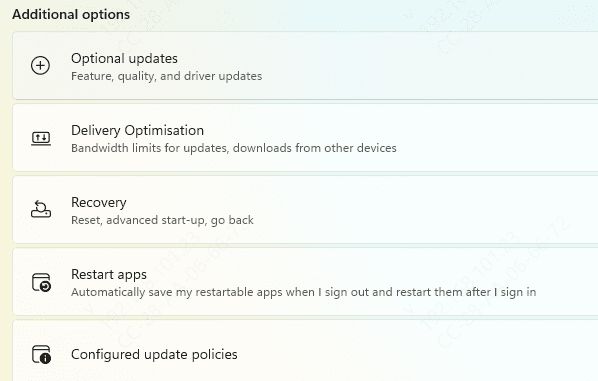
Check for Windows Updates
Keeping Windows up-to-date ensures your system files are current and protected
Press Win + I to open Settings
Go to Update & Security → Windows Update
Click Check for updates
Install all available updates and restart your PC
Run System File Checker (SFC)
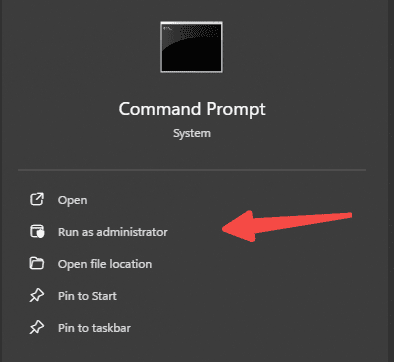
The SFC tool scans Windows for missing or corrupted system files, including kernel32.dll
Open Command Prompt as Administrator
Type:
sfc /scannow
Press Enter and wait for the scan to complete
Restart your PC once the repairs are finished
Run DISM Tool
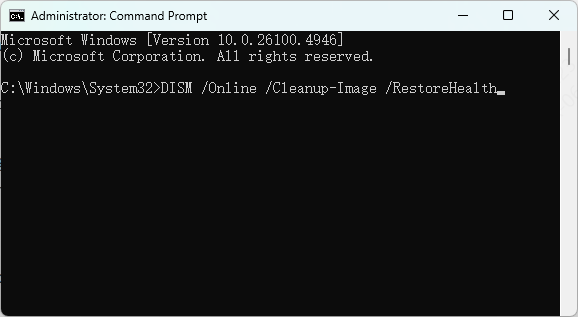
If SFC can't fix all issues, the Deployment Image Servicing and Management (DISM) tool can repair corrupted system images
Open Command Prompt as Administrator
Type the following commands one by one:
DISM /Online /Cleanup-Image /CheckHealth
DISM /Online /Cleanup-Image /ScanHealth
DISM /Online /Cleanup-Image /RestoreHealth
Press Enter after each command
Restart your PC
Scan for Malware
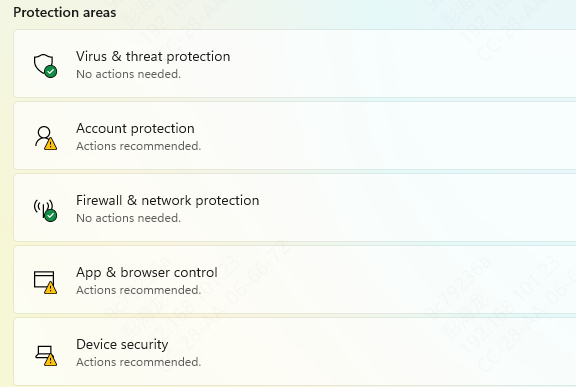
Malware can corrupt kernel32.dll and other system files
Open Windows Security or a trusted antivirus tool (e.g., Malwarebytes)
Run a full system scan
Remove or quarantine any detected threats
Restart your computer
Check and Repair Hard Drive
Damaged storage devices may affect DLLs
Open Command Prompt as Administrator
Run:
chkdsk /f /r
Press Enter. Windows will schedule a disk scan on the next restart
Restart your PC
Update or Reinstall Drivers
Outdated or corrupted drivers can trigger kernel32.dll errors
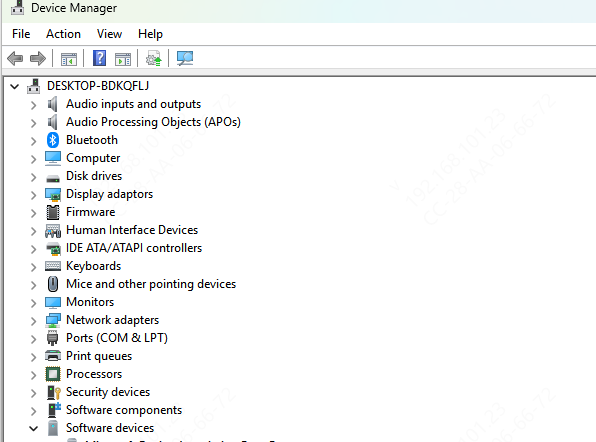
Open Device Manager (Win + X → Device Manager)
Check for outdated drivers (graphics, chipset, etc.) and update them
Restart your PC after updates
Reinstall Problematic Software
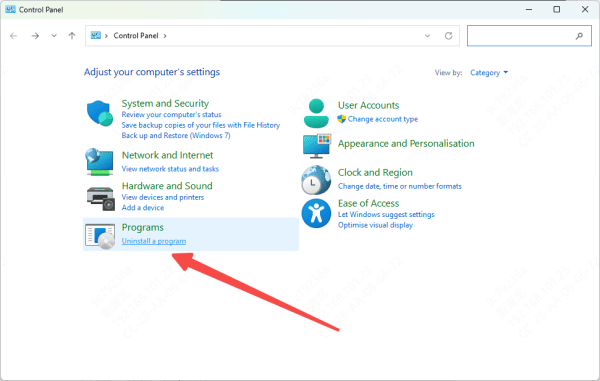
If the error appears only when launching a specific program, reinstalling the software may fix the problem
Uninstall the software completely
Delete leftover files in the installation folder
Download the latest version from the official source
Reinstall it as Administrator
Use an PcGoGo DLL Fixer
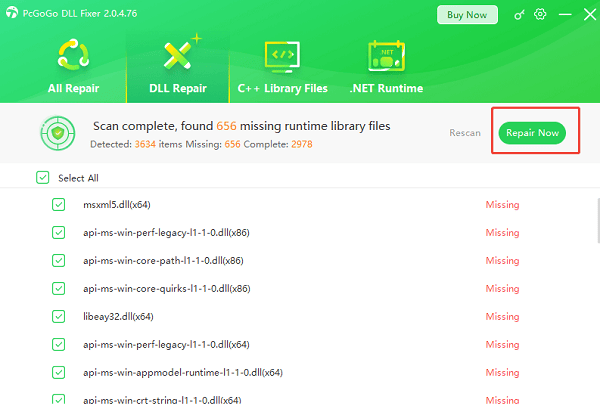
Tools like PcGoGo DLL Fixer can detect and repair missing or corrupted DLL files automatically.
Download and install PcGoGo DLL Fixer
Launch the tool and click Scan to detect DLL issues
Click Repair Now to fix all detected problems
Restart your PC
Restore Windows System (Advanced)
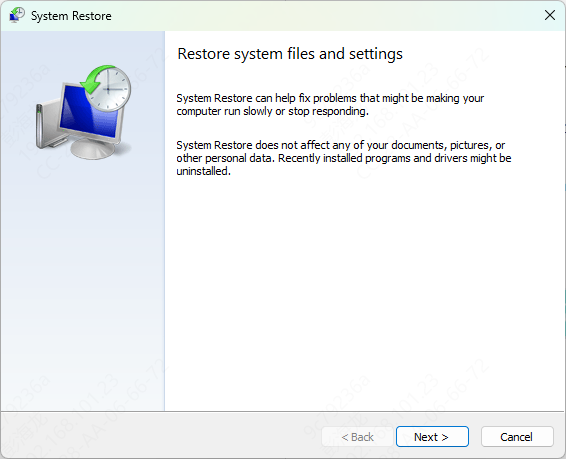
If all else fails, you can use System Restore to revert Windows to a previous point before the kernel32.dll error appeared
Press Win + R, type rstrui, and hit Enter
Choose a restore point prior to the error
Follow the on-screen instructions to restore your system
Restart your PC
Tips to Prevent Kernel32.dll Errors
Keep Windows and drivers updated
Regularly scan for malware
Avoid force-closing programs that could corrupt system files
Backup system files and create restore points periodically
Conclusion
Kernel32.dll errors can disrupt programs and even system stability, but they are often fixable without reinstalling Windows. By updating your system, repairing corrupted files, checking storage devices, updating drivers, and scanning for malware, you can resolve kernel32.dll errors effectively. Following these steps ensures a stable, error-free Windows experience.