






Is Steam failing to launch because of a missing or corrupted steam.dll file on Windows 10/11? This error can prevent you from opening Steam or launching your favorite games. Common causes include damaged Steam installation files, antivirus interference, and software conflicts. Fortunately, you can often resolve the issue without downloading DLL files from untrusted websites. This guide explains how to fix steam.dll errors by verifying game files, reinstalling Steam, checking antivirus quarantine, repairing Windows components, and troubleshooting DLL-related problems with PcGoGo DLL Fixer.
Method 1: Restart Steam and Your PC
Sometimes, the easiest solution is to simply restart your Steam client or even reboot your computer. This can resolve temporary issues caused by system glitches, background processes, or memory conflicts
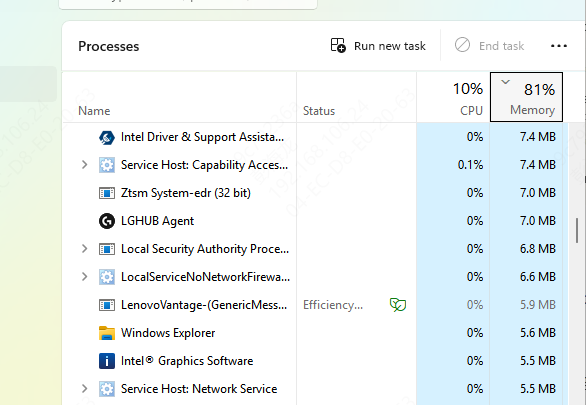
Close Steam completely. Ensure that no Steam processes are running in the background via Task Manager
Reboot your computer and then try opening Steam again to see if the issue is resolved
Method 2: Verify Steam Installation Files
Steam has a built-in tool that allows you to check and repair missing or corrupted files. If steam.dll is missing, verifying the integrity of your Steam installation can help replace it
Open Steam and click on the Steam menu at the top left corner
Select Settings > Downloads > Clear Download Cache
Restart Steam
If issues persist, verify the integrity of Steam files:
Go to your Library and right-click on the game that's having issues
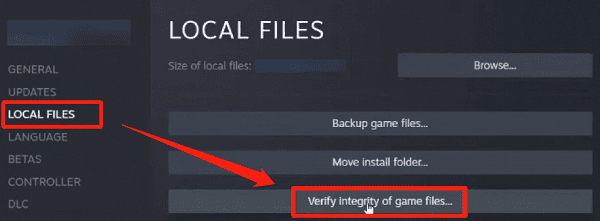
Select Properties > Local Files > Verify Integrity of Game Files
Steam will recheck the game files and replace any missing files, including steam.dll
Method 3: Reinstall Steam (Without Losing Games)
If the above methods don't work, you can reinstall Steam while keeping your game files intact. Here's how:
Uninstall Steam:
Go to Control Panel > Programs and Features > Uninstall a Program
Select Steam and click Uninstall
During uninstallation, ensure you don't delete your game files
Reinstall Steam:
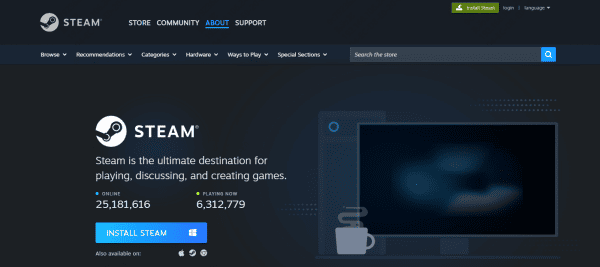
Download the latest version of Steam from the official website
Install Steam, then log in with your account
Restore Games:
After reinstalling Steam, navigate to your steamapps folder and move your games back into the Steam directory
Steam will automatically detect the games and update the files, including restoring steam.dll
Method 4: Use an Automated DLL Repair Tool
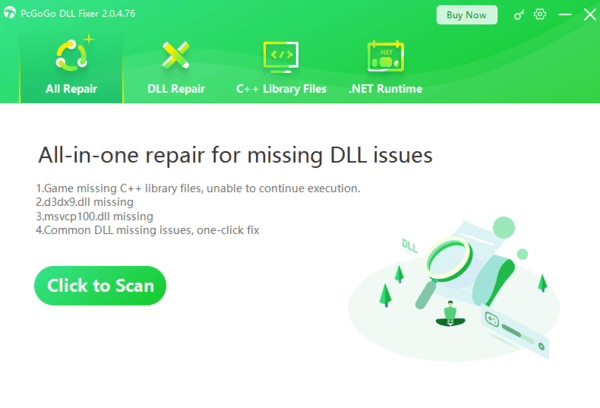
If you prefer a quick and easy solution, an automated DLL repair tool like PcGoGo DLL Fixer can help restore missing or corrupted steam.dll files.
Method 5: Run System File Checker (SFC)
The System File Checker tool (SFC) helps repair corrupted Windows system files, which may include steam.dll
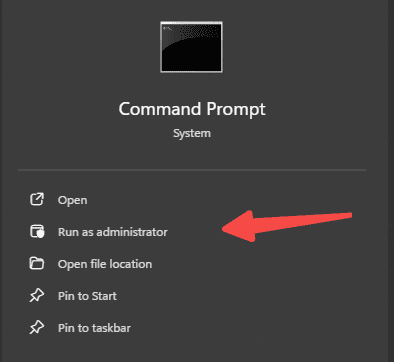
Press Win + X and select Command Prompt (Admin)
In the Command Prompt window, type the following command and hit Enter:
sfc /scannow
Wait for the scan to complete, and follow any instructions provided by SFC to fix issues
Restart your computer after the repair process completes
Method 6: Repair Windows Image with DISM
If SFC can't fix the issue, you can use the Deployment Imaging Service and Management Tool (DISM) to repair system files, including steam.dll
Open Command Prompt (Admin) again
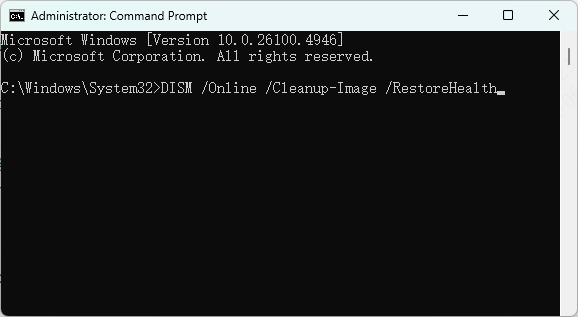
Run these commands, one by one:
DISM /Online /Cleanup-Image /CheckHealth
DISM /Online /Cleanup-Image /ScanHealth
DISM /Online /Cleanup-Image /RestoreHealth
After DISM completes the repairs, restart your PC
Method 7: Update Windows and System Components
Outdated Windows components or missing drivers can sometimes lead to issues with steam.dll. It's essential to keep your system up to date.
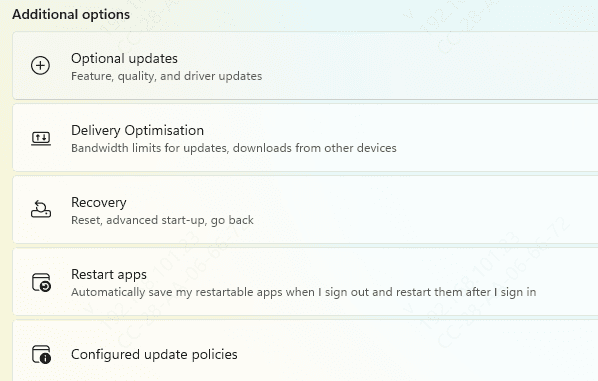
Windows Update: Go to Settings > Update & Security > Windows Update, then click Check for updates
Update Visual C++ Redistributables: Download the latest versions of Visual C++ from the official Microsoft website
Update DirectX: Ensure your DirectX version is up to date by downloading it from Microsoft's DirectX page
Method 8: Restore steam.dll from Antivirus Quarantine
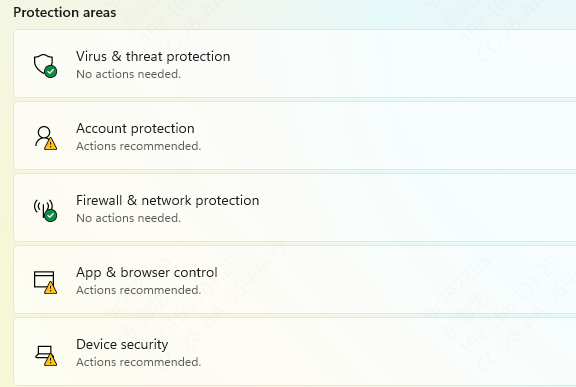
Antivirus software can sometimes mistakenly quarantine or delete the steam.dll file, thinking it's a threat. To restore the file:
Open your antivirus program and navigate to the quarantine section
Locate steam.dll in the quarantined files and restore it
Whitelist Steam to prevent the antivirus from flagging steam.dll again in the future
Prevent steam.dll Errors in the Future
Keep Steam Updated: Regularly update the Steam client to avoid missing system components
Avoid Third-Party Mods: Be cautious with mods or third-party software that may replace or alter Steam dll files
Use Antivirus Software: Keep your computer protected but ensure that Steam files aren't mistakenly quarantined
Regular System Maintenance: Run disk cleanup, update drivers, and perform regular system scans
Conclusion
The steam.dll missing error can be easily fixed by following one of the solutions outlined in this guide. Whether it's verifying files, repairing system components, or reinstalling Steam, the issue is usually solvable without drastic measures like reinstalling Windows. By following these steps, you can get back to enjoying your games on Steam quickly and without hassle.




