A Mac Mini provides an excellent foundation for running OpenClaw as a personal AI workspace. However, a successful setup requires more than just installation — hardware preparation, system security, software dependencies, and account configuration all play an important role. This guide covers the key steps to set up OpenClaw on Mac Mini, helping you build a stable and efficient AI assistant environment from the beginning.
Preparing Your Mac Mini for OpenClaw
Update macOS and Verify Hardware Compatibility
Begin by updating your Mac Mini to the newest version of macOS
Recent updates include important security patches and improve overall system stability, which benefits OpenClaw
Check your hardware against these recommendations
A Mac Mini with M2 and 8 GB RAM works well if you plan to use cloud-based models like Claude or GPT
For running smaller local models, choose an M2 Pro with at least 16 GB RAM
For better performance with larger models, go with an M4 equipped with 16–32 GB RAM
For demanding workloads and multiple models, an M4 Pro with 48 GB RAM is ideal
Having sufficient RAM and a modern Apple Silicon chip makes a noticeable difference in speed and reliability
Strengthen Security Settings
Create a dedicated standard (non-admin) user account specifically for running OpenClaw. This isolates the application and protects your main files
Enable FileVault to encrypt your entire disk
Keep the built-in macOS firewall turned on
Avoid running OpenClaw with admin privileges for everyday use
These steps add strong protection while keeping your setup simple and secure
Gather Prerequisites and Accounts
Before starting the installation, collect everything you'll need:
A Mac Mini (M2 or M4 series) with at least 16 GB RAM and 256 GB of storage
A stable internet connection — using an Ethernet cable is recommended for consistent performance
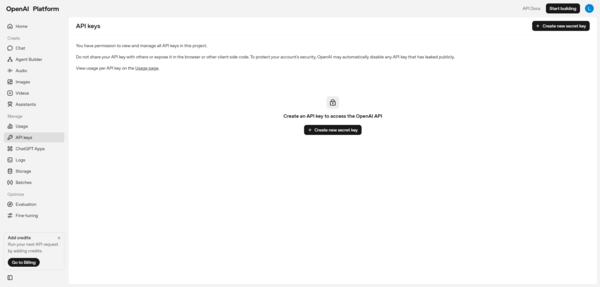
API keys from your preferred AI providers (such as Anthropic for Claude or OpenAI for GPT models)
A Telegram bot token if you want to connect messaging channels
Accounts for services like Tailscale (for secure networking) and GitHub
Create a Telegram Bot (Optional but Recommended)
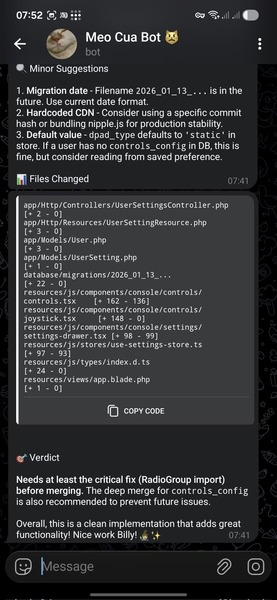
Connecting OpenClaw to Telegram gives you a fast, convenient way to interact with your AI assistant via chat
Create a new bot through BotFather in Telegram to obtain your bot token. You'll enter this token later during configuration
Telegram integration allows quick commands, reminders, file sharing, and interactive buttons
Install Required Software Packages
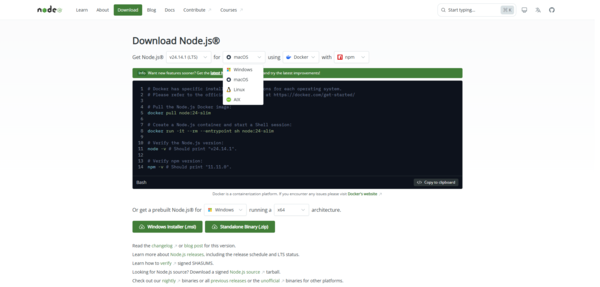
OpenClaw needs a few supporting tools to manage packages and run smoothly on macOS
First, ensure Homebrew is installed (the standard package manager for Mac). Then install Node.js, which OpenClaw relies on for its runtime environment. Finally, install pnpm to handle package management efficiently
These tools help OpenClaw handle updates, scripts, and dependencies without complications
Completing the OpenClaw Setup and Configuration
Now that the foundation is ready, you can move on to installing and configuring OpenClaw itself.
Onboarding with OpenClawTool
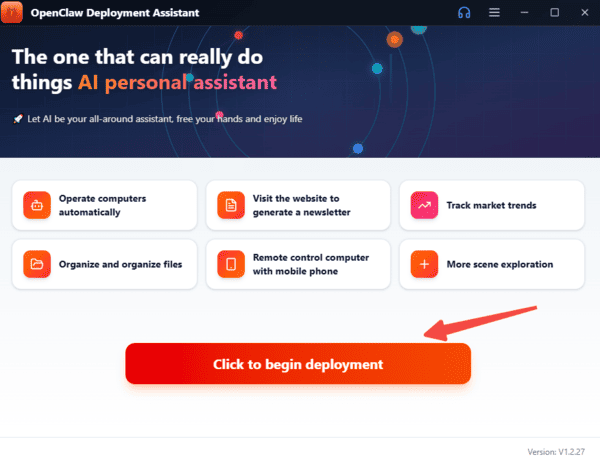
OpenClawTool makes the setup process straightforward with one click.
Configure Your AI Provider API Key
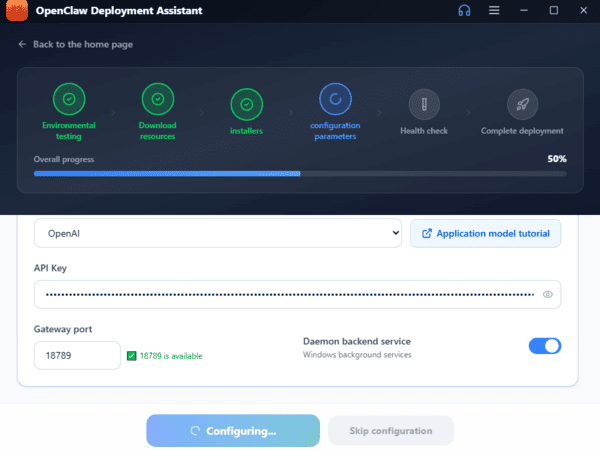
During onboarding, you'll need to add your AI provider's API key so OpenClaw can communicate with powerful models
Follow the prompts in the setup interface to authenticate and save the key securely on your Mac Mini. This key allows OpenClaw to use models from providers like Anthropic or OpenAI
Important: Treat your API key like a password — never share it and regenerate it immediately if you suspect it has been compromised
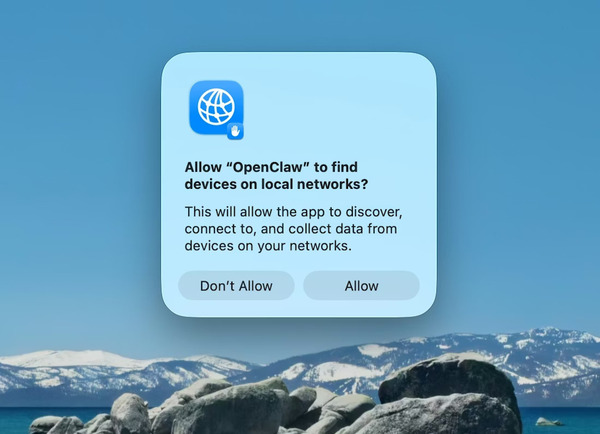
Set Up Gateway Authentication and Permissions
Configure the gateway settings to control who can access OpenClaw
Recommended options include token-based authentication (the simplest and most secure for most users) or password protection Keep the gateway listening only on localhost or your private Tailscale network for maximum safety
If you need remote access, use secure methods like SSH tunneling or VPN instead of exposing the service publicly
Warning: Always use strong authentication and avoid running the gateway without protection
Final Steps and First Use
After completing the wizard, review your settings in the OpenClaw dashboard. Send a test message through your connected channel (such as Telegram) to confirm everything is working
If you encounter any issues, the dashboard provides helpful diagnostics and logs to troubleshoot quickly
With OpenClaw successfully running on your Mac Mini, you now have a powerful, private AI assistant under your full control — ready to handle tasks, answer questions, and integrate with your daily workflow