






Encountering the unarc.dll error code 1 while trying to install a game or software can be frustrating. This error usually appears during installation or file extraction and often leads to installation failure or immediate program crashes. Fortunately, you don't need to reinstall your entire system or re-download the game in most cases. This guide will walk you through the most effective methods to fix unarc.dll error code 1 and help you get your program running smoothly again.
Method 1: Restart the Installation Process
Sometimes, restarting the installation process is the quickest solution. If the unarc.dll error code 1 appeared during the initial installation:
Close all unnecessary programs
Restart your PC
Attempt the installation again from the beginning
Make sure to run the installation as an administrator (right-click and select "Run as administrator") to avoid permission-related issues
Method 2: Check Disk Space and System Memory
Make sure that there is enough disk space on your system to accommodate the installation. To check and resolve any disk space or memory issues:
Free Up Disk Space: Ensure that you have at least 10-20 GB of free space on the disk where the installation is taking place
Delete unnecessary files or move data to an external drive if needed
Close Background Applications: Close any programs running in the background to free up memory and processing power
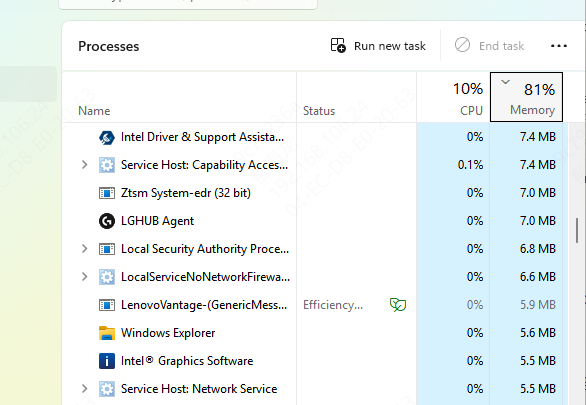
Use Task Manager (press Ctrl + Shift + Esc) to identify and close resource-heavy applications
Method 3: Temporarily Disable Antivirus Software
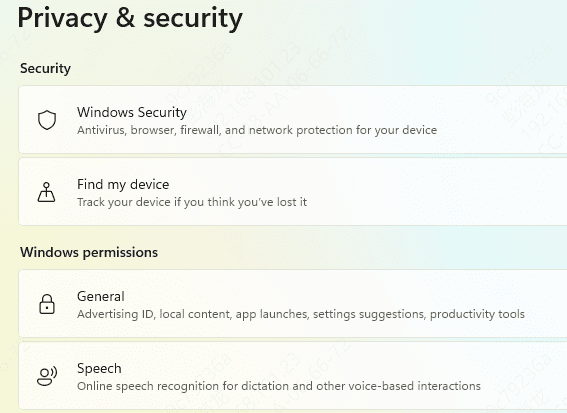
Some antivirus programs might block the unarc.dll file or prevent the game from being installed correctly. To rule this out:
Temporarily disable your antivirus software or add the game installer to the exclusions list
Be sure to turn the antivirus back on after the installation is complete
Method 4: Use an Automated DLL Repair Tool
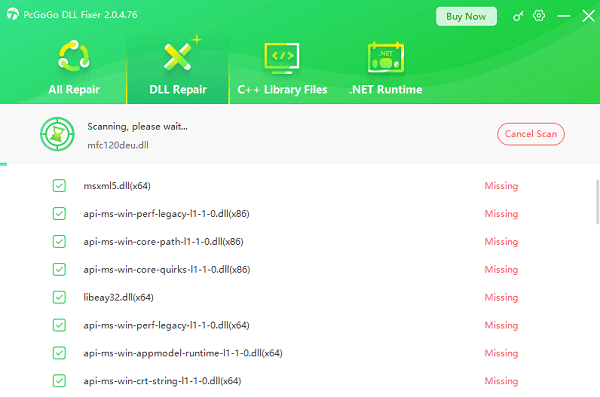
If you're not comfortable manually replacing the file, or if the issue involves multiple DLLs, you can use an automated tool like PcGoGo DLL Fixer. This tool scans your system, detects missing or corrupted DLLs, and restores the correct versions.
Download and install PcGoGo DLL Fixer
Launch the program and click Scan to check for missing or corrupted files
Click Repair Now to fix the issues automatically
Restart your PC after the fix is complete
Method 5: Increase virtual memory
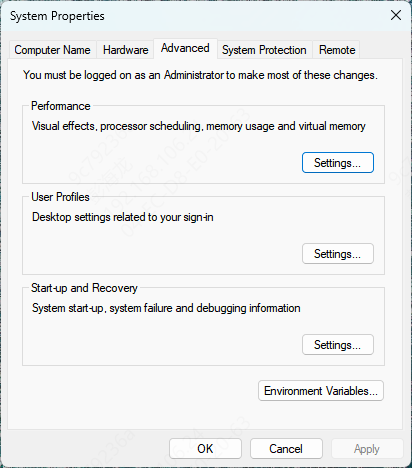
Right-click This PC → Properties → Advanced system settings → Advanced tab → Performance Settings → Advanced → Change
Uncheck "Automatically manage paging file size"
Select your fastest drive (SSD preferred)
Custom size:
Initial = 1.5 × your RAM (e.g. 24576 MB for 16 GB)
Maximum = 3 × your RAM (49152 MB) or more
Set → OK → restart PC
Method 6: Run System File Checker (SFC)
The System File Checker (SFC) tool scans and repairs corrupted or missing system files, which could be causing the unarc.dll error code 1.
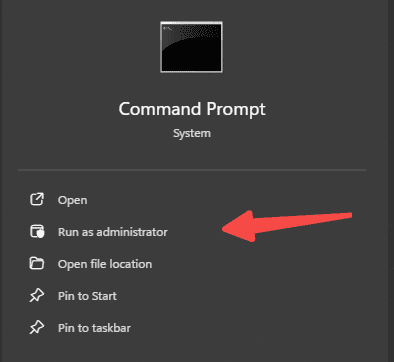
Press Win + X and select Command Prompt (Admin)
Type sfc /scannow and press Enter
Wait for the scan to finish, then restart your PC to apply any fixes
Method 7: Repair Windows Image with DISM
If SFC doesn't resolve the issue, you can use the Deployment Imaging Service and Management Tool (DISM) to repair your system image.
Open Command Prompt (Admin)
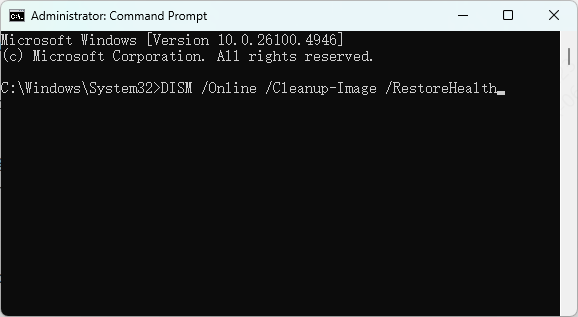
Type DISM /Online /Cleanup-Image /RestoreHealth and press Enter
Wait for the process to complete (it may take some time), and then restart your computer
Method 8: Verify or Repair Game Installation Files
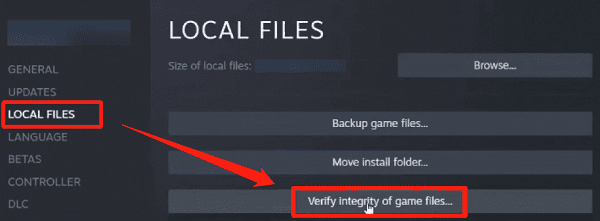
If you're using a platform like Steam, Origin, or Epic Games, these services often offer a built-in option to verify the integrity of the game files. This can help fix the unarc.dll error caused by corrupted or missing files:
Steam: Right-click on the game in your library → Properties → Local Files → Verify Integrity of Game Files
Origin: Right-click on the game → Repair
Epic Games: Click the three dots next to the game → Verify
This ensures that any missing or corrupted files are replaced, including the unarc.dll file.
Conclusion
unarc.dll error code 1 can be a frustrating issue, but it is typically easy to fix with the methods outlined above. Whether it's as simple as verifying game files or as advanced as manually replacing the DLL file, these steps can help you get your game or program up and running without needing to redownload it. Start with the simpler fixes and move to the more advanced ones if necessary.




