
Wireless headsets are a gamer's and professional's dream: freedom of movement, high-quality sound, and immersive experiences. But when your SteelSeries wireless headset suddenly produces no audio, frustration sets in. The causes are often software- or firmware-related: outdated drivers, corrupted SteelSeries GG software, misconfigured audio settings, or wireless connectivity issues. This guide will walk you through step-by-step solutions to restore sound and prevent future problems, including using Driver Sentry for effortless driver updates.
Preliminary Checks
Before diving into complex fixes, start with these basic checks:
Power and Charge
Ensure your headset is fully charged or connected to a power source
Some models won't function properly on low battery
Wireless Dongle Connection
Confirm the dongle is securely plugged into a USB port
Test a direct USB port rather than a hub
Test on Another Device
Connect your headset to another PC to rule out hardware failure
Volume and Mute Settings
Check the system volume and headset volume controls
Ensure the headset is not muted via a physical button or switch
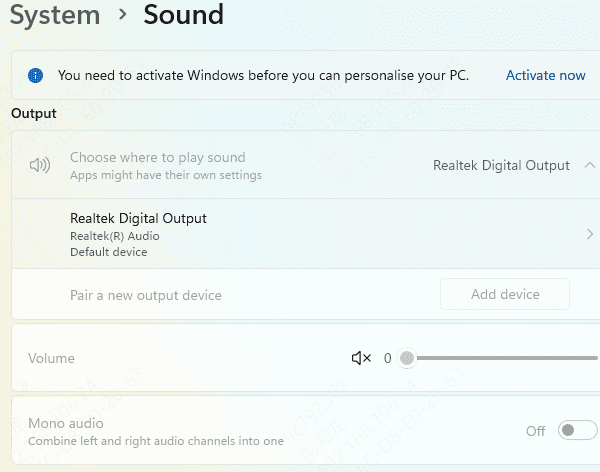
Reconnect or Reset the Headset
Wireless devices sometimes lose pairing information or experience temporary glitches:
Power cycle your headset
Unplug and reinsert the wireless dongle
Re-pair the headset following SteelSeries GG instructions
Restart your PC after reconnecting
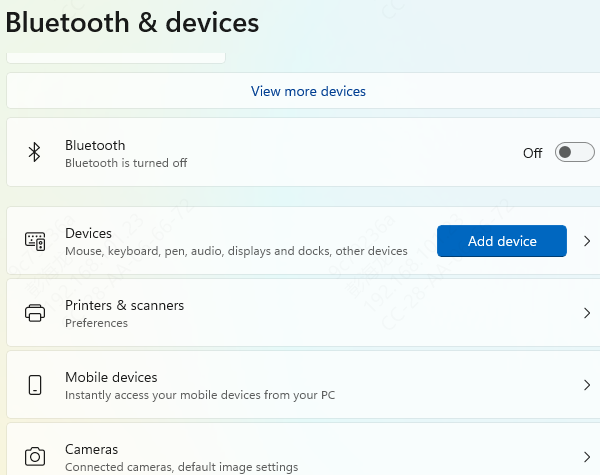
Check device in Windows setting
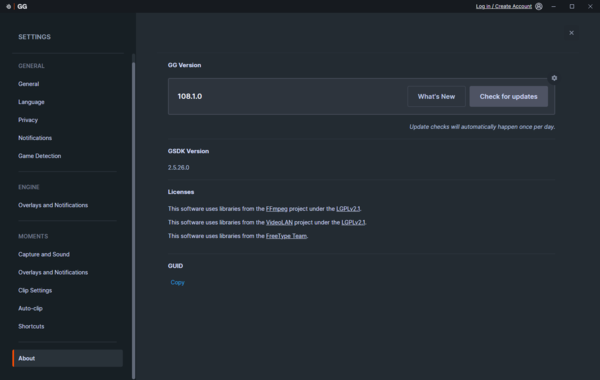
Update SteelSeries GG Software and Firmware
Open SteelSeries GG
Navigate to the Devices tab and select your headset
Check for a Firmware Update button and install any available updates
Restart your PC after installation
Update Audio Drivers
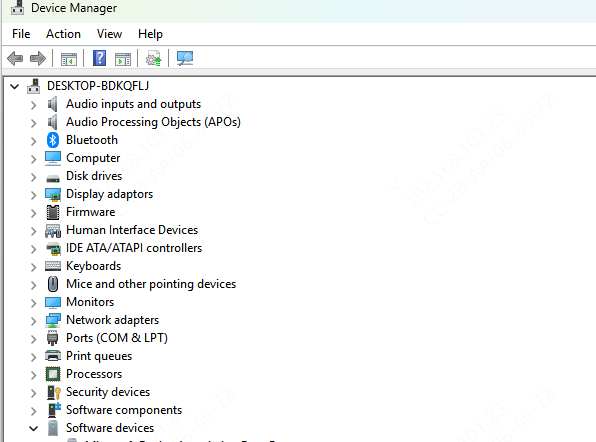
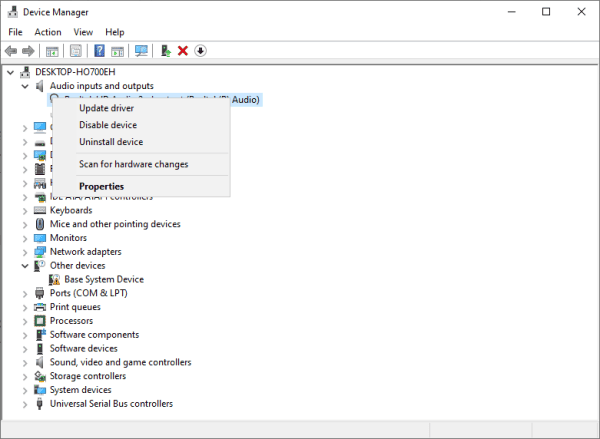
Method 1: Windows Device Manager
Press Win + X > Device Manager
Expand Sound, video, and game controllers
Right-click your SteelSeries device > Update driver > Search automatically
Restart your PC
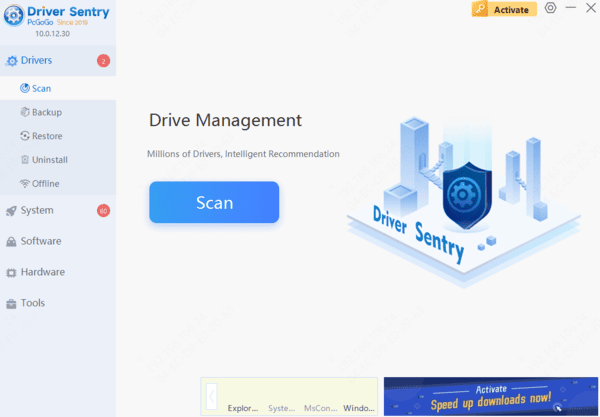
Method 2: Driver Sentry (Recommended)
Download and install Driver Sentry
Open the software and go to the Drivers tab
Click Diagnose to scan your system for outdated, missing, or corrupted drivers
Restart your PC to apply changes
Windows Audio Settings
Set SteelSeries Headset as Default Playback Device
Right-click the sound icon > Sounds > Playback > Set as Default Device
App-Specific Audio Output
Windows 11: Settings > System > Sound > Advanced > App volume and device preferences
Ensure your apps are set to output to the headset
Disable Audio Enhancements
Right-click headset in Windows > Properties > Enhancements > Disable all enhancements
Some audio effects can cause conflicts or muted sound
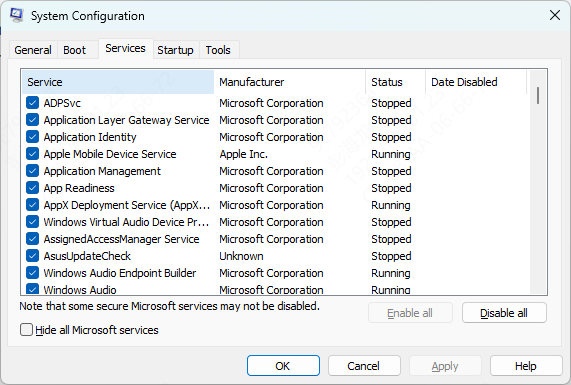
Advanced Troubleshooting
Uninstall and Reinstall Headset: Device Manager > right-click your headset > Uninstall device, then reconnect the headset
Reset SteelSeries GG Software Settings: Sometimes residual settings block audio output; restoring defaults can help
Conclusion
A SteelSeries wireless headset with no audio can disrupt gaming, streaming, and work, but most issues are software-related and solvable. Regular maintenance and driver checks every 2–3 months ensure your headset remains reliable for long gaming sessions and professional use.