The Razer Seiren BT microphone is a popular option for streamers, podcasters, and content creators thanks to its high-quality audio and Bluetooth connectivity. However, like many wireless devices, it may sometimes stop working, fail to connect, or produce distorted sound, especially during streaming or recording sessions. If your mic is not being detected or is behaving abnormally, this guide provides practical troubleshooting steps to help you quickly restore normal microphone performance.
Preliminary Checks
Before diving into advanced troubleshooting, try these simple checks:
Check the Battery and Power: Ensure the mic is fully charged and turned on
Verify Bluetooth Connection: Make sure the device is paired correctly with your PC
Inspect Sound Settings: Open Windows Sound Settings to see if the mic is recognized
Restart Devices: Restart both your computer and the microphone to clear temporary glitches
These preliminary steps often resolve simple connectivity or recognition issues without further intervention
Update or Reinstall Drivers
Outdated or corrupted drivers are the most common reason for microphone failures
Open Device Manager → locate your audio or Bluetooth devices
Right-click and select Update Driver
Search automatically or download the latest drivers from the official Razer or Intel website
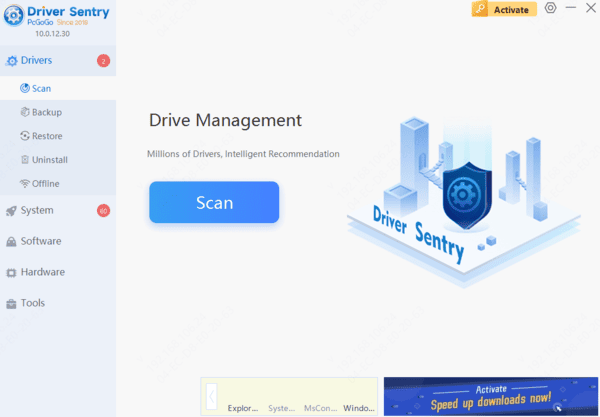
For a safer and faster option, use Driver Sentry, which automatically detects, repairs, and updates corrupted drivers
Reconnect or Repair the Bluetooth Device
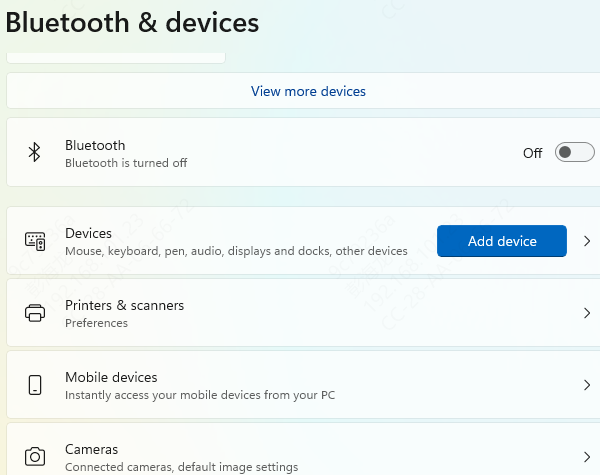
Bluetooth connectivity problems can prevent your mic from working.
Remove the Seiren BT from your paired devices list
Re-pair the microphone with your PC or laptop
Reset the Bluetooth adapter if issues persist
Ensure no other Bluetooth devices are interfering with the connection
A fresh connection often resolves pairing-related issues.
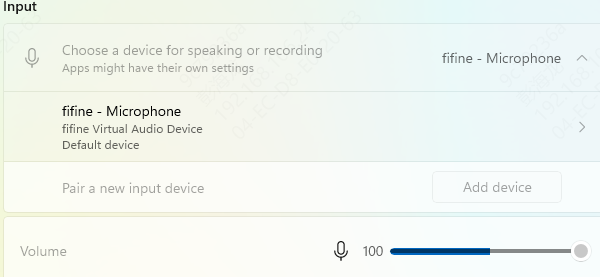
Adjust Windows Audio Input Settings
Incorrect input configuration can block the microphone:
Right-click the Speaker icon → Sounds → Recording tab.
Select Razer Seiren BT Mic as the default recording devic
Adjust input volume and test the microphone
Set the mic as default for apps like OBS, Discord, or Zoom to prevent conflicts
Proper configuration ensures consistent audio input across all applications.
Configure Software Settings
Recording and streaming software may not automatically detect your microphone.
In OBS, go to Settings → Audio → Mic/Auxiliary Device → select Seiren BT
In Discord, navigate to Voice & Video Settings → Input Device → select the mic
Disable exclusive mode in Windows audio properties to allow multiple apps to access the mic simultaneously
Misconfigured software settings are often overlooked but crucial for proper mic function.
Update Firmware
Outdated firmware may affect performance or stability:
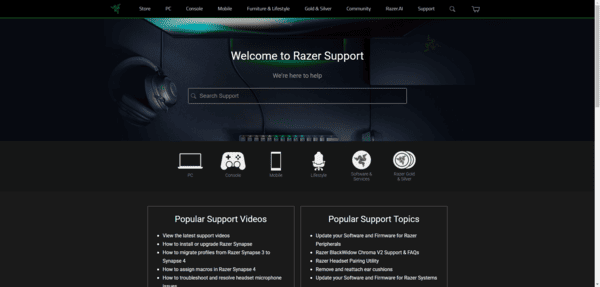
Visit the Razer official support page to check for firmware updates
Follow instructions to safely update your mic's firmware
Updating firmware resolves performance issues and enhances compatibility
Keeping your firmware current prevents many recurring problems.
Advanced Troubleshooting (Optional)
If the mic still does not work after the steps above:
Test the microphone on a different PC to rule out hardware failure
Perform a factory reset on the mic if issues persist
Check for potential Bluetooth interference from other wireless devices
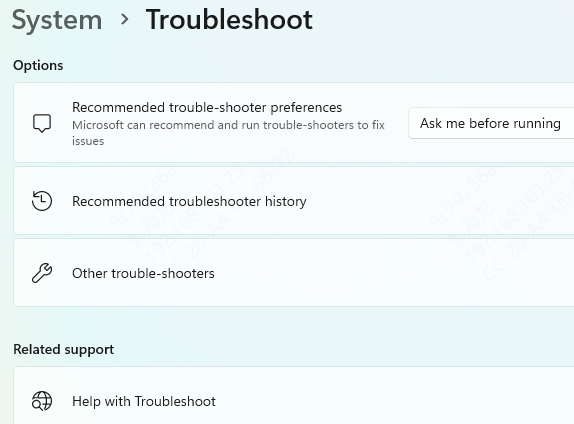
Run Windows Audio Troubleshooter to automatically detect and fix problems
These advanced steps help when standard solutions are insufficient.
Preventing Future Mic Issues
To keep your Razer Seiren BT mic working flawlessly:
Regularly update drivers, firmware, and software
Avoid connecting multiple Bluetooth audio devices simultaneously
Keep the microphone fully charged before recording or streaming
Conclusion
Experiencing a Razer Seiren BT mic not working can be frustrating, but most issues are solvable with proper steps. By checking connections, updating drivers, adjusting Windows and software settings, and keeping firmware current, you can restore your microphone to full functionality. Tools like Driver Sentry make driver updates and repairs effortless, reducing errors and ensuring your mic consistently delivers clear, professional sound. Following these best practices will help you avoid future problems.