





Seeing the message unarc.dll returned an error code 11 during installation can be frustrating because it usually stops the setup process while files are being extracted. This error is commonly related to issues such as insufficient system memory, corrupted installation files, unstable storage, or background interference from security software. In most cases, it does not require reinstalling Windows or re-downloading everything. This guide explains the most effective ways to fix unarc.dll error code 11 and complete your installation successfully.
What Does "unarc.dll Returned an Error Code 11" Mean
The unarc.dll file is responsible for unpacking and extracting compressed installation data. When the installer reports error code 11, it means the extraction process failed
This usually happens because the installer cannot properly read or write files during unpacking, often due to system limitations or file corruption
Quick Fix 1: Restart the Installation and Your PC
A simple restart can sometimes resolve temporary system issues.
Cancel the installation process
Restart your computer
Close unnecessary background applications
Run the installer again as Administrator
This helps clear memory conflicts and locked files that may have caused the error
Quick Fix 2: Check Disk Space and Drive Health
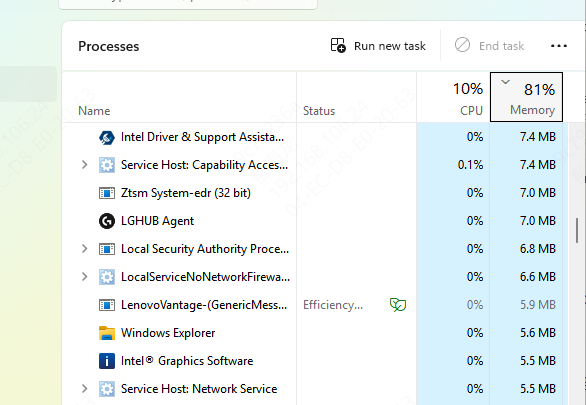
Make sure the drive you're installing to has enough free space.
Ensure you have significantly more free space than the game or program requires
Avoid installing to nearly full drives
If possible, install on an SSD for better stability
You can also run Check Disk to ensure there are no file system errors on the drive
Quick Fix 3: Temporarily Disable Antivirus Software
Some antivirus programs mistakenly block installation files, including unarc.dll.
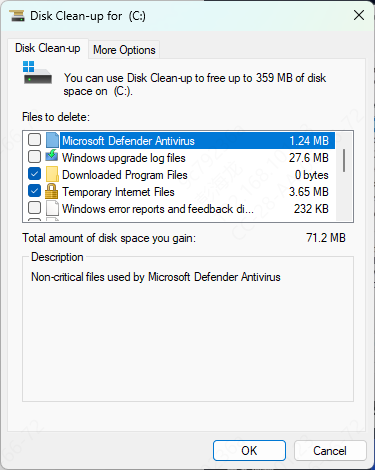
Temporarily disable your antivirus or real-time protection
Run the installer again
After installation completes, re-enable your antivirus
For long-term safety, consider adding the installation folder to the antivirus exclusion list.
Quick Fix 4: Re-check the Installation Files
If the installer files are corrupted, extraction will fail.
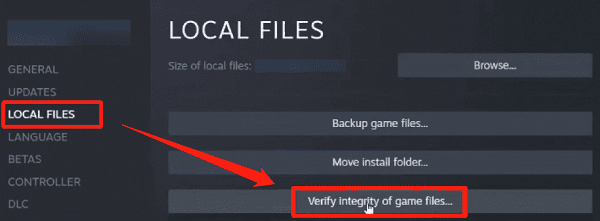
If using a game launcher like Steam or Epic Games, use the Verify File Integrity option
If using a downloaded installer, make sure the download completed successfully
Avoid interrupted or paused downloads
Corrupted archives are one of the most common reasons behind error code 11.
Quick Fix 5: Use PcGoGo DLL Fixer
If the manual fixes above feel too complicated or don't fully resolve the issue, you can try an automated tool like PcGoGo DLL Fixer. This software scans your system for missing or corrupted DLL files, including unarc.dll, and repairs them automatically. Here's how to use it:
Download and Install PcGoGo DLL Fixer
Click the download button from the official website and follow the on-screen instructions to install the software
Scan Your System
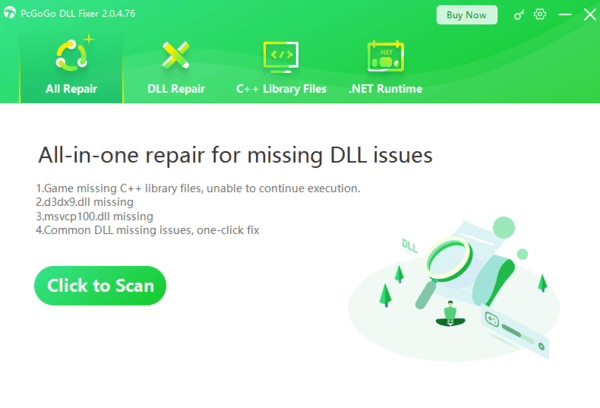
Open PcGoGo DLL Fixer and click Scan
The tool will search for missing, corrupted, or improperly registered DLL files, including unarc.dll
Repair Detected DLLs
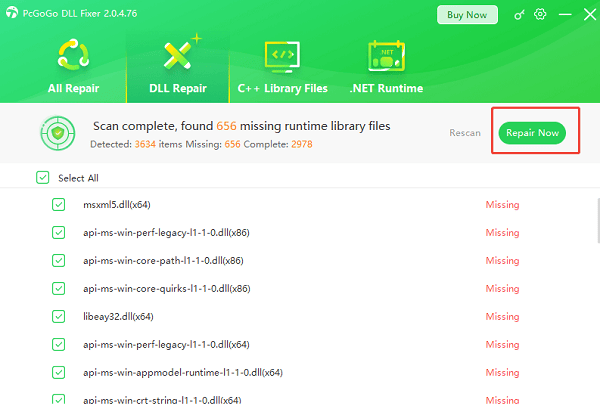
Once the scan finishes, click Repair Now
PcGoGo DLL Fixer will automatically replace or restore the correct versions of the detected DLL files
Restart Your PC
Reboot your computer to ensure the repaired DLL files are properly loaded
Try running the game or software again to check if the unarc.dll error code 11 has been resolved
This method is particularly helpful when the error persists despite trying other fixes, or when multiple DLL issues are involved.
Quick Fix 6: Increase Virtual Memory (Page File)
Low memory can trigger unarc.dll errors, especially for large game installations.
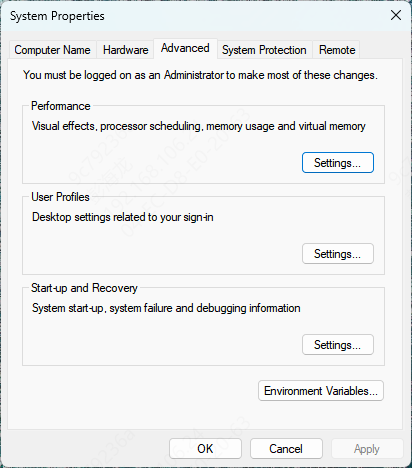
Press Win + R, type sysdm.cpl, and press Enter
Go to Advanced → Performance Settings → Advanced
Under Virtual Memory, click Change
Set a custom size or allow Windows to manage it automatically
Restart your PC
This helps prevent memory-related extraction failures.
Quick Fix 7: Run System File Checker (SFC)
Corrupted system files can interfere with installations.
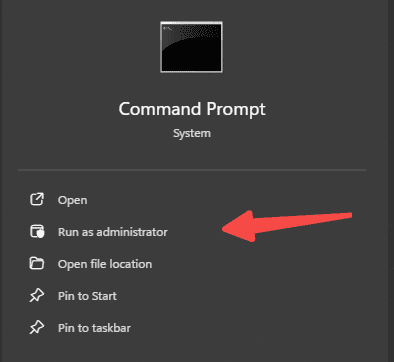
Open Command Prompt as Administrator
Type sfc /scannow and press Enter
Wait for the scan to complete
Restart your PC if repairs were made
This ensures Windows system files are intact.
Conclusion
The "unarc.dll returned an error code 11" message may look serious, but it's usually caused by common and fixable issues like disk space, antivirus interference, or memory limits. By following the quick fixes above—starting with simple steps like restarting and checking disk space—you can often resolve the problem in minutes. In most cases, there's no need to reinstall Windows or re-download the entire game. With the right approach, your installation should complete smoothly.




