






The isdone.dll error is a common Windows issue that usually appears when installing large games or software. It often occurs because the system cannot properly read or extract compressed installation files. Sometimes it is accompanied by Unarc.dll errors with messages like "isdone.dll loading error", "An error occurred while unpacking", or "Failed to decompress files". These errors prevent the installation from completing, so it is important to identify the cause and apply the right solutions.
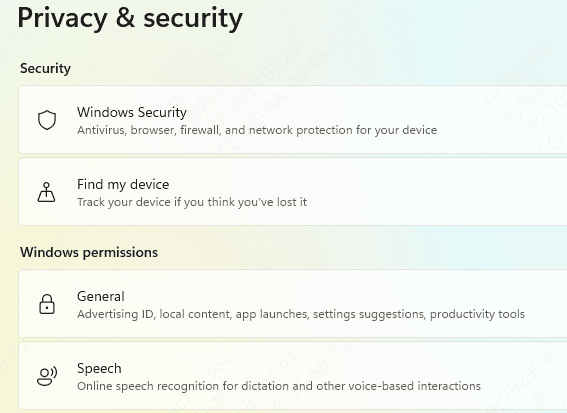
Disable Antivirus Temporarily
Some antivirus programs block or interfere with the unpacking of compressed game files
Temporarily disabling your antivirus software can help the installation proceed smoothly
After the installation is complete, enable the antivirus again to keep your system protected
Use an Automated DLL Repair Tool
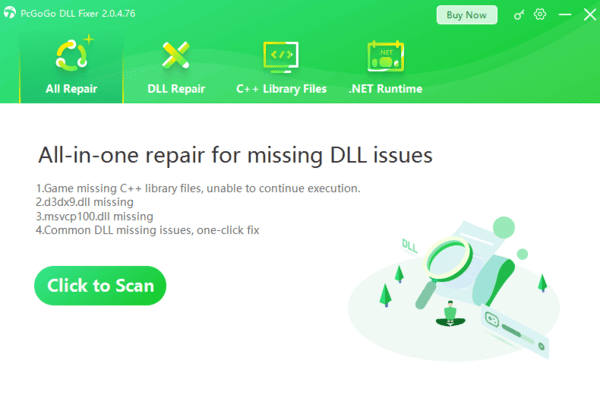
An automated repair utility such as PcGoGo DLL Fixer can quickly identify and repair missing or corrupted DLL files.
Download PcGoGo DLL Fixer
Install the software and launch it after the setup is complete
Run a Full System Scan
Click Scan, and the tool will automatically search your system for damaged or missing DLL components
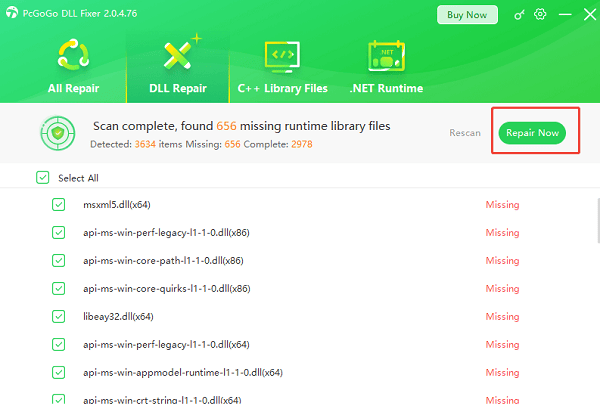
Repair
When the scan finishes, select Repair Now. The program will restore the correct version of the file to your system
Restart Your PC
Restart your computer, then try opening the affected application again
This automated approach is especially helpful
Increase Virtual Memory
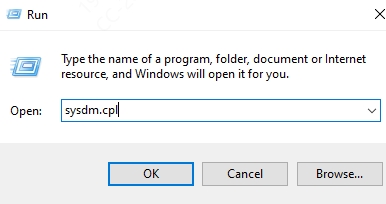
Large game setups may require more memory than your physical RAM can provide. Increasing virtual memory can help avoid decompression failures
Press Windows + R, type sysdm.cpl, and press Enter
Go to the Advanced tab and select Performance Settings
Open the Advanced section and click Change under Virtual Memory
Disable Automatically manage paging file size, then increase both the Initial size and Maximum size (for example, set them to twice your RAM)
Apply the changes and restart your computer
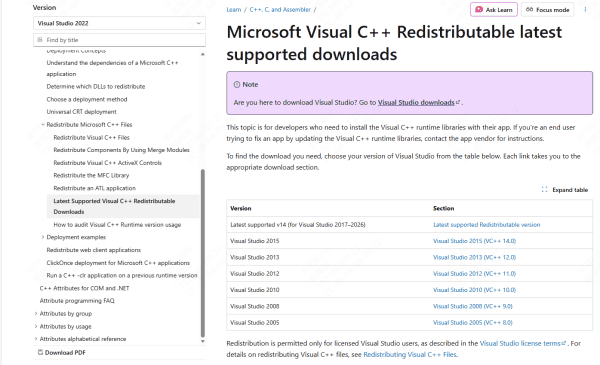
Reinstall Visual C++ Redistributables
Isdone.dll errors can occur if required Visual C++ Redistributables are missing or corrupted dll files
Visit the official Microsoft website to download the Visual C++ 2005 Redistributable
Run the downloaded installer and follow the prompts to complete the installation
Restart your computer
Open the affected program to see if the error has been resolved
Repair System Files
If Windows system files are damaged, the decompression process may fail
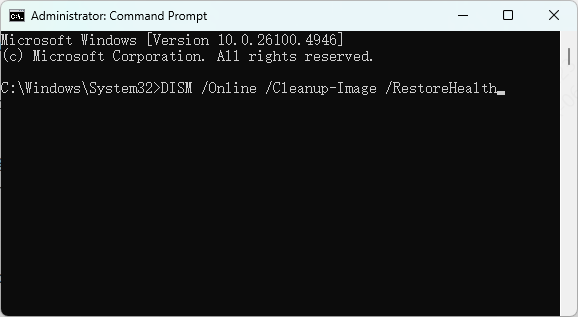
Use the built-in tools to repair system corruption
Open Command Prompt as administrator and run the SFC /scannow command
After the scan, you can also use DISM commands to repair the Windows image if needed
Once the repairs are complete, restart your computer
Run Disk Cleanup
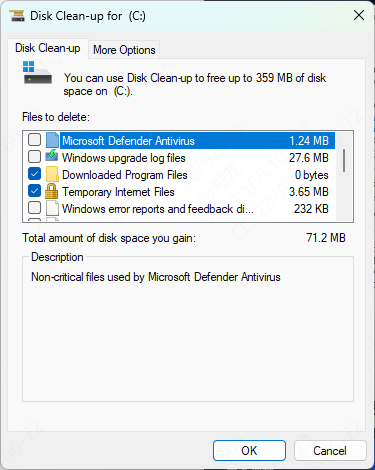
Insufficient disk space can cause isdone.dll errors during installation, and freeing up space often resolves the problem.
Open File Explorer and right-click your system drive
Choose Properties and then select Disk Cleanup
Select Temporary files, System cache, and Recycle Bin, then click OK to remove unnecessary files
Conclusion
The isdone.dll error can be frustrating, especially when it prevents large games or applications from installing. However, by following the solutions above—such as verifying setup files, increasing virtual memory, repairing system files, or using a repair tool—you can resolve the issue and complete the installation successfully. With the right steps, you can prevent this problem from happening again and ensure a smoother installation experience.




