Setting up OpenClaw properly is the key to unlocking its full potential. By following the recommended hardware and software requirements and carefully completing the installation steps, you ensure a stable and efficient setup. OpenClaw gives you full control over your data while offering a flexible, open-source platform for customization and growth. Proper configuration helps prevent errors, improves compatibility, and enhances security, giving you greater peace of mind. With a correctly configured OpenClaw instance, you can confidently use a private and reliable AI assistant, streamline your workflows, and enjoy a fully extensible AI experience directly on your own system.
What Is OpenClaw?
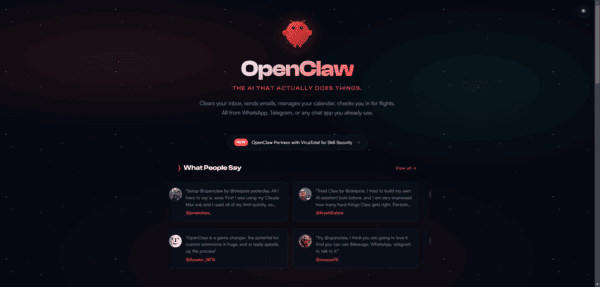
OpenClaw is a powerful tool that lets you run your own AI assistant locally on your computer. It keeps your data under your complete control instead of sending it to the cloud
The assistant operates in the background, handling tasks efficiently while storing conversations and memory as easy-to-read local files. You can extend its capabilities by adding new skills or customizations
As an open-source project, OpenClaw offers full transparency—you can inspect the code, modify it, or contribute improvements
OpenClaw delivers maximum privacy and control, so you never have to worry about third parties accessing your information
Why Proper Configuration Matters
A correct and complete setup is essential for OpenClaw to perform reliably. Skipping steps often leads to errors, such as missing tools, dashboard loading failures, or the agent failing to start
Security is another critical factor—proper configuration helps protect your local instance from unauthorized access
A thoughtful setup ensures OpenClaw remains secure, stable, and efficient. Use the dashboard regularly to verify your configuration
Hardware Checklist
Before installing OpenClaw, confirm that your computer meets the recommended specifications
The minimum setup includes at least 1 vCPU and 1 GB of RAM. For smoother performance, aim for 2 vCPUs and 2 GB of RAM
For demanding tasks, consider a powerful GPU (such as an RTX 4080 or RTX 4090) paired with 16 GB of RAM or more. You'll also need at least 500 MB of free storage space
Many users rely on Docker for running OpenClaw, as it simplifies scaling and resource management. Make sure your system supports Docker so you can run multiple containers efficiently while keeping OpenClaw isolated from other applications
Software Prerequisites
OpenClaw performs best when paired with up-to-date software. You'll need Docker installed and running on your system. Docker allows you to launch OpenClaw quickly using its official image without dealing with complex dependencies
Keep Docker updated to the latest version for improved security and performance. On macOS, Docker Desktop is the recommended option. Windows users should ensure WSL2 is properly configured for optimal Docker compatibility
Docker Compose is particularly useful for managing multiple OpenClaw containers. It also makes restarting the service straightforward and allows you to view logs easily when troubleshooting
Compatibility Notes
To avoid compatibility issues, stick to supported environments. Docker provides excellent flexibility, letting you test and run OpenClaw across different setups without altering your main system
Use Docker networks when connecting OpenClaw to other services, and restart containers if you encounter problems. The docker exec command can help you inspect or fix issues inside a running container
Installation Steps
Downloading OpenClaw
Begin by obtaining the latest version of OpenClaw
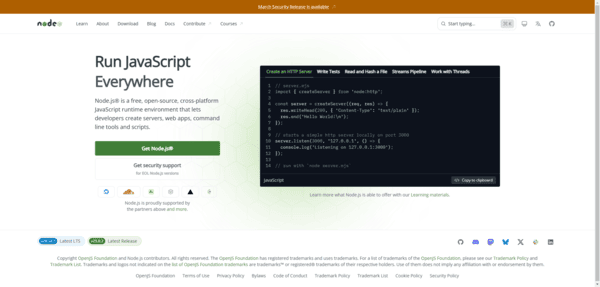
Several convenient methods are available: a quick one-liner command in your terminal, installing globally via npm (if you have Node.js), downloading the source code for advanced customization, or pulling the ready-to-use Docker image
Running the Setup Guide
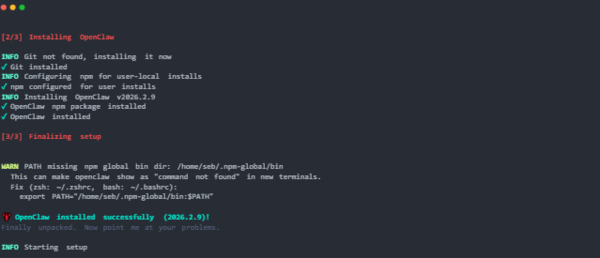
Once downloaded, follow the built-in setup guide to install and configure OpenClaw properly
This wizard walks you through the essential steps in a clear, sequential manner
After installation, carefully review the generated configuration file (typically openclaw.json) to ensure everything looks correct. If any issues arise during the process, the dashboard and setup tools can help you diagnose and resolve them quickly
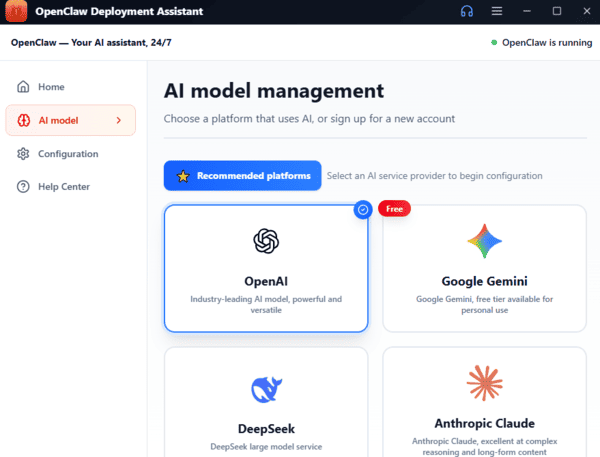
Simple way to install OpenClaw
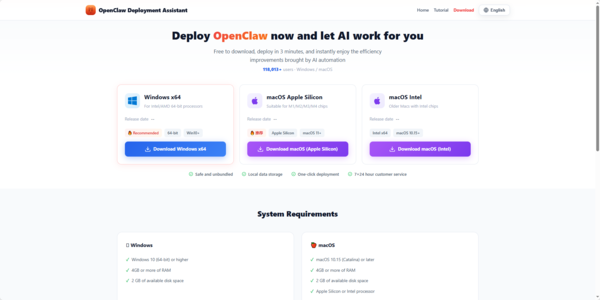
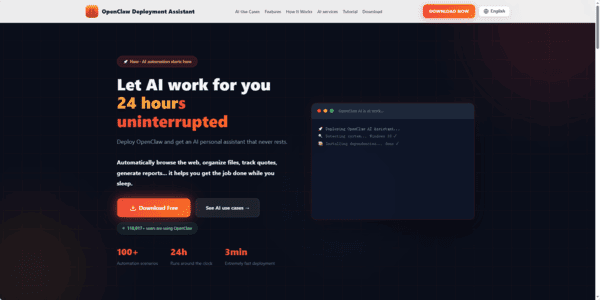
If you prefer a easy way to install OpenClaw, OpenClawTool can finish the whole installaion progcess with one click.
Channel Integration
WhatsApp Connection
You can easily connect OpenClaw to WhatsApp and interact with your AI agent directly from your phone
Using the dashboard, the setup is straightforward: just provide your WhatsApp number and scan the QR code
Once scanned, your agent will appear in your chats. You can send messages, ask questions, or even set reminders

Telegram Setup
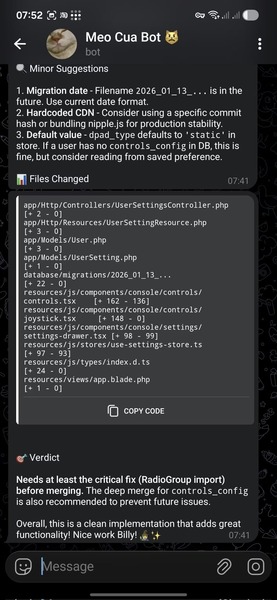
OpenClaw also integrates smoothly with Telegram. You can chat with your agent in private messages or group chats.
To get started:
Create a Telegram bot and obtain the token
Enter the token in your OpenClaw settings
Your agent will appear as a bot in Telegram, ready to handle commands, share files, and provide assistance
Conclusion
Properly setting up OpenClaw ensures a smooth, secure, and efficient AI experience. By following the installation steps, meeting hardware and software requirements, and integrating channels like WhatsApp and Telegram safely, you maintain full control of your data while enjoying a reliable, private, and customizable AI assistant.